DaVinci Resolve Fusion Macros: Tool vs. Group Operator Explained
Are you tired of rebuilding the same node trees in DaVinci Resolve Fusion over and over again? 😫 We've all been there. You create a stunning effect, a perfect lower third, or a complex color grade, and then... you have to build it from scratch for the next project.
Enter the Fusion Macro! 🧙♂️✨ It's not just a template; it's a powerhouse workflow accelerator that saves a group of nodes as a single, reusable tool.
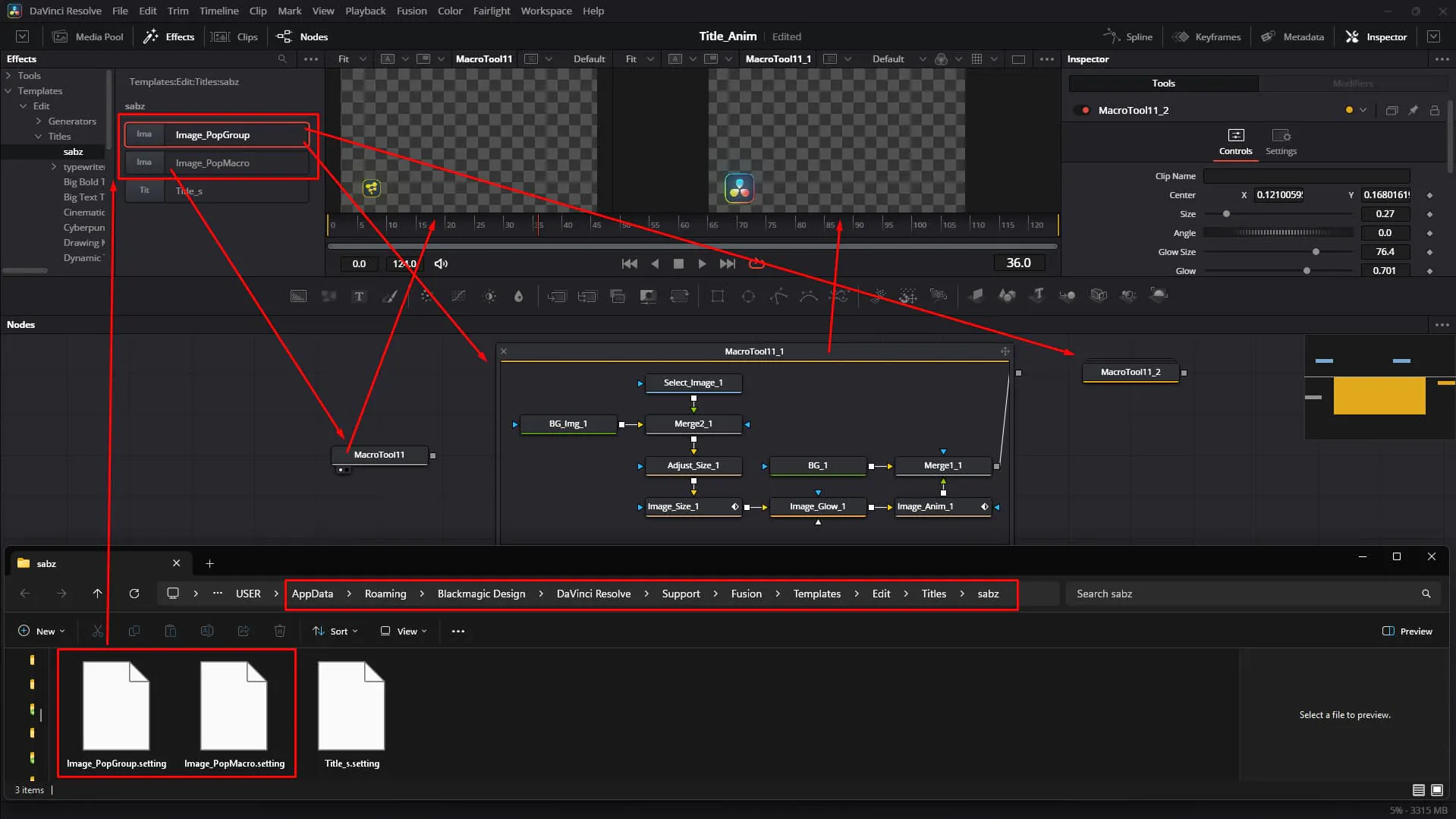
But did you know there are actually two distinct types of macros that behave very differently under the hood? Let's dive deep into the world of .setting files and uncover the secrets of MacroOperator vs. GroupOperator. 🕵️♀️💻
.settingFirst things first: in the world of Blackmagic Design's DaVinci Resolve, macros are saved with the .setting extension. This simple text file holds the blueprint of your creativity.
You can open these files in any code editor like VS Code, Notepad++, or Sublime Text to peek at the matrix code behind your visual magic. 🤓📝
On the surface, they might look similar, but their behavior is worlds apart.
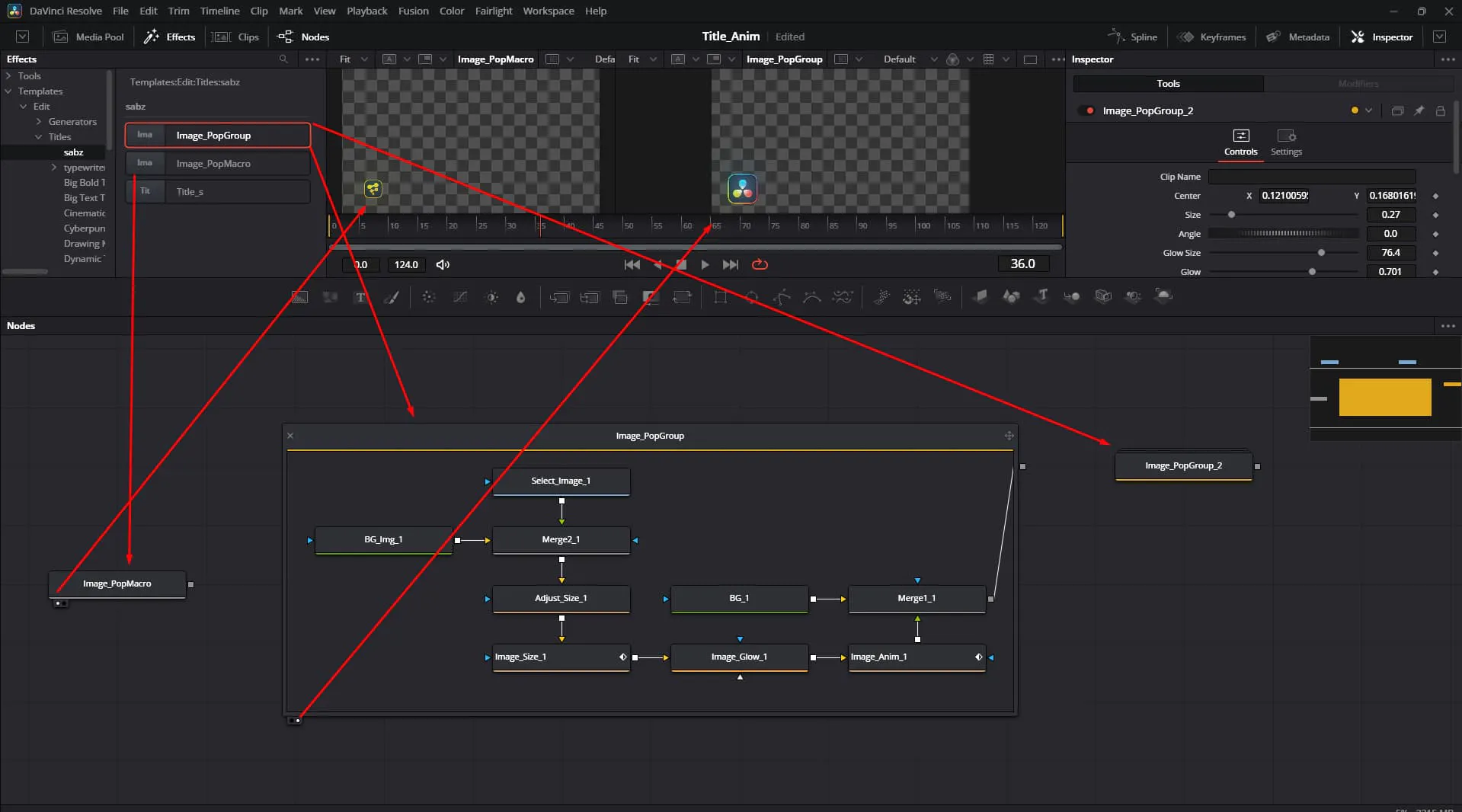
Think of this as a transparent container. When you use a Group Macro, it appears as a single node, but you can double-click it to dive inside and see (or tweak) every single node and wire. It's fully editable and transparent.
This is the true "Macro" experience. It behaves like a native Fusion tool. You see one single node, and you can only interact with the controls you specifically chose to expose. The internal structure is hidden, keeping your node graph clean and your secrets safe. 🔒
How do you tell them apart at a code level? It's simple! Open your .setting file in your favorite editor and look for the Tools object.
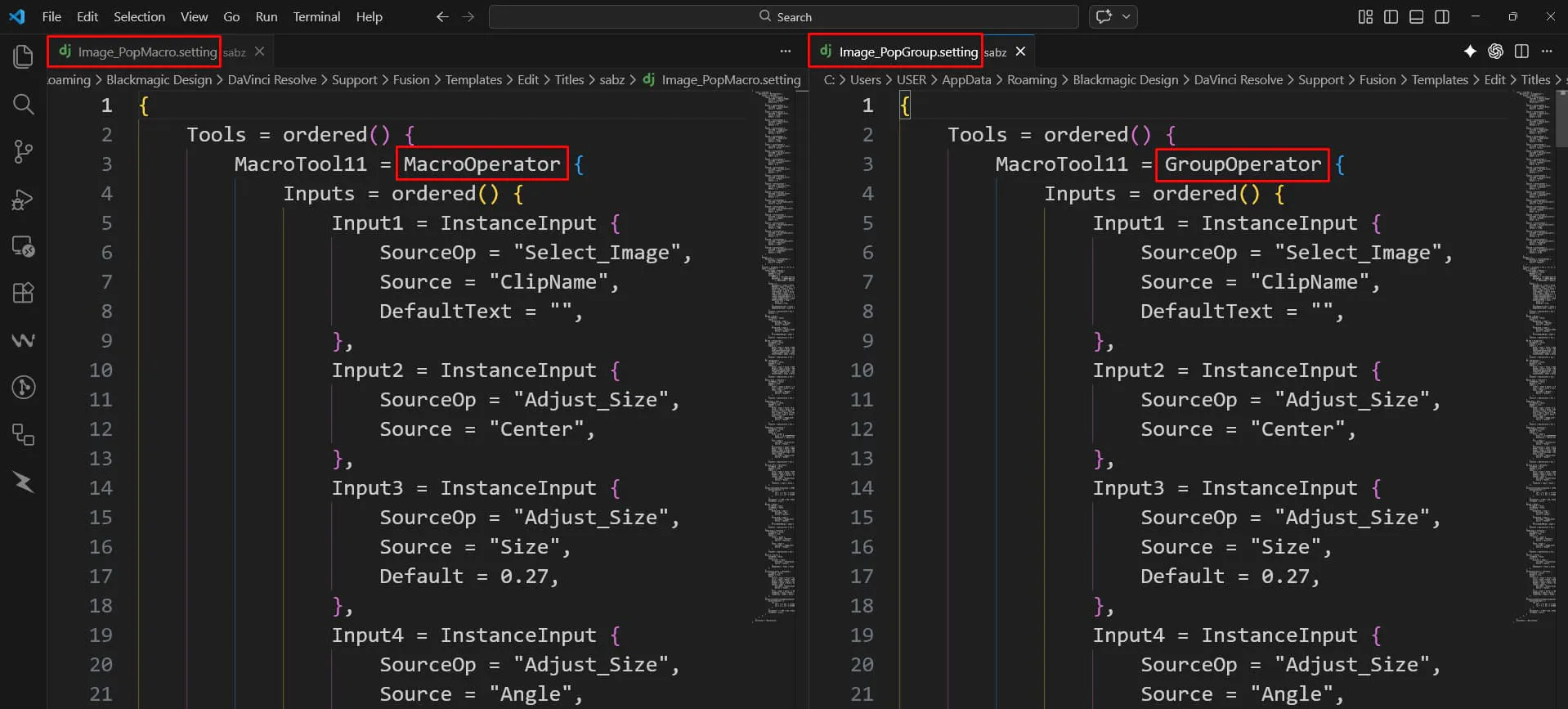
MacroOperator. This tells Fusion, "Treat me as a single, solid tool."GroupOperator. This tells Fusion, "I am a container of other tools."Knowing this distinction gives you god-like power over your assets. You can even manually tweak a file to change its behavior if you know what you're doing! 🛠️⚡
Ready to build your own? Here is the step-by-step workflow to master both types.
MacroOperator): Use the standard Save or Save As. This creates the single-node tool experience.
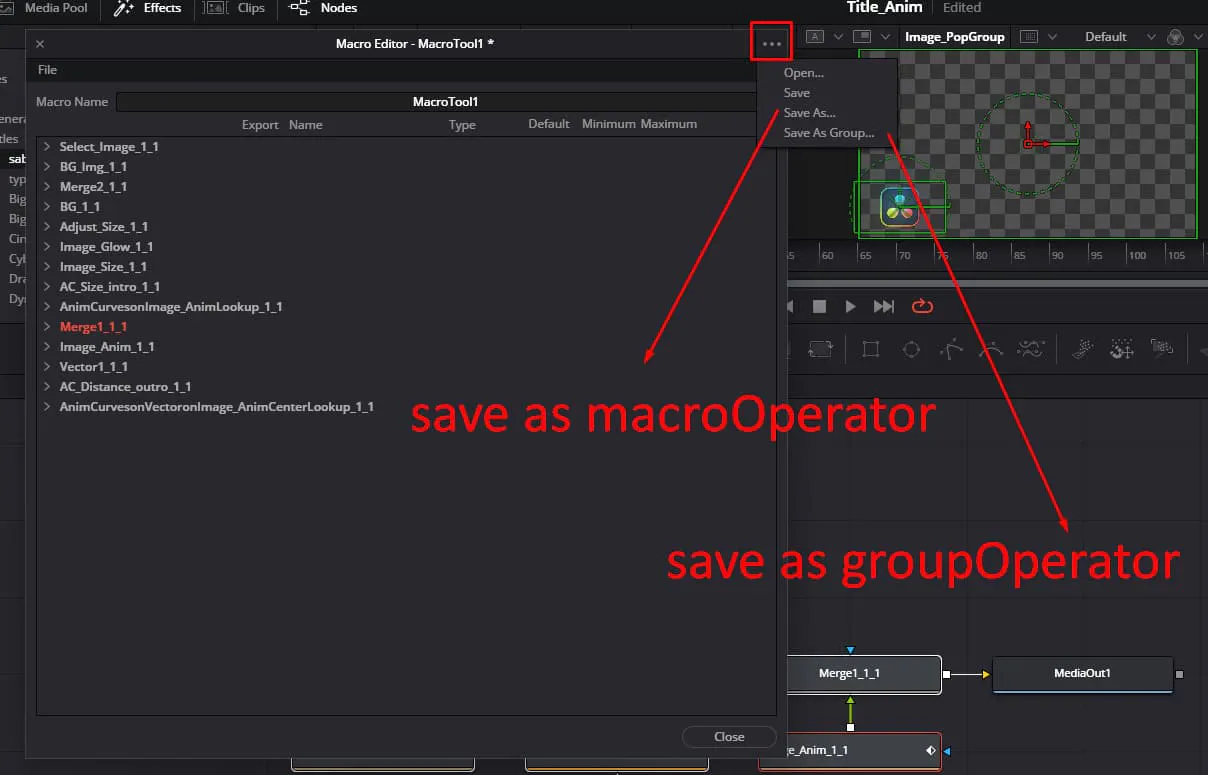
GroupOperator): Group your nodes first (Ctrl + G), then right-click the Group and choose Settings > Save All As.... This preserves the group structure.
Understanding the difference between MacroOperator and GroupOperator transforms you from a casual user to a Fusion Power User.
Start organizing your chaotic node graphs today! Your future self will thank you. 🙏⏳
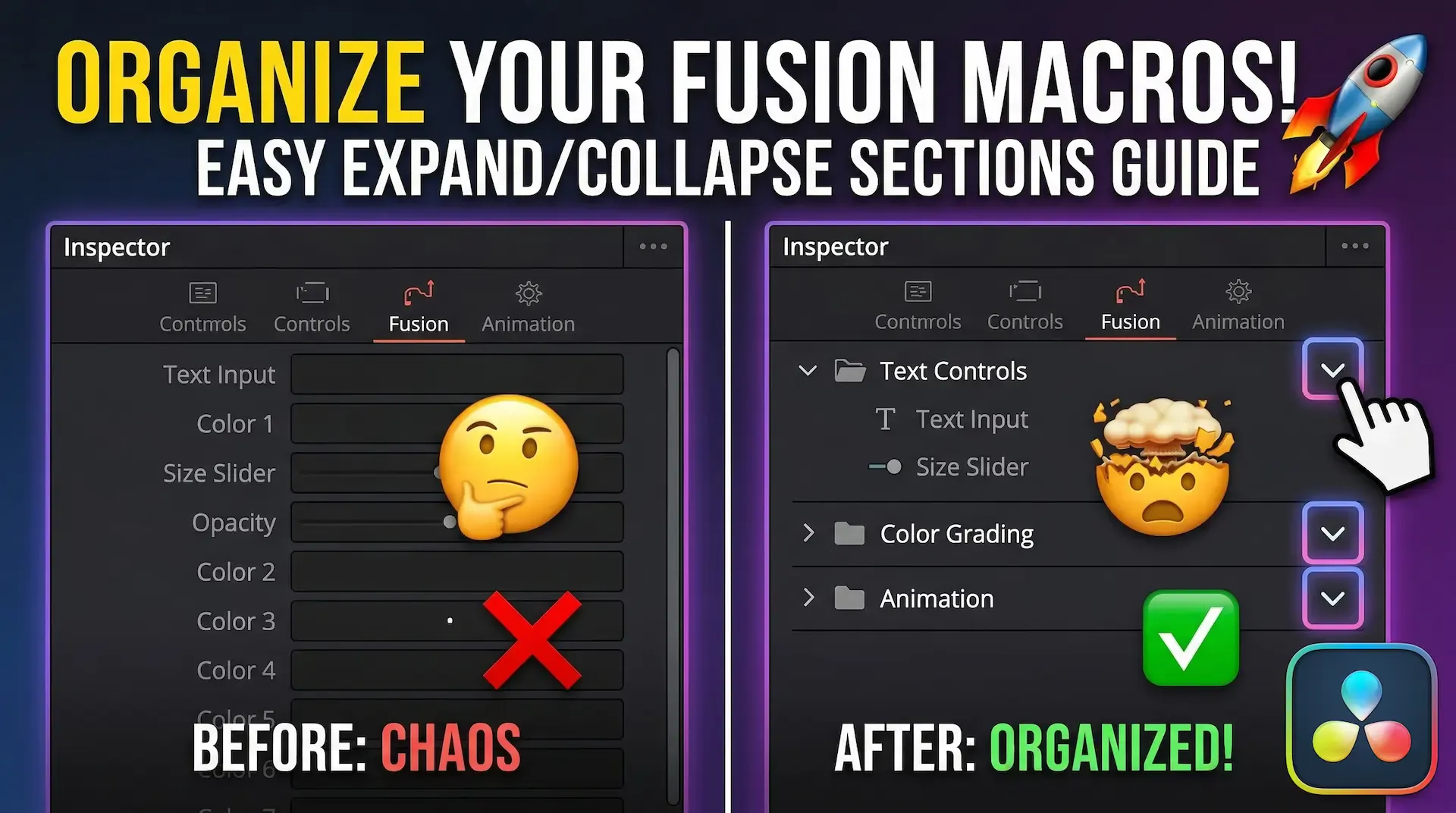
Discover how to group your controls into neat, drop-down accordion sections in DaVinci Resolve Fusion. Stop scrolling and start organizing today
Learn how to create dynamic, character-by-character text animations in DaVinci Resolve Fusion using the Follower modifier, Path keys, and Spline tool

Stop sharing raw .setting files! Discover the professional way to bundles your DaVinci Resolve transitions, effects, and titles into a single, easy-to-install .drfx file