How to Add a Google Font to Vue.js with Tailwind CSS
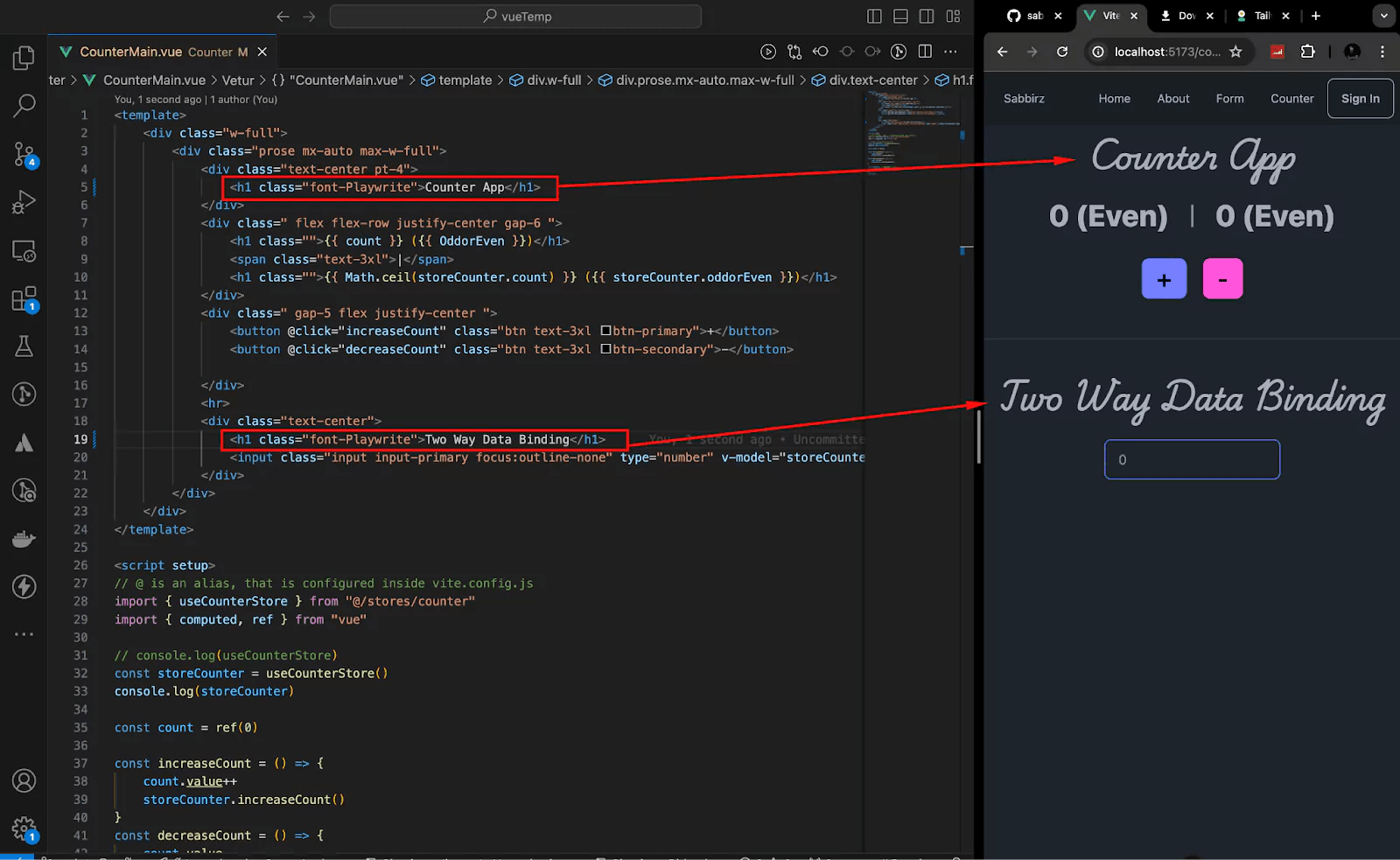
Adding a custom font to your Vue.js project can significantly enhance the look and feel of your application.
In this guide, we'll go through the steps to add a Google Font to a Vue.js project using Tailwind CSS.
First, visit the Google Fonts website at https://fonts.google.com/.
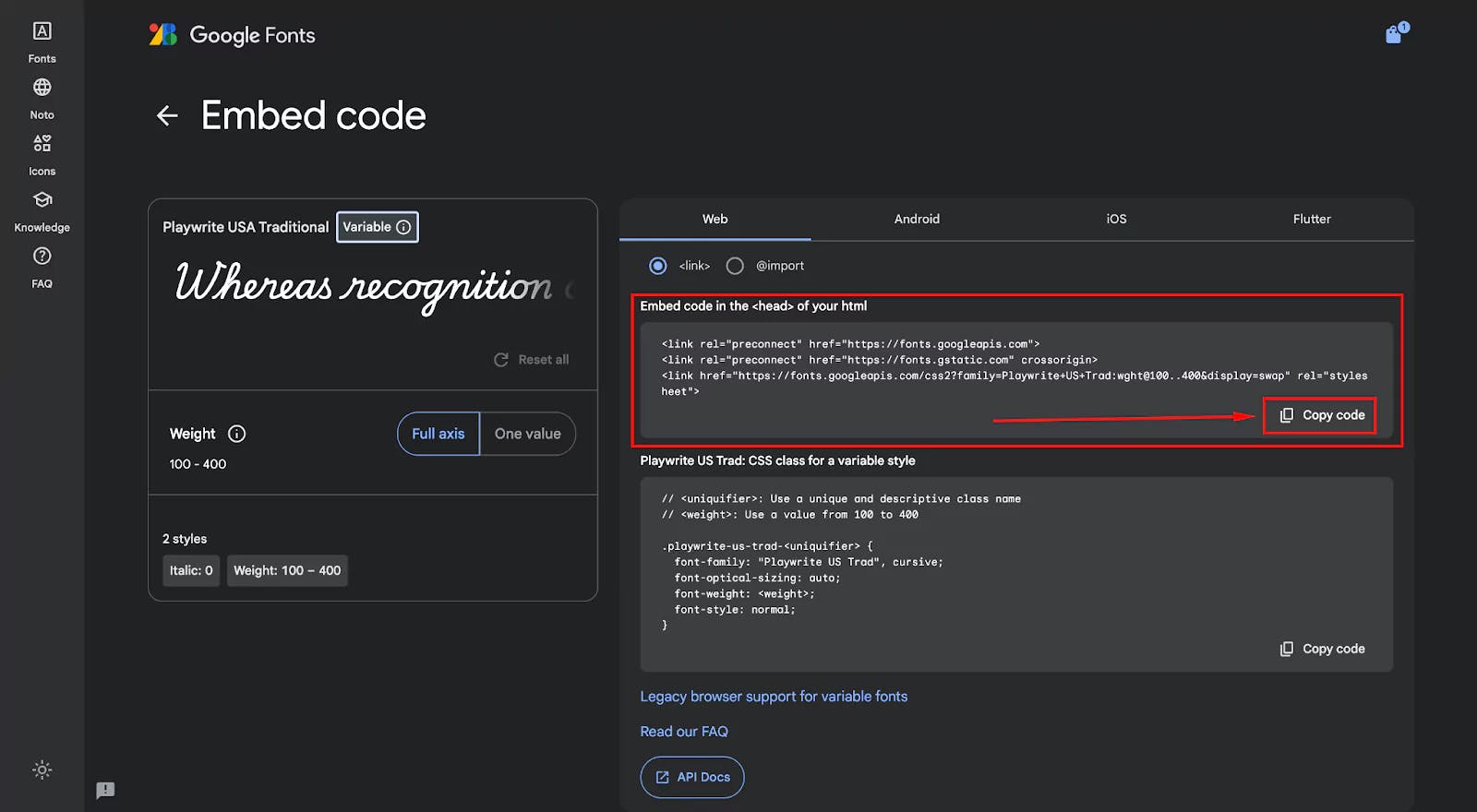
For this example, I will select a font called Playwrite USA Traditional. Here's how to select your font:
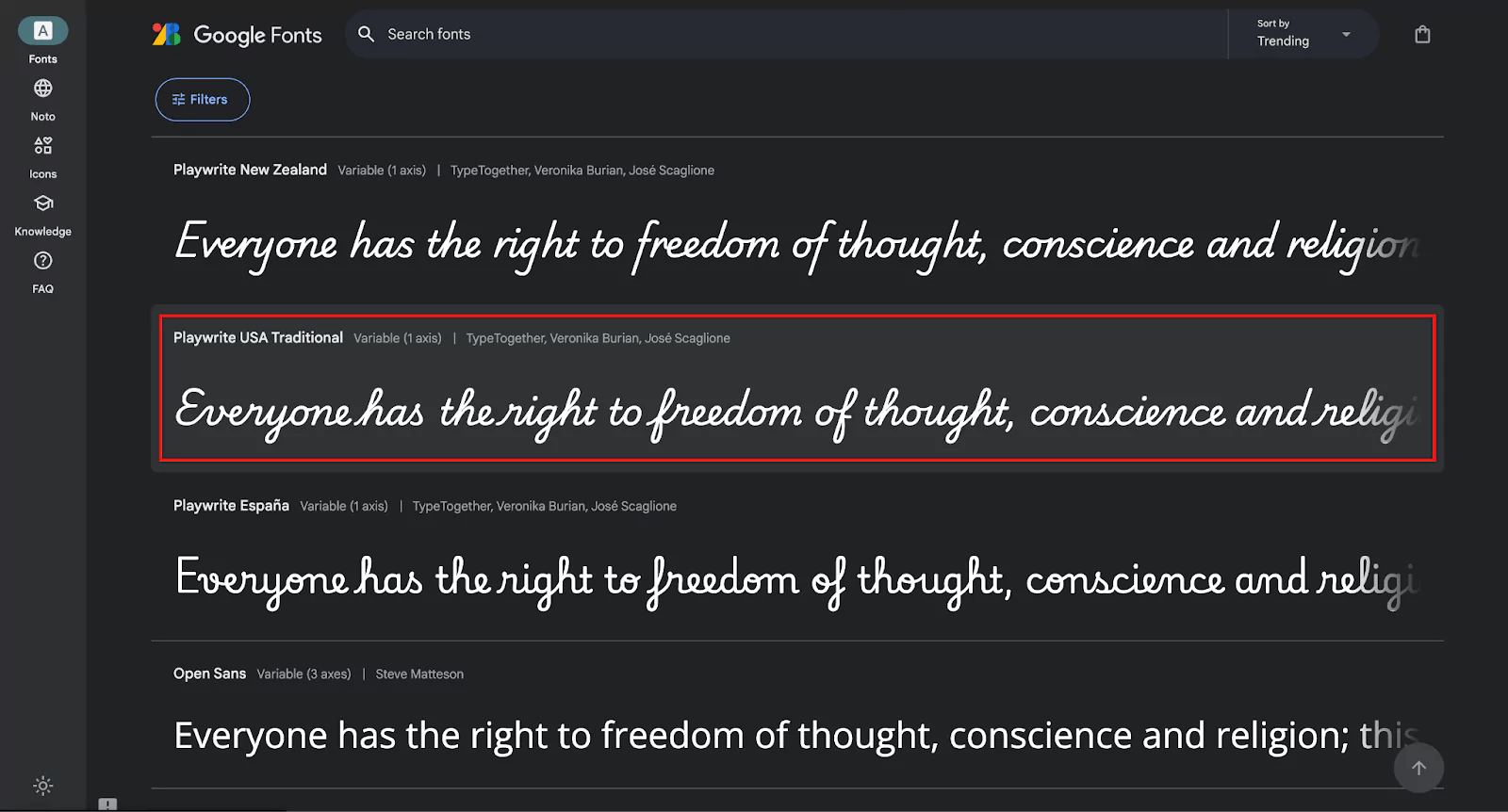
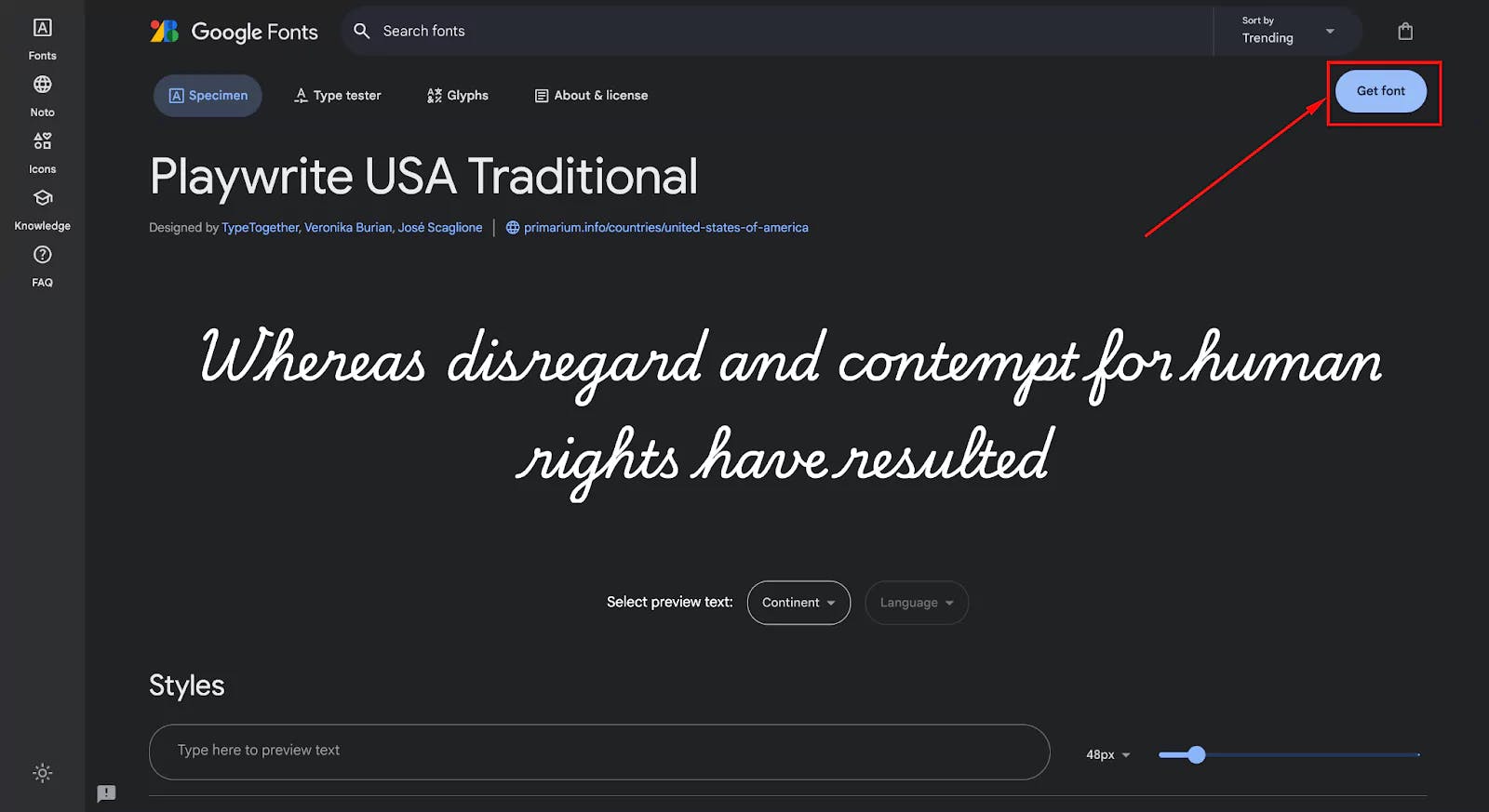
After selecting your font, click on the Get Font button and then on the Get Embed Code.
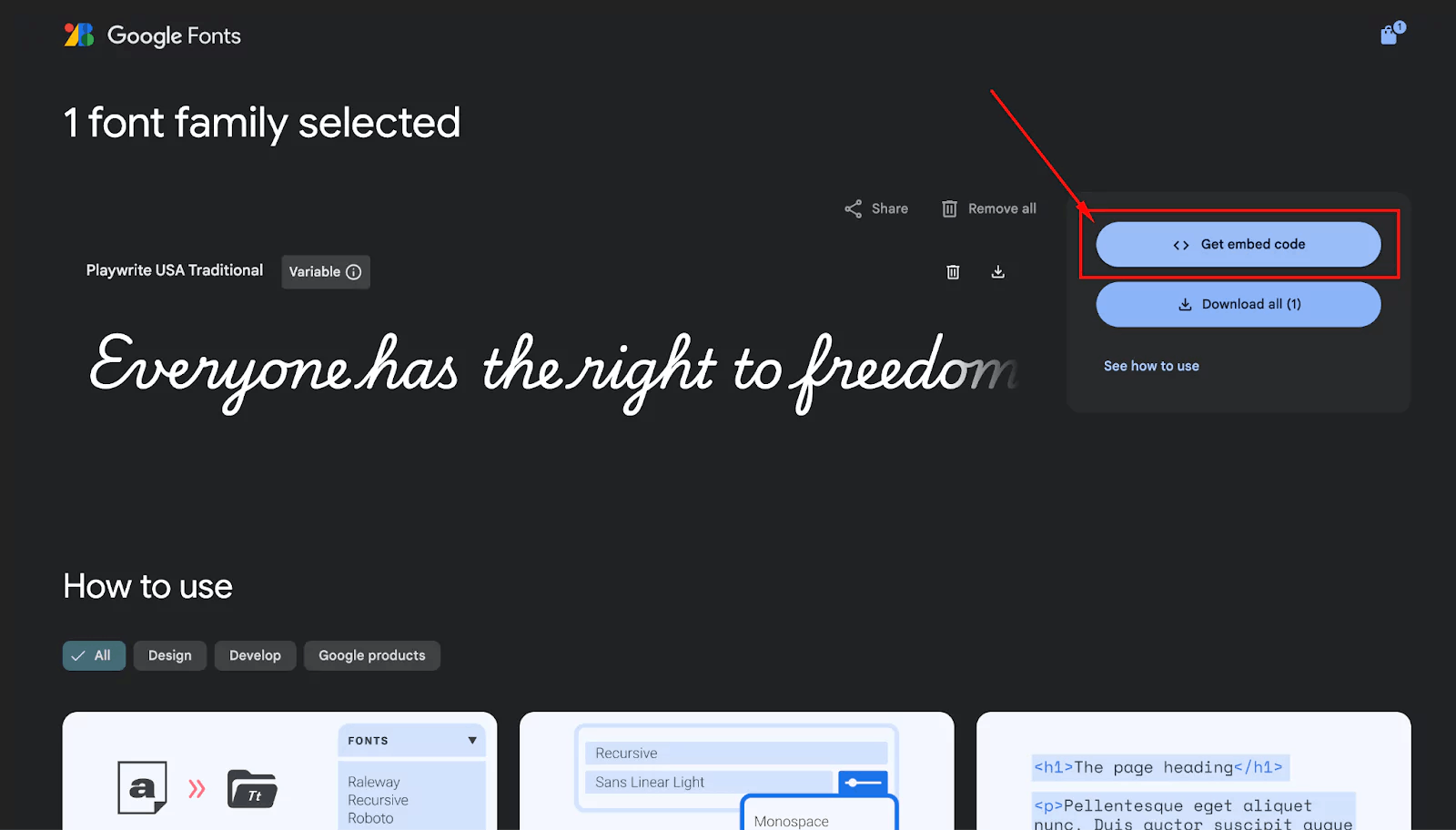
Copy the HTML embed code provided by Google Fonts.
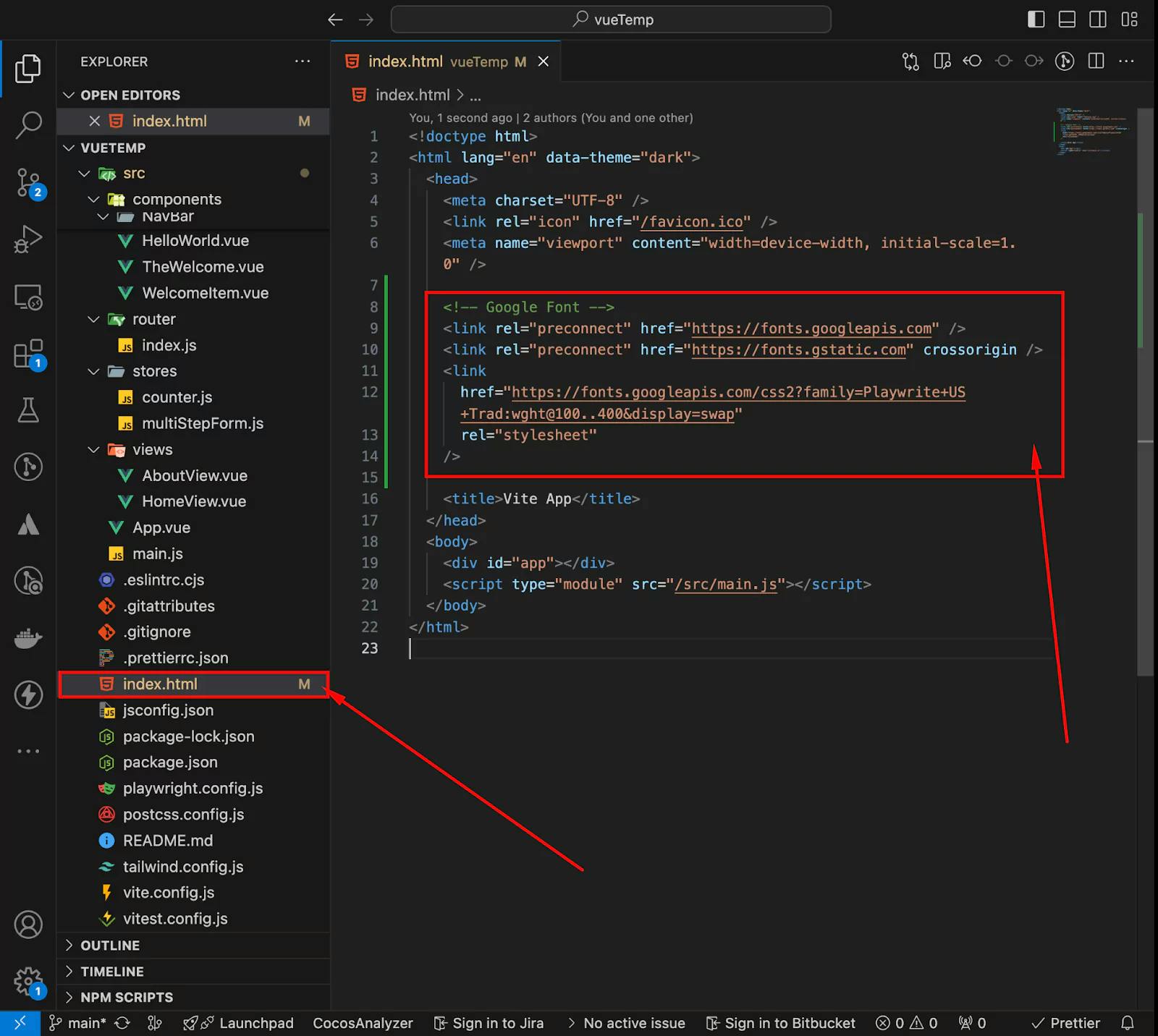
Open your index.html file and paste the Google font code inside the <head> tag.
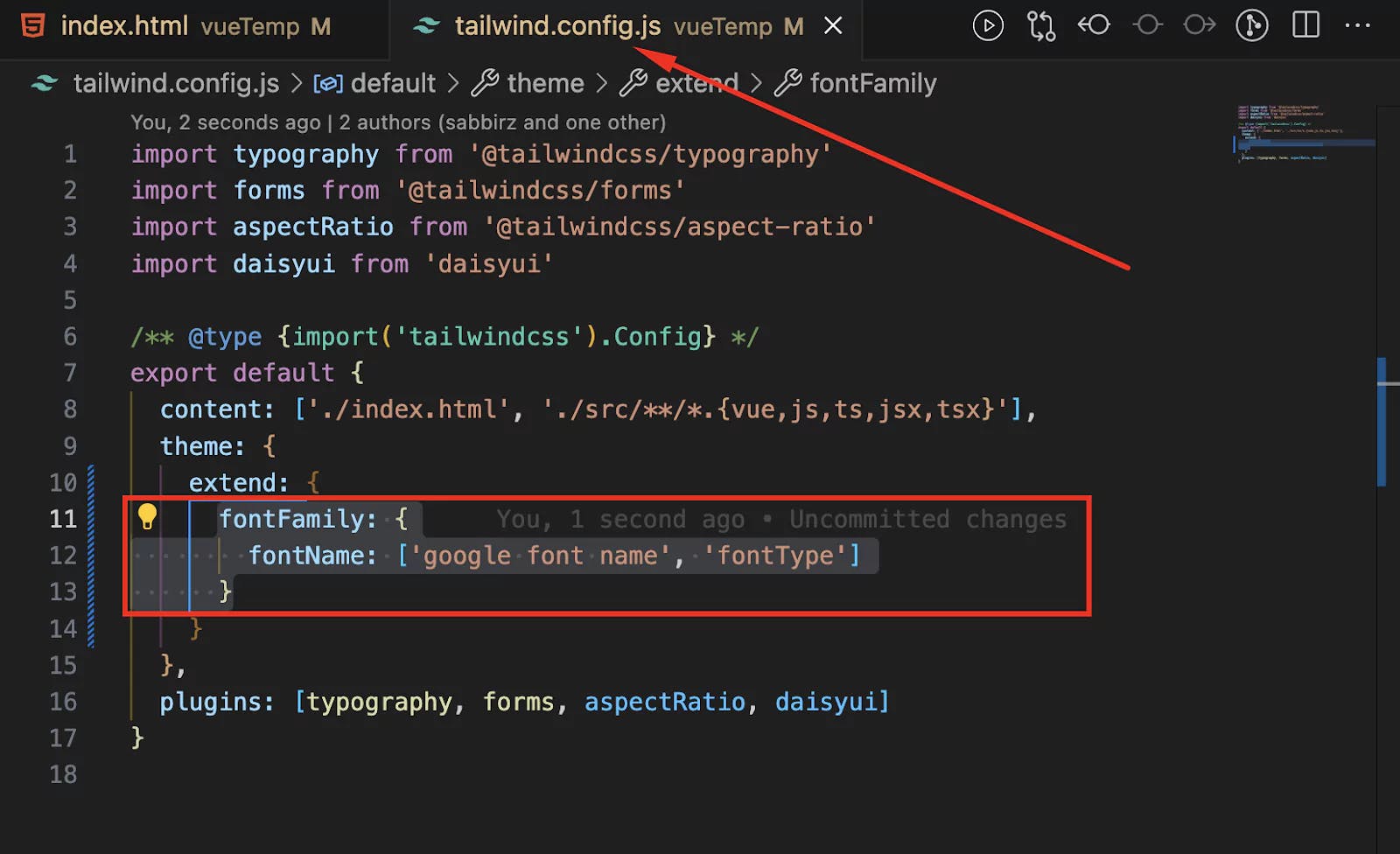
Next, configure your Tailwind CSS to include the new font like the following image.
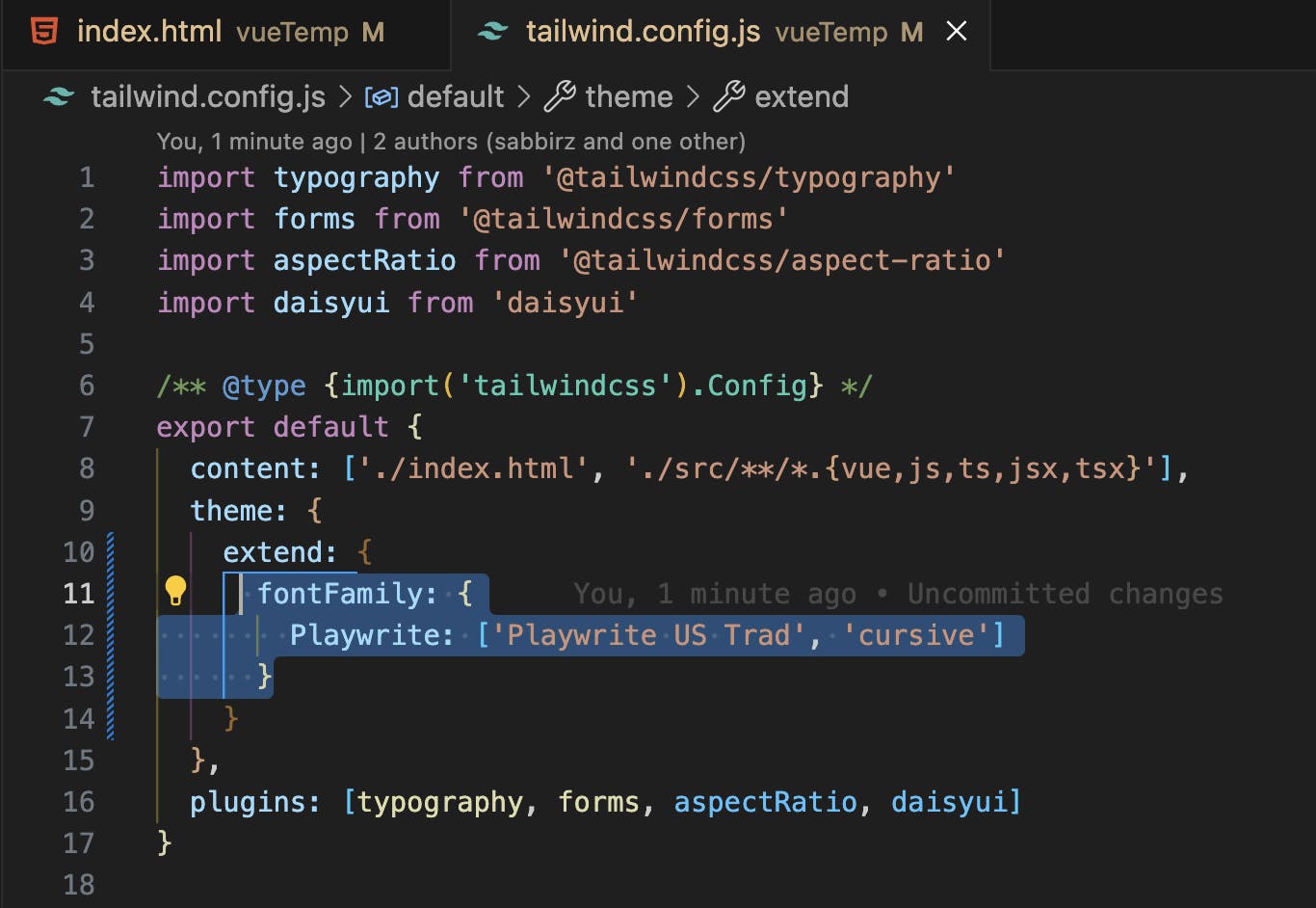
Open the tailwind.config.js file and add your font like this:
    module.exports = {
    theme: {
        extend: {
        fontFamily: {
            Playwrite: ['Playwrite US Trad', 'cursive']
            }
        }
    }
    }
You can now use the new font by applying the utility class in your components:
<h1 class="font-roboto">Hello, world!</h1>
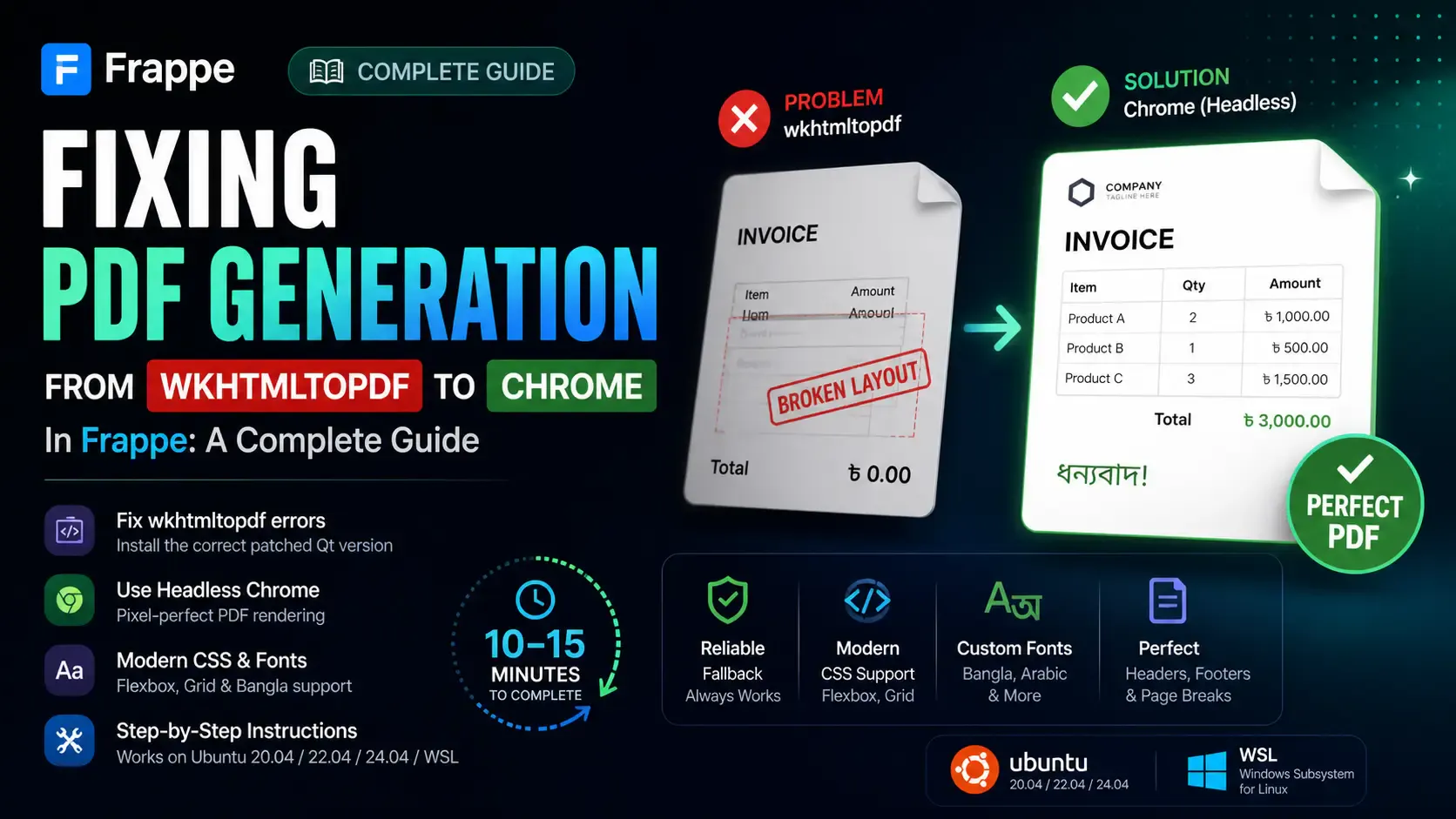
Getting the "Invalid wkhtmltopdf version" error in Frappe or ERPNext? Learn how to fix broken PDFs, install the patched Qt version, and switch to headless Chrome for pixel-perfect modern CSS and custom font support.

Learn how to quickly expose a localhost server to your local network on Windows using netsh portproxy. A step-by-step guide to accessing local apps from any device.

Learn how to enhance your Frappe Desk UI by adding a custom, dynamic top bar. Follow this beginner-friendly, step-by-step tutorial to display user profiles, statuses, and more!