How to Configure Visual Studio Code for Blender Add-on Creation

Starting from September 10th, 2024, I began building my own Blender add-on. Initially, I thought it would be straightforward to configure Visual Studio Code (VS Code) for developing Blender add-ons. However, I soon found that setting up VS Code for this purpose was quite tedious. After a few days of trial and error, I finally discovered a standardized and sustainable process for developing Blender add-ons using VS Code. In this blog post, I'll share my step-by-step guide to help you set up VS Code for Blender add-on development.
Open VS Code
Activate the Blender Development Extension
Reload addon in Blender when a document is saved.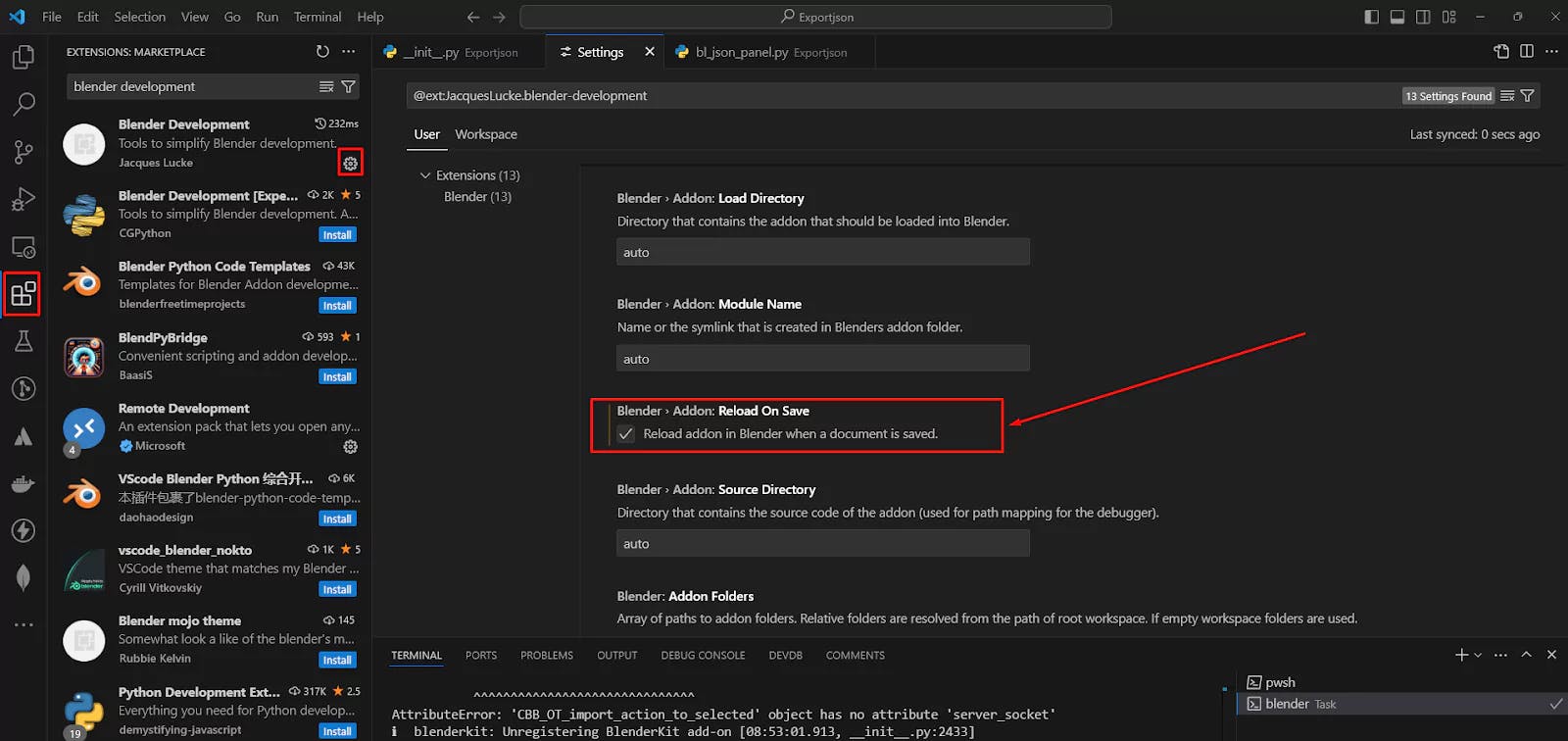
Open Your Project Folder in VS Code
Create a New Add-on
Ctrl + Shift + P to open the Command Palette.New Addon and select Simple.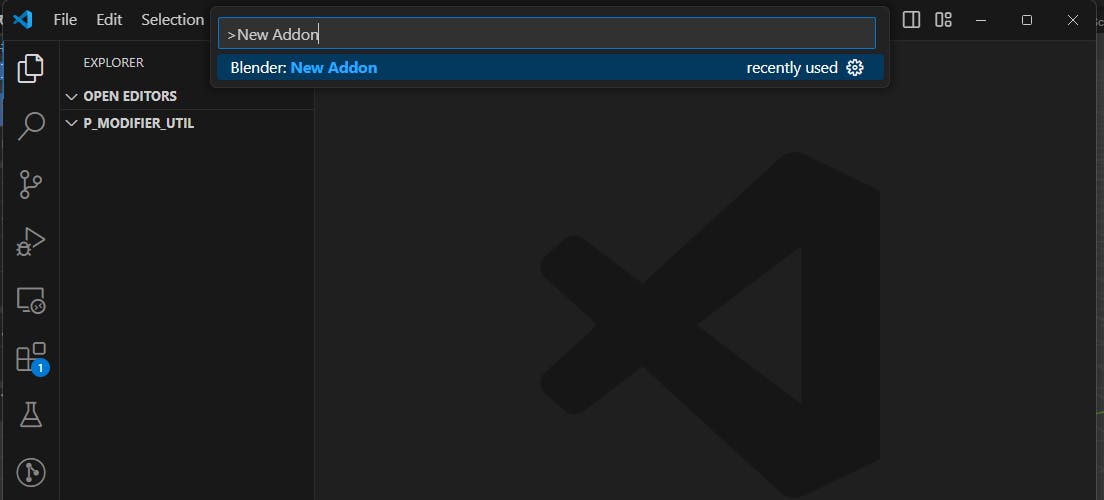
This will generate the required files for a basic Blender add-on.
Start Blender from VS Code
Ctrl + Shift + P and search for Blender Start.Blender should now open automatically. To activate the add-on, go to Preferences > Add-ons and search for [Your Add-on Name].
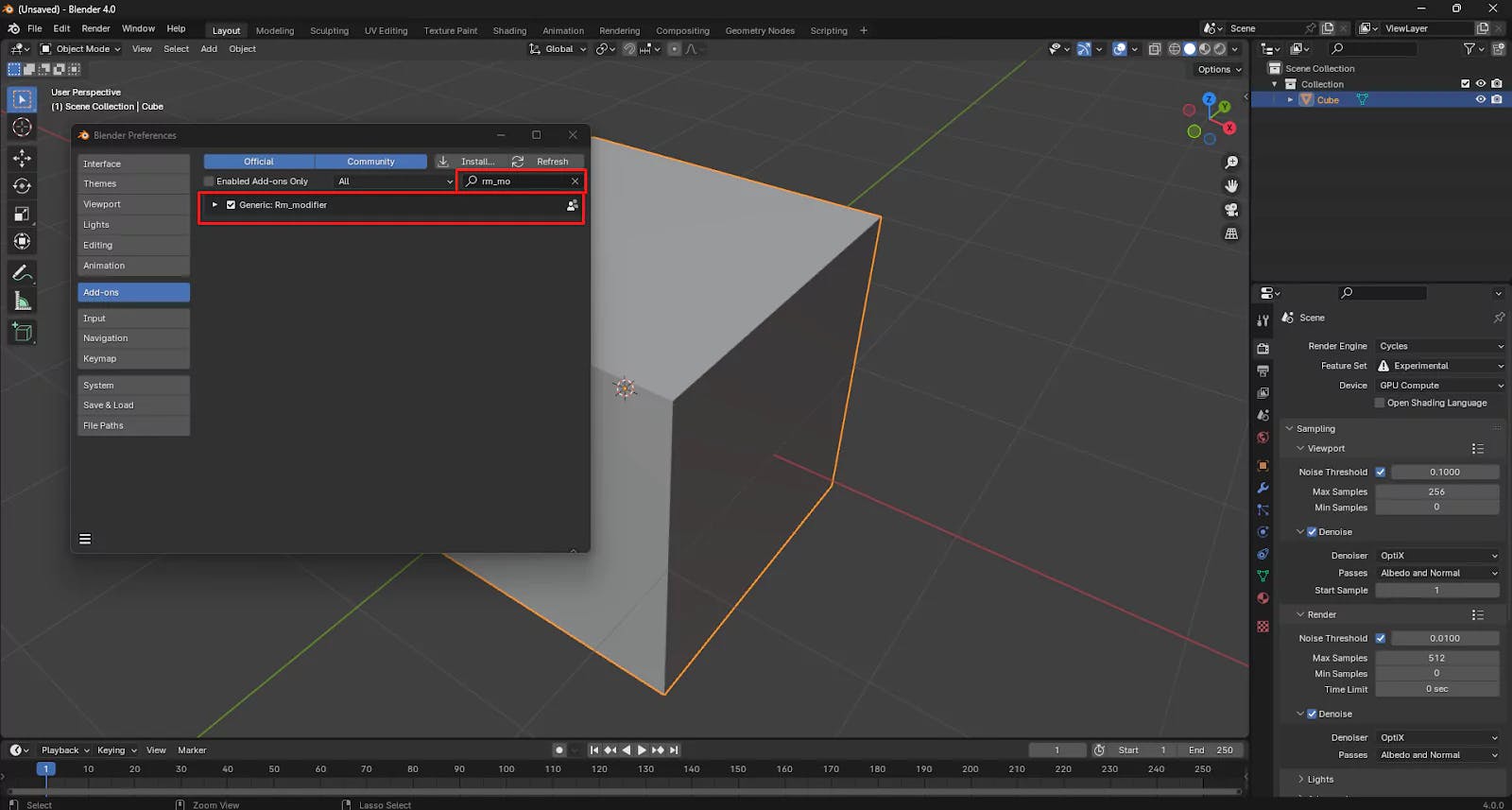
At this point, the add-on is registered but not yet functional.
Import the Blender Package
Open a *.py file in your project and add the following code:
import bpy
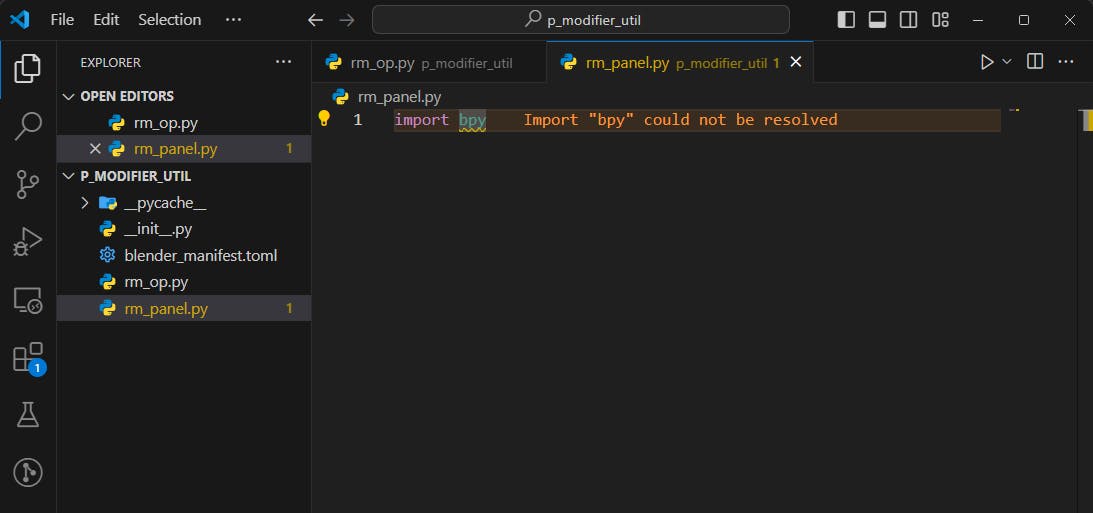
If you encounter an error stating that bpy is not found, proceed to the next step.
Select the Python Interpreter
Press Ctrl + Shift + P to open the Command Palette and search for Select Interpreter.

Choose the Python version installed on your system (typically located inside the C: drive on Windows).
Open the Windows Terminal with "Run as Administrator" privileges and run the following command:
pip install fake-bpy-module
This command installs a fake version of the bpy module, which simulates the Blender Python API. You can find more details about this package here.
Verify Everything is Working

Learn the best practices for Blender scripting with this detailed guide on naming conventions. From class names to functions, ensure your code is clean, readable, and Blender-compliant.