How to Fix the RDP Black Screen: "Blind Restart" Your Remote PC
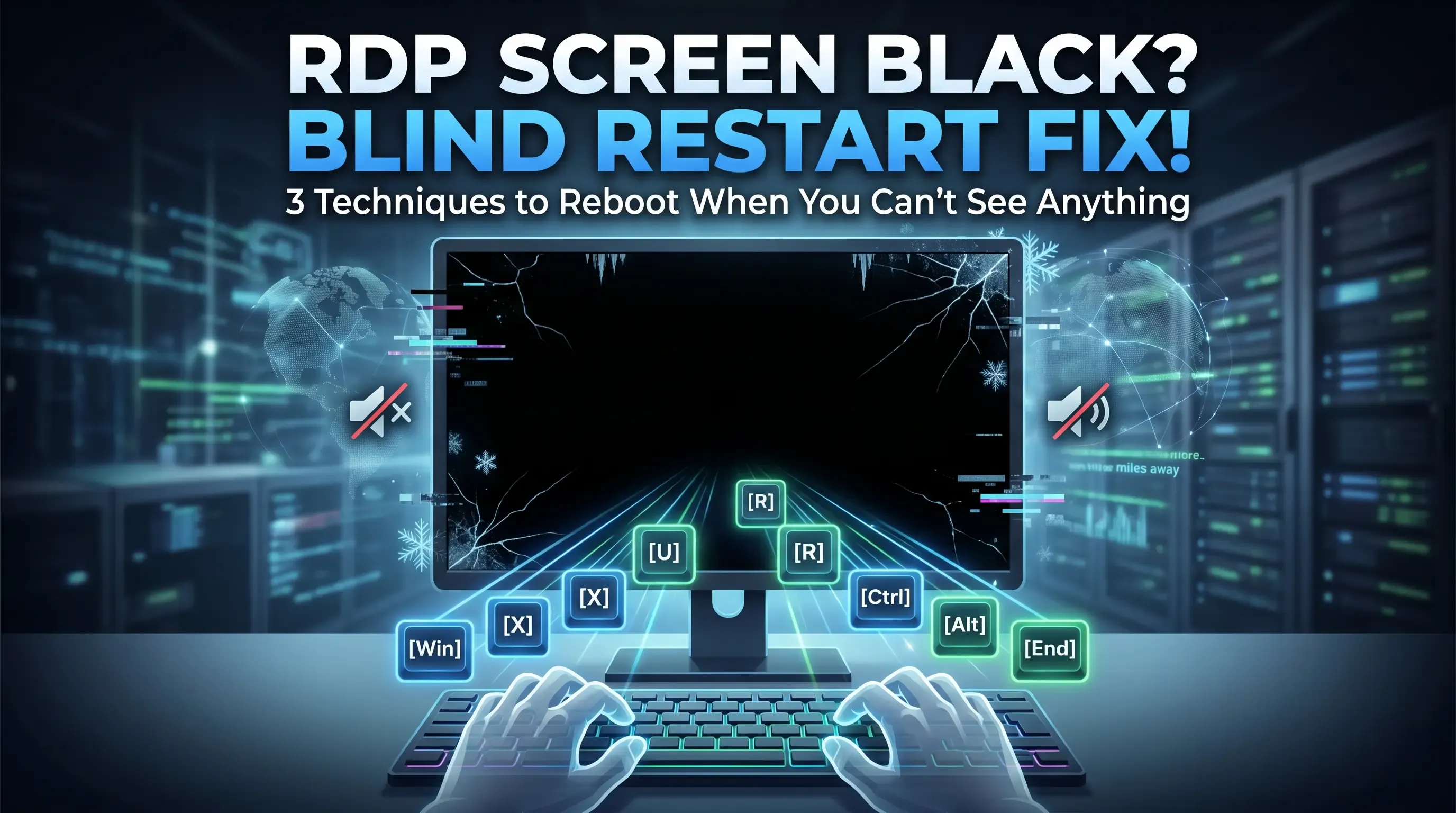
Ever been deep in the zone, managing a remote server or cranking out code, when suddenly... your Windows Remote Desktop (RDP) window freezes, stutters, and goes completely pitch black? 😱
You try minimizing and maximizing. Nothing. You disconnect and reconnect. Still a void of darkness.
When your machine is miles (or continents) away, you can't just reach over and hold down the physical power button. So, what's a dev or sysadmin to do? Before you panic-call the server host or make an angry drive to the office, try these remote "blind restart" techniques. 🕵️♂️💻
~2-5 Minutes
In older versions of Windows, a graphics card crash usually greeted you with the classic Blue Screen of Death (BSOD) or an angry error message. Today, thanks to modern architectural changes, you're much more likely to just get a silent black screen. 🕳️
Why? Modern Windows relies heavily on the GPU (Graphics Processing Unit) to render everything on the desktop. Whether it's an NVIDIA, AMD, or Intel chip, if the graphics driver experiences a transient power spike, a memory leak, or a temporary hang, Windows will desperately try to restart the driver in the background.
If that background restart gets stuck halfway, the operating system basically gaslights itself into thinking the computer is running perfectly fine, while the GPU's display controller is completely locked up. The OS keeps processing your keyboard inputs, but it literally can't draw the picture to send back over the network.
Because the PC is technically still listening 🎧, we can use keyboard shortcuts to force a reboot without needing to see the screen at all!
If you're staring at the black abyss of a Remote Desktop window, try these methods in order.
⚠️ Crucial First Step: For any of these methods to work, you absolutely must click once inside the black RDP window first. This ensures your keystrokes are being sent to the remote computer, and not accidentally triggering commands on your local machine!
This is the holy grail of blind restarts because it relies on core Windows navigation and completely bypasses the need for the screen to render command prompts or visual menus.
Within a few seconds, your RDP window should abruptly close. Give the remote machine a few minutes to boot back up, and you should be able to connect normally! 🚀
If the Win + X shortcut is disabled by group policies or just fails, you can try blindly sending a force-restart command via the Run dialog box.
cmd and press Enter.shutdown /r /f /t 0(Geek Note: /r means restart, /f forces hung applications to close, and /t 0 sets the countdown timer to zero). ⏱️
Sometimes, triggering the Windows Security screen is enough of an interrupt to shock the graphics driver back into action.
Esc to return to your desktop.If this black screen of death happens frequently, the issue might actually be on your end with a corrupted cache in your local RDP client.
Before you connect to the remote machine next time, try disabling persistent caching:
If the problem persists, ensure the graphics drivers on the remote machine are fully updated, and check the server's Windows Event Viewer for deeper hardware or power delivery faults.