Step-by-Step Guide to Install phpMyAdmin on WSL Ubuntu 22.04
This guide will walk you through installing phpMyAdmin on your WSL (Windows Subsystem for Linux) running Ubuntu 22.04.
However, before we dive into phpMyAdmin, we'll need to ensure we have a functioning LAMP stack (Linux, Apache, MySQL, PHP) set up.
phpMyAdmin is a tool that provides a user-friendly interface for managing and administering MySQL databases. So the prerequisites are:
WSL2 inside Windows and running Ubuntu 22.04Apache (or Nginx) web serverMySQL/MariaDBPHP with required modules (for PHP processing)Apache or NGINX or mysql is already installed or notApachedpkg -l | grep apache2
NGINXdpkg -l | grep nginx
mysqlmysql -v
Begin by updating your package lists to ensure you have the latest information:
sudo apt update
Apache web-server (if not already installed):Install the Apache web-server using the following command:
sudo apt install apache2
Once installed, verify that Apache is up and running:
sudo systemctl status apache2
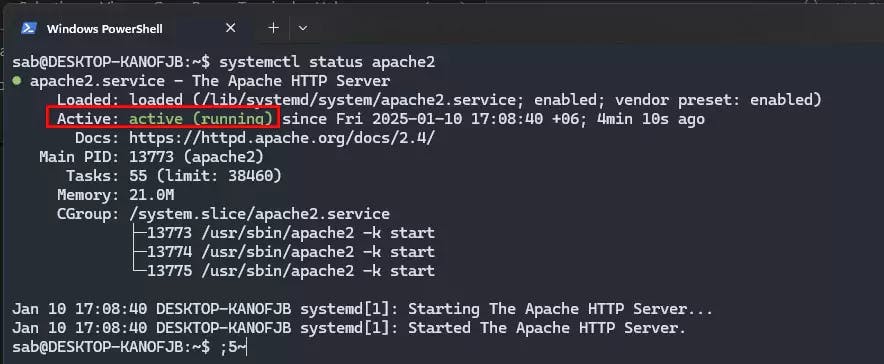
If Apache is running correctly, the output should show its status as active
In case systemctl malfunctions (which can sometimes happen in WSL), you can start Apache using the service command:
sudo service apache2 start
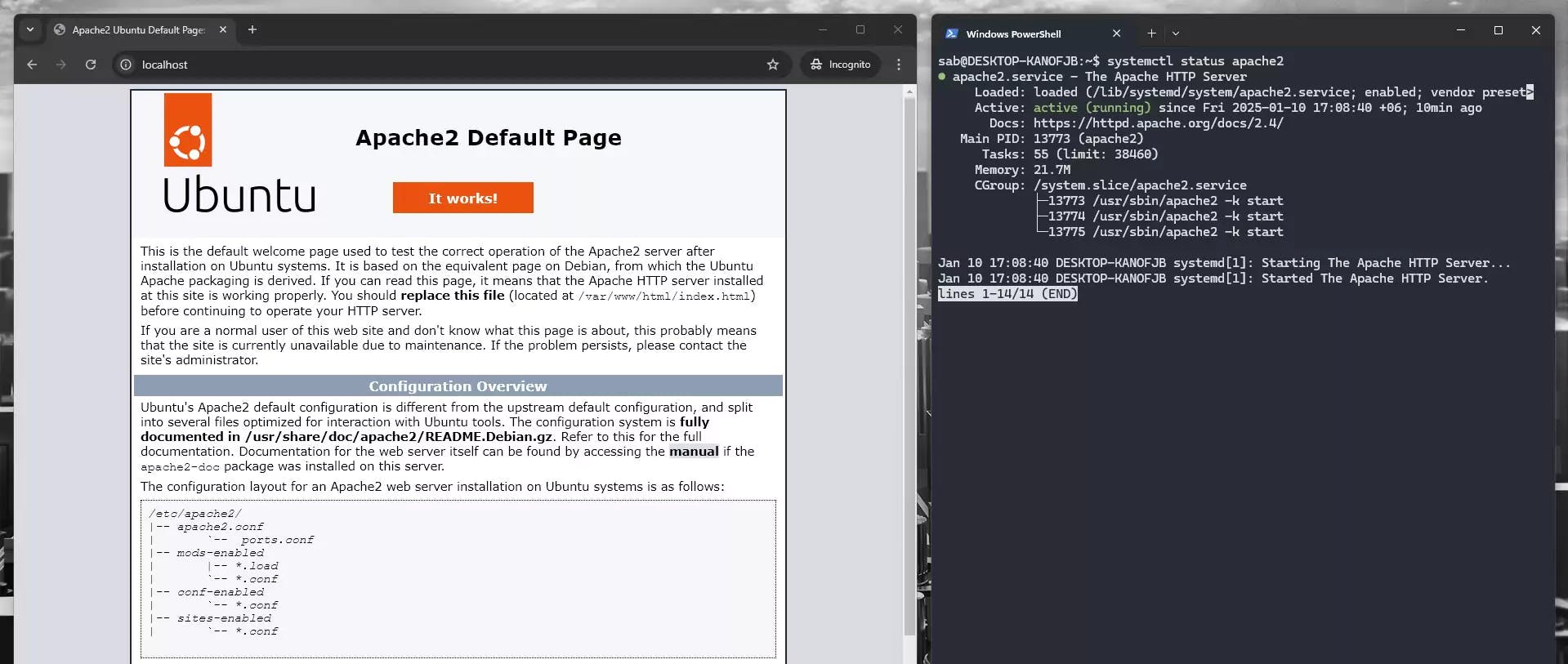
Now, let's test if Apache is running by opening a web browser and navigating to:
http://localhost
You should see the default Apache Ubuntu page. This confirms that Apache is installed and functioning successfully.
Since systemctl might not always work as expected on WSL, we'll recommend adding a configuration line to ensure Apache automatically starts when your WSL instance launches.
Here's how to edit your .bashrc file and add the line:
nano ~/.bashrc
Add the following line at the end of the file:
sudo service apache2 start
Save the changes and exit the editor.
mysql is available and password is set:mysql is InstalledRun the following command:
mysql -v
If
mysqlis installed, this command will display the version information. Move to STEP 6
Run these commands to install MySQL:
sudo apt update
sudo apt install mysql-server
After installation, ensure the MySQL service is running:
sudo systemctl start mysql
sudo systemctl enable mysql
MySQL Requires a PasswordTry logging in as the root user:
sudo mysql -u root
password, this means, no password is set for the root userIf you want to set a password for the root user:
sudo mysql -u root
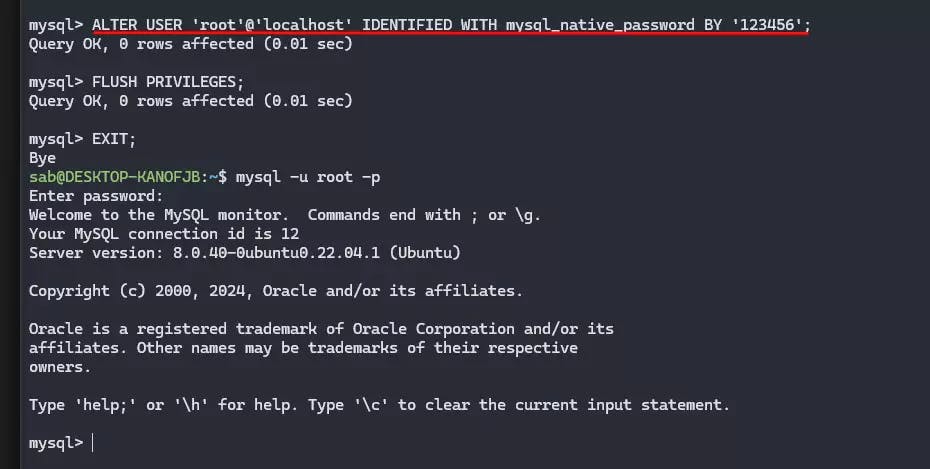
ALTER USER 'root'@'localhost' IDENTIFIED WITH mysql_native_password BY 'your_new_password';
FLUSH PRIVILEGES;
Replace
your_new_passwordwithpassword.
Exit MySQL:
EXIT;
Log in again with the new password:
mysql -u root -p
You will be prompted to enter the password. If the login succeeds, the password is set correctly.
Use the following command to install phpMyAdmin:
sudo apt install phpmyadmin
During the installation, you'll encounter prompts for:
Web server selection: Choose apache2 by pressing SPACE, then TAB, and finally ENTER.
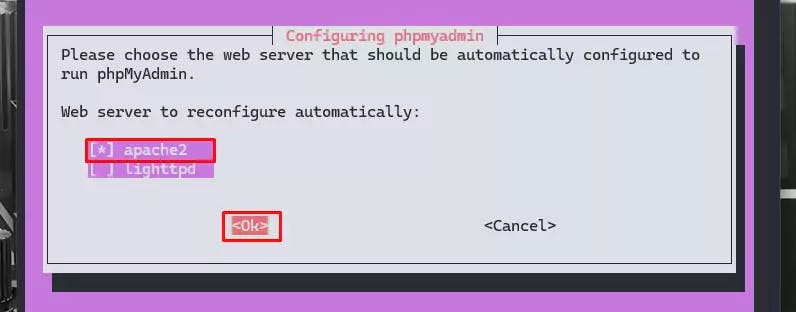
Database configuration: Select Yes and press ENTER.
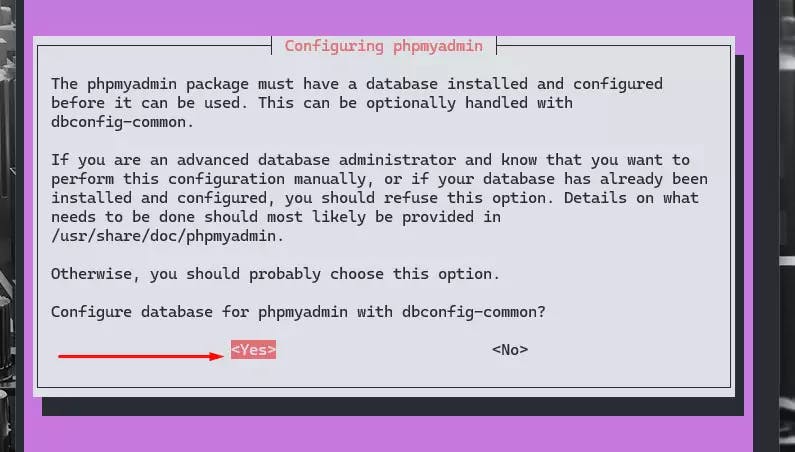
MySQL root user password: Enter the password for your MySQL root user.
phpMyAdmin application password: Choose and confirm a password for the phpMyAdmin application itself.
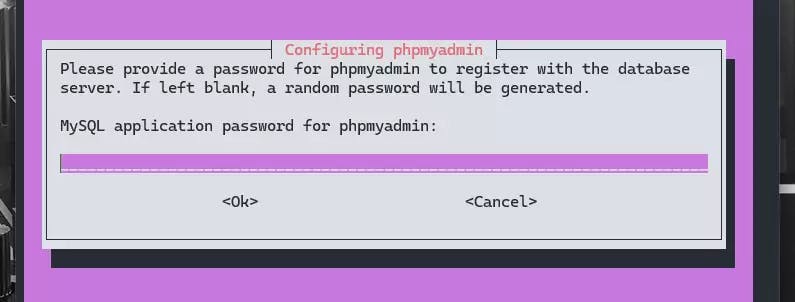
Check if mysql is running
sudo systemctl status mysql
If MySQL is running correctly, the output should show its status as active.
Ensure all required PHP extensions are enabled. You might need to install and enable extensions like mbstring if not already active:
sudo apt install php-mbstring php-zip php-gd php-json php-curl
sudo phpenmod mbstring
In some cases, additional configuration might be required for Apache to recognize phpMyAdmin. Here's how to set it up:
Create a symbolic link of phpMyAdmin's Apache configuration file to the conf-enabled directory:
sudo ln -s /etc/phpmyadmin/apache.conf /etc/apache2/conf-enabled/phpmyadmin.conf
It provide better security
or
sudo ln -s /usr/share/phpmyadmin /var/www/html/phpmyadmin
It is simple but not fully secure
Restart Apache to apply the changes:
sudo service apache2 restart
Finally, open a web browser and access phpMyAdmin using your WSL localhost followed by /phpmyadmin:
http://localhost/phpmyadmin
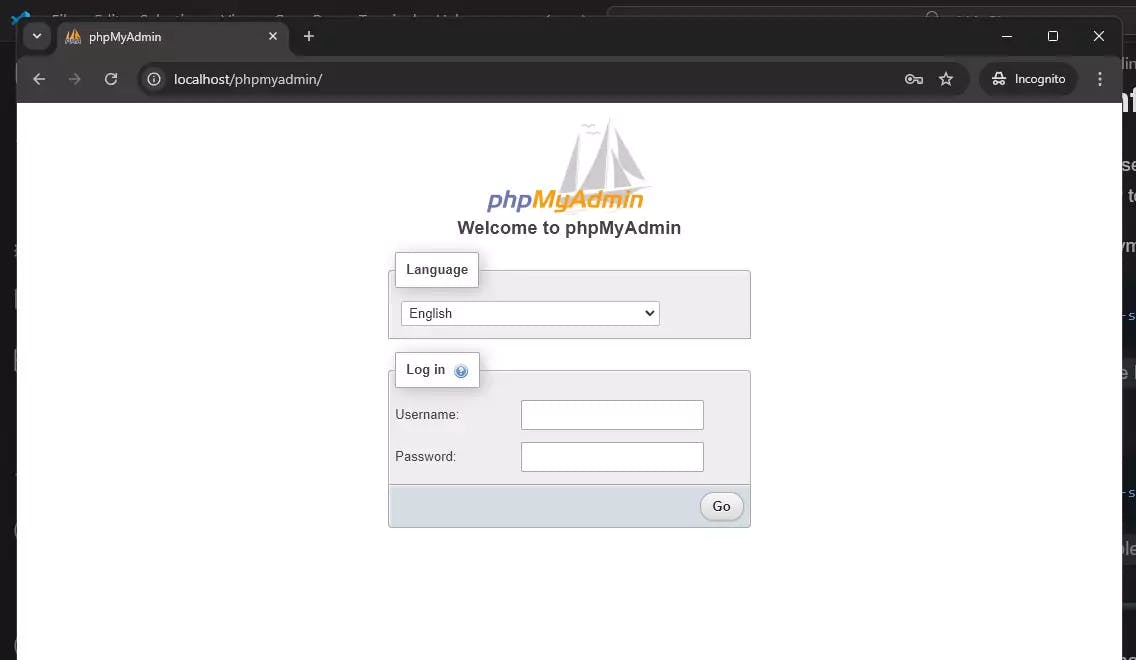
If you encounter error like this, where the code is print as text.
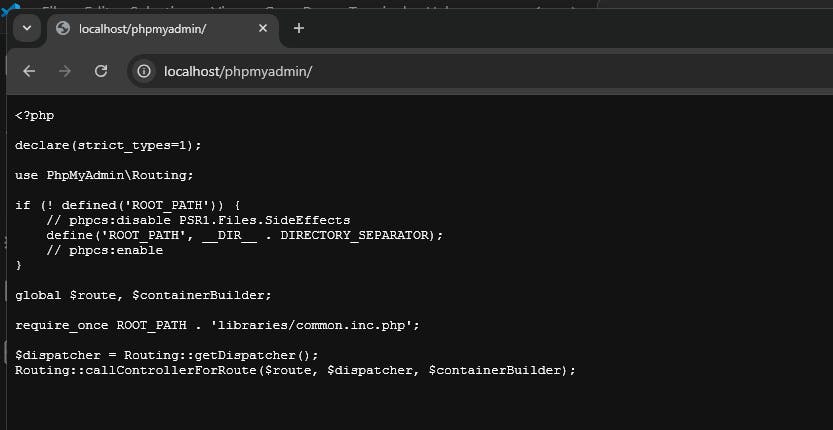
Make sure the PHP module is installed and enabled:
sudo apt install libapache2-mod-php
Enable the PHP module:
sudo a2enmod php
Restart Apache
sudo systemctl restart apache2
Ensure that your MySQL service is running. You can start it with:
sudo service mysql start
If you encounter issues with phpMyAdmin not being found, ensure that the symbolic link was created correctly and that phpMyAdmin is installed in the expected directory.

Getting Permission denied in Frappe? Learn why it happens and how to fix file ownership issues in your bench with one simple command.

Stop fighting Git permissions in WSL. This post explains the root cause of the 'Permission Denied' error and shows you the permanent fix.
Discover PostgreSQL’s origins, unique features, and how it stacks up against MySQL and MariaDB. Perfect for beginners learning modern database systems.