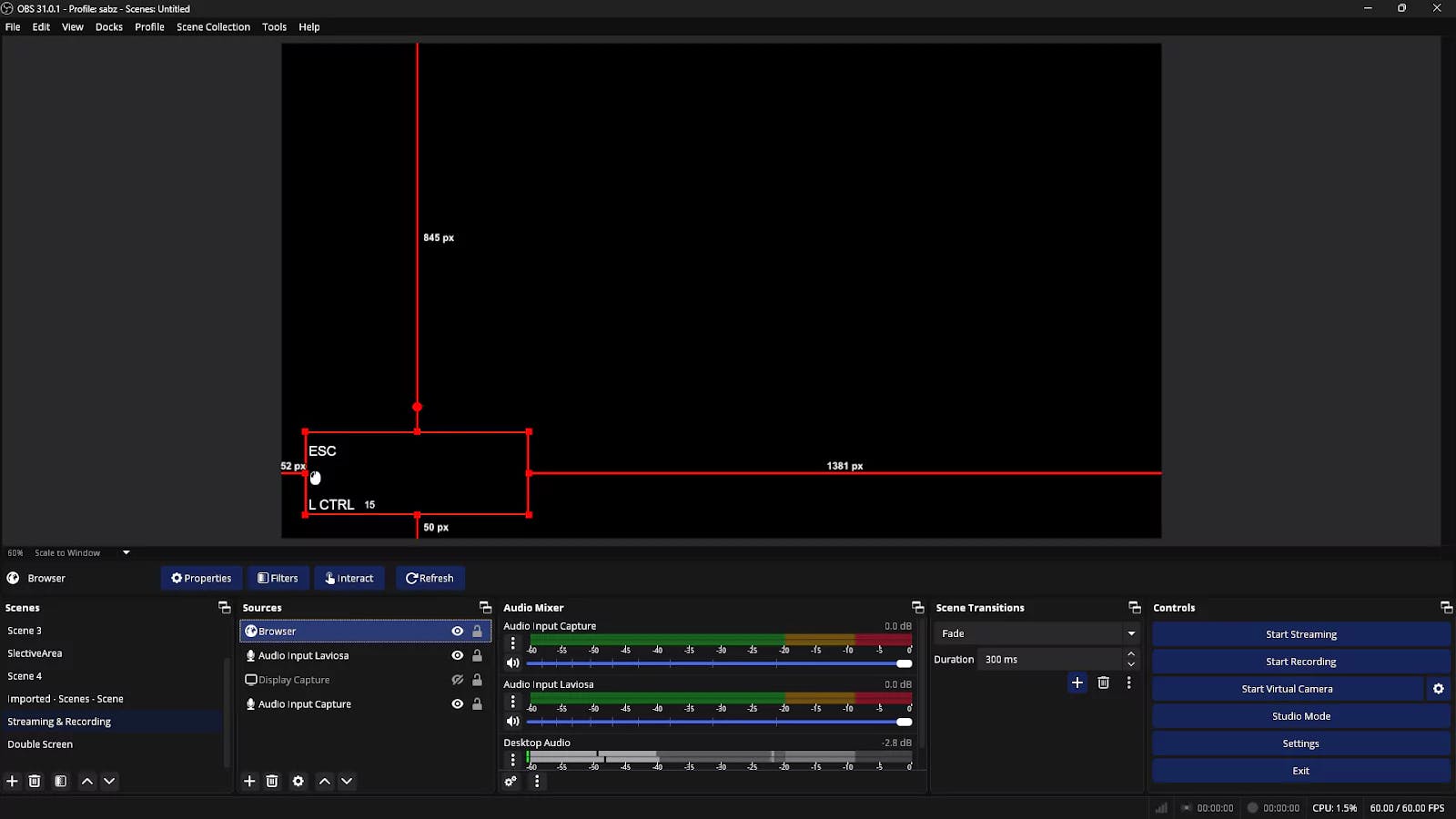
OBS Studio Input Overlay Guide Step-by-Step Install Tips for Keyboard and Mouse Input Display
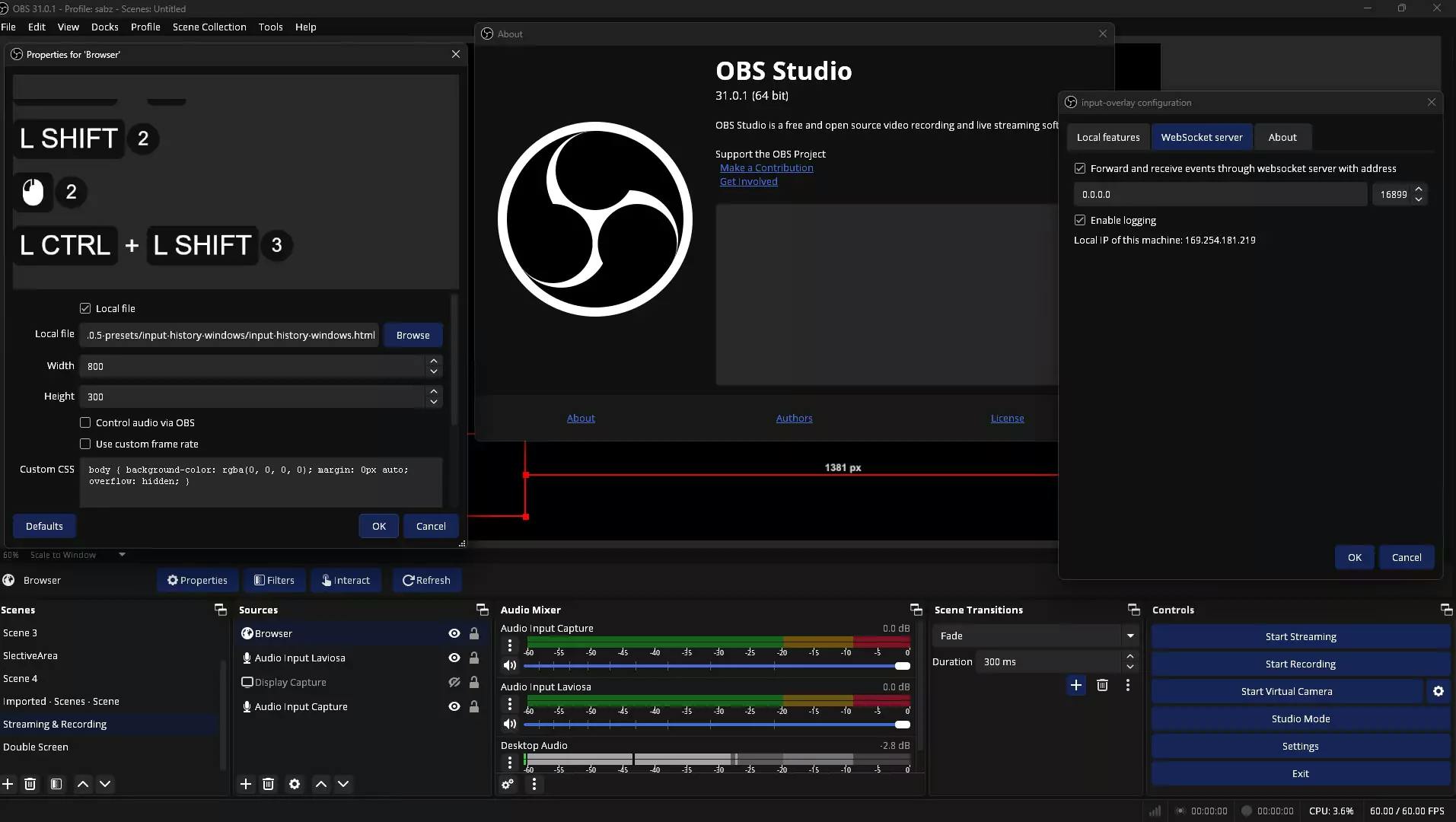
In this blog post, I will show you how to add an input overlay of keyboard and mouse keys pressed by the user to your recorded video or live stream.
1. Download and Install OBS Studio:
2. Download the Input Overlay Plugin:
Navigate to the Input Overlay plugin's resource page: https://obsproject.com/forum/resources/input-overlay.552/.
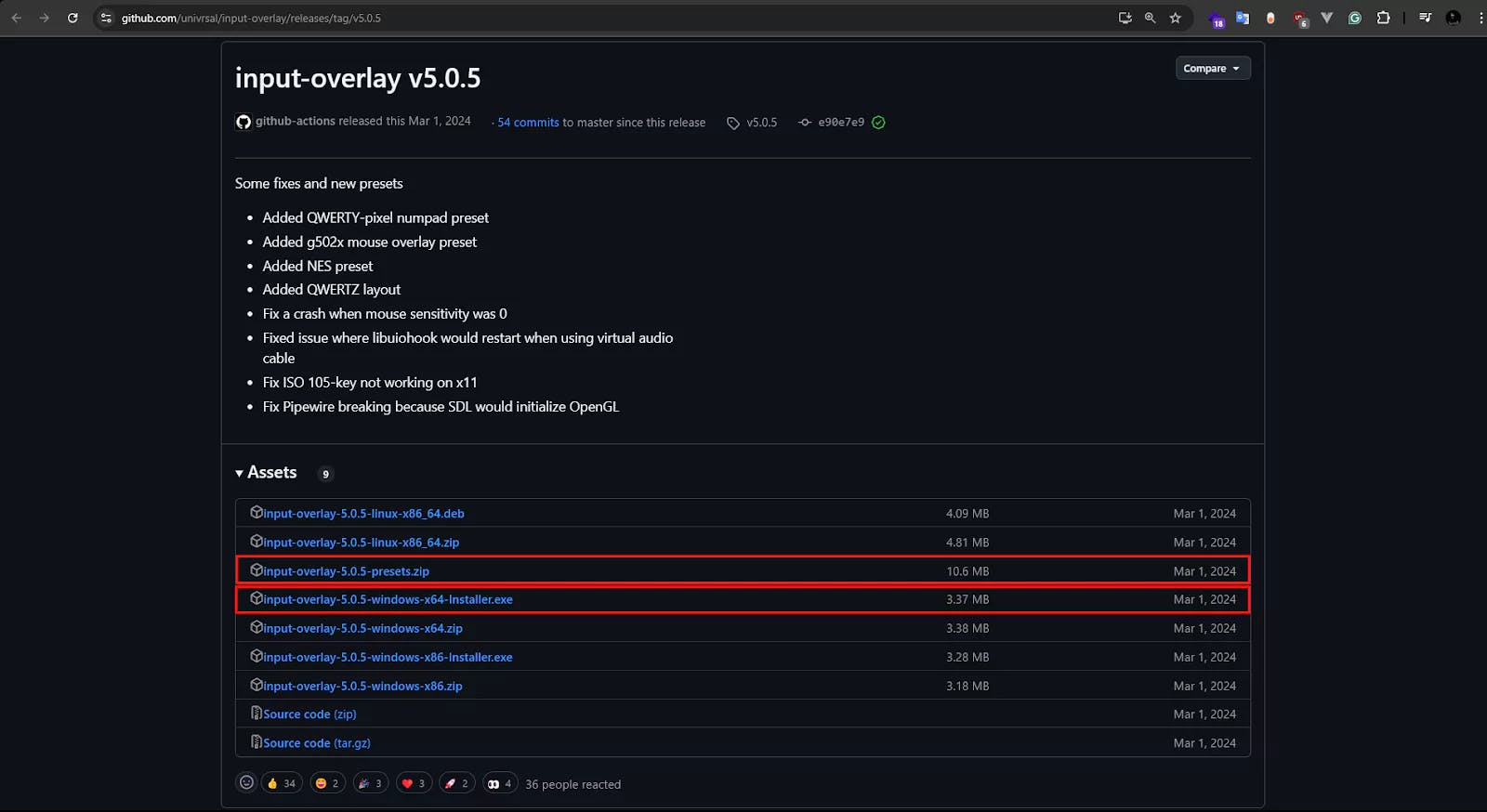
Download the
plugin installer&preset zip folder
Follow the installer instructions to install the plugin.
Unzip the input-overlay-presets.zip folder.
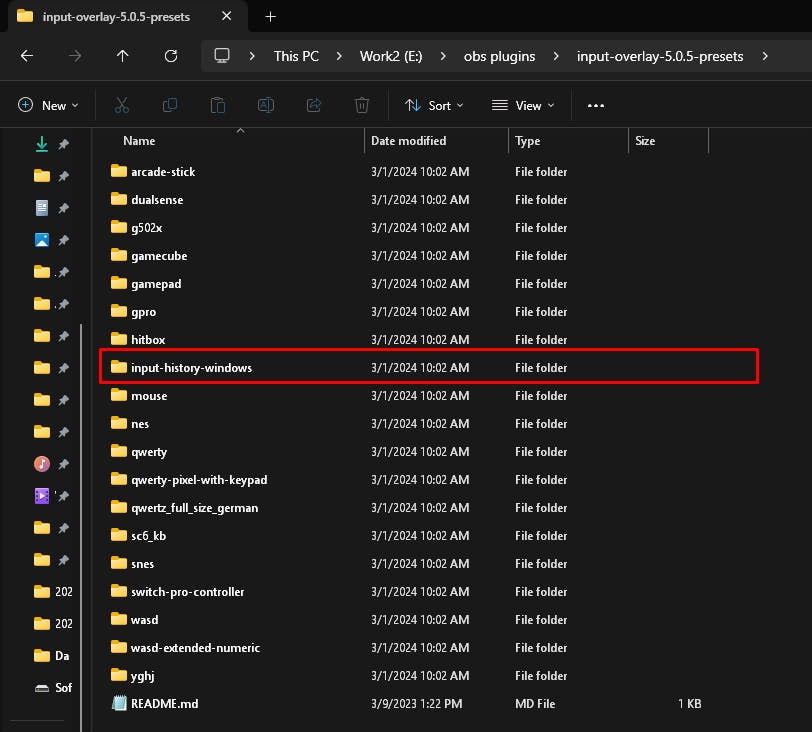
Remember the location of the
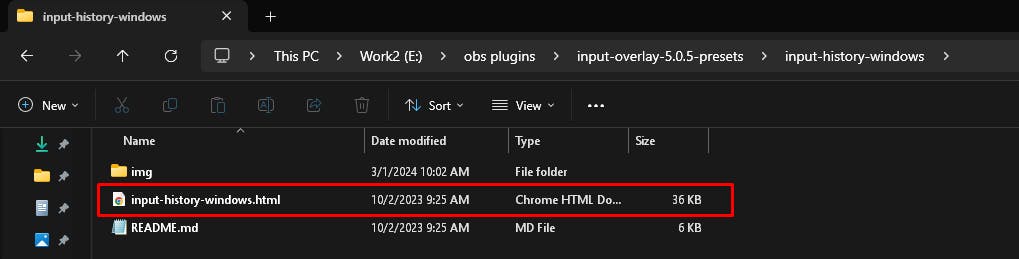
input-history-windows.htmlfile, as we'll need it later.
3. Configure OBS Studio:
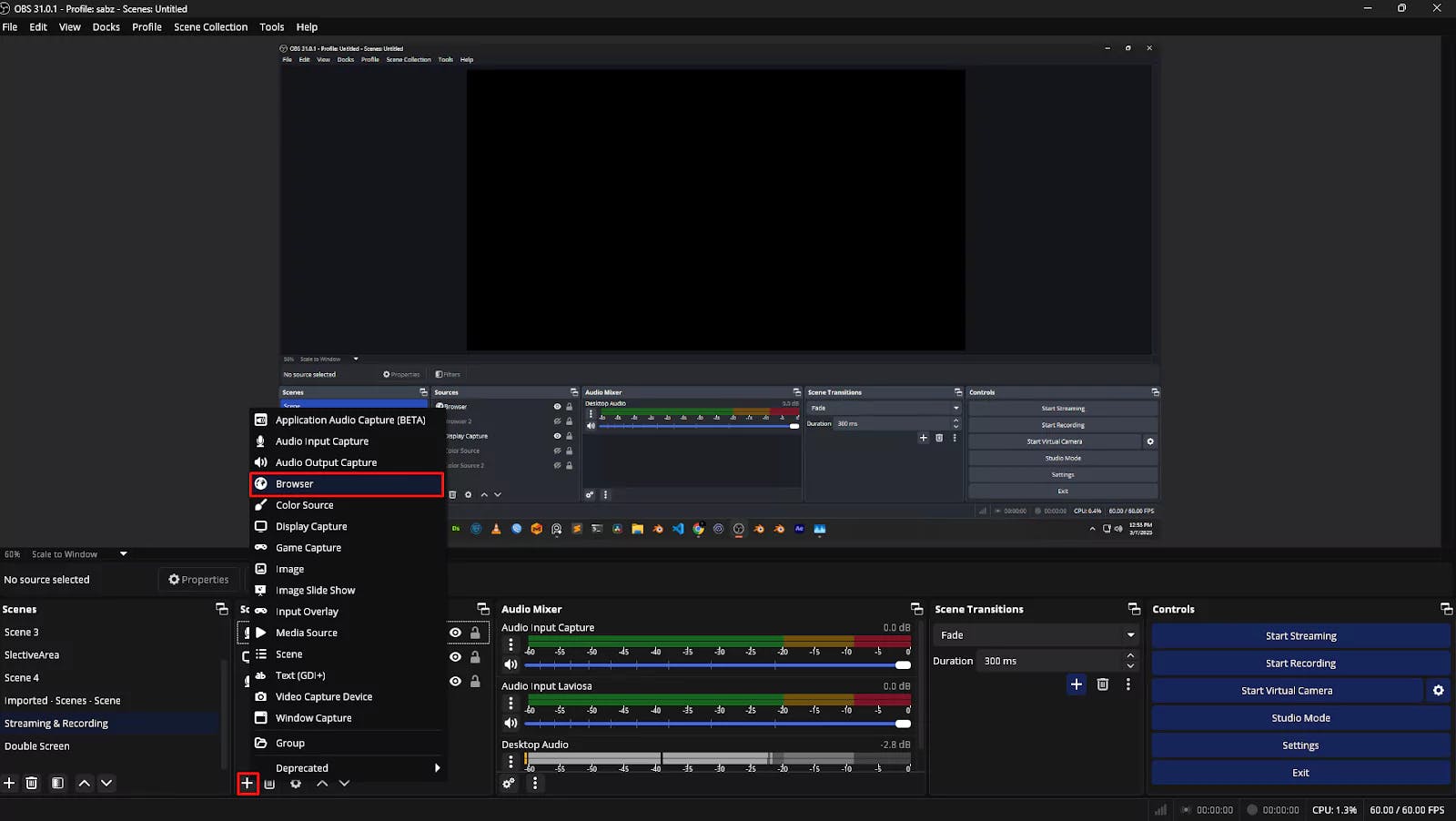
Sources panel, click the + button and select Browser
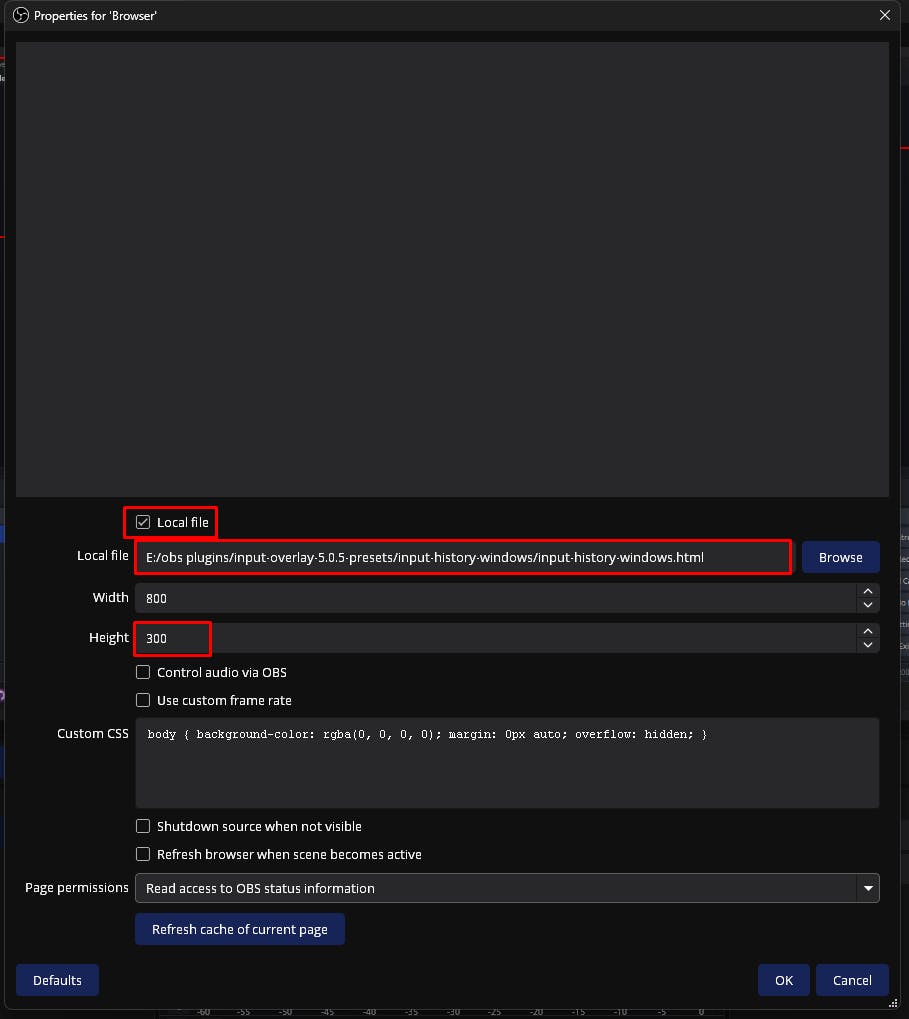
browser source properties:
Local File option.input-history-windows.html file from the unzipped presets folder.
full configuration
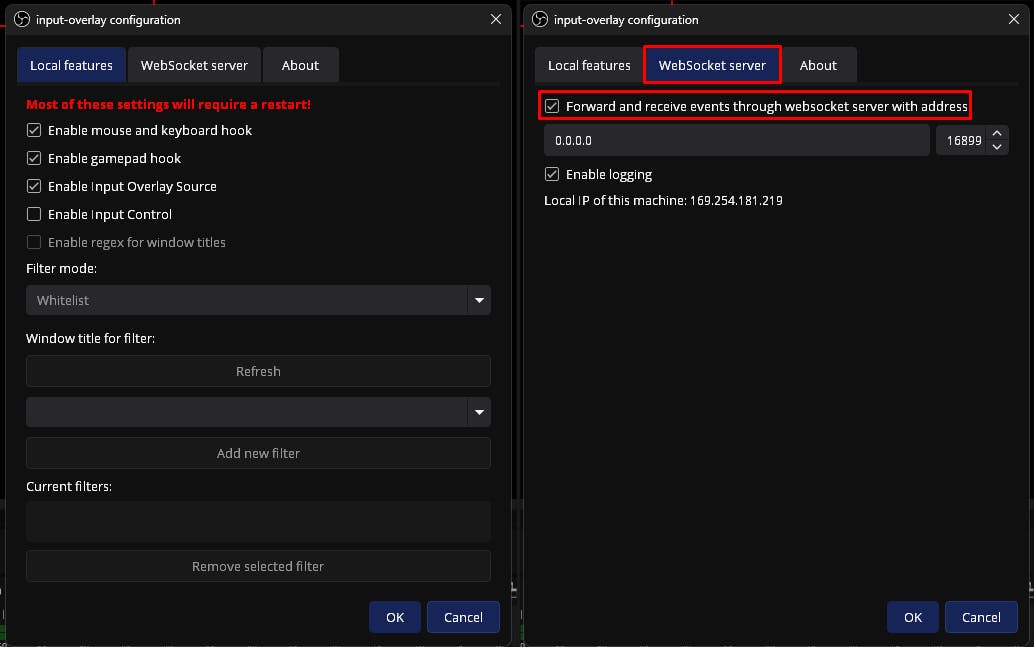
4. Adjust Input Overlay Settings:
Tools > Input-overlay settings
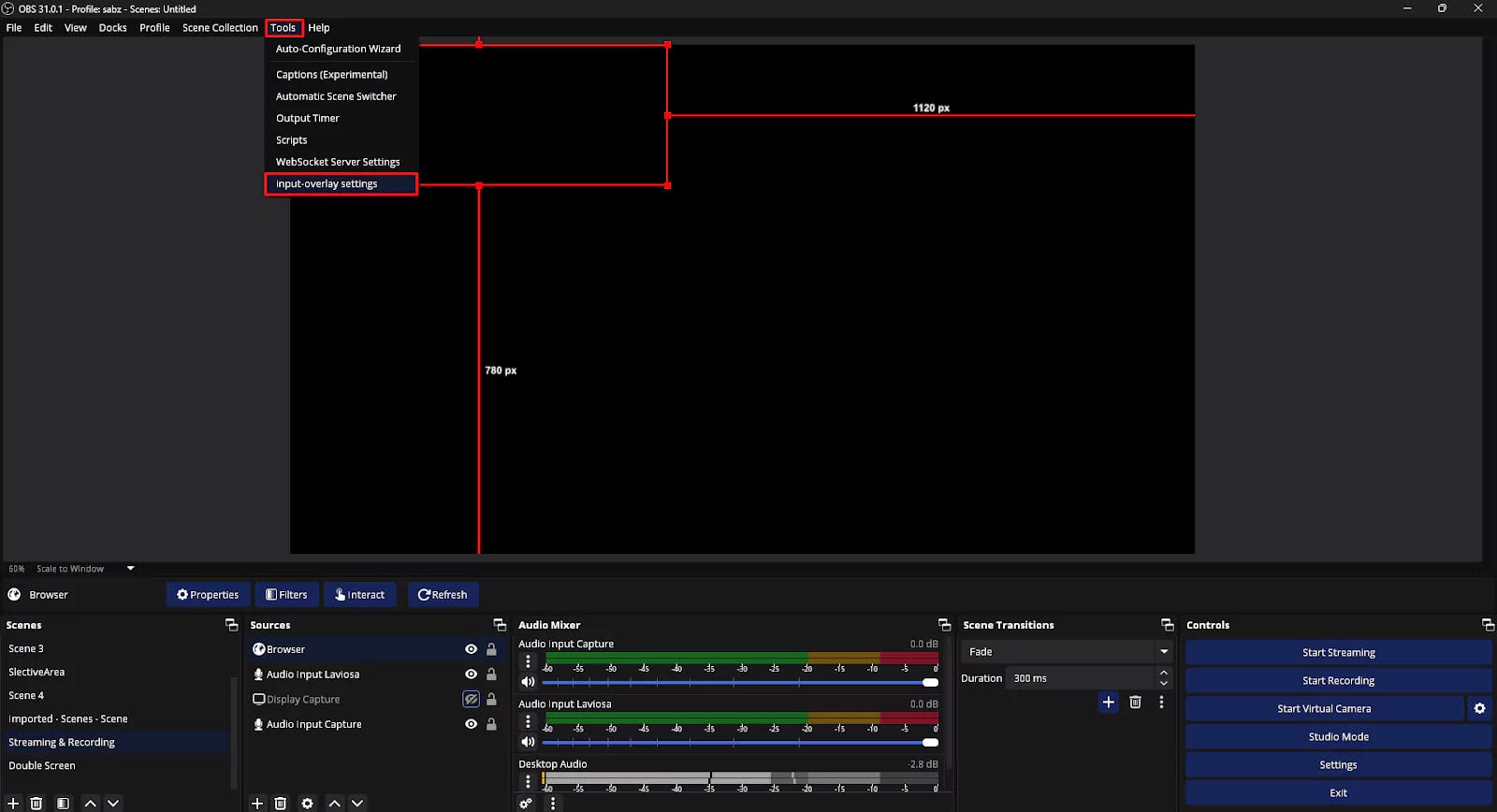
Enable the necessary settings, such as displaying keyboard and mouse inputs, and customize the appearance as desired.
5. Restart OBS Studio:
Close and reopen OBS Studio. You might be prompted for administrator permissions during the restart.