Deploying Frappe Framework to Production: Docker, Nginx & SSL on a VPS
You built your app. bench start hums along on localhost, hot-reloading every change — until someone asks: "okay, where do we actually put this?" That question breaks more Frappe projects than any bug ever will, because the Frappe Framework dev workflow is built for iteration speed, not for surviving a server reboot or a traffic spike.
The good news: the Frappe team already solved this with frappe_docker, a battle-tested set of container images and Compose files 📦. This guide walks through using it properly on a real VPS, with your own domain and a valid SSL certificate 🔒 — no ERPNext-specific detours, just the framework itself.
bench start cannot be your production setupapps.json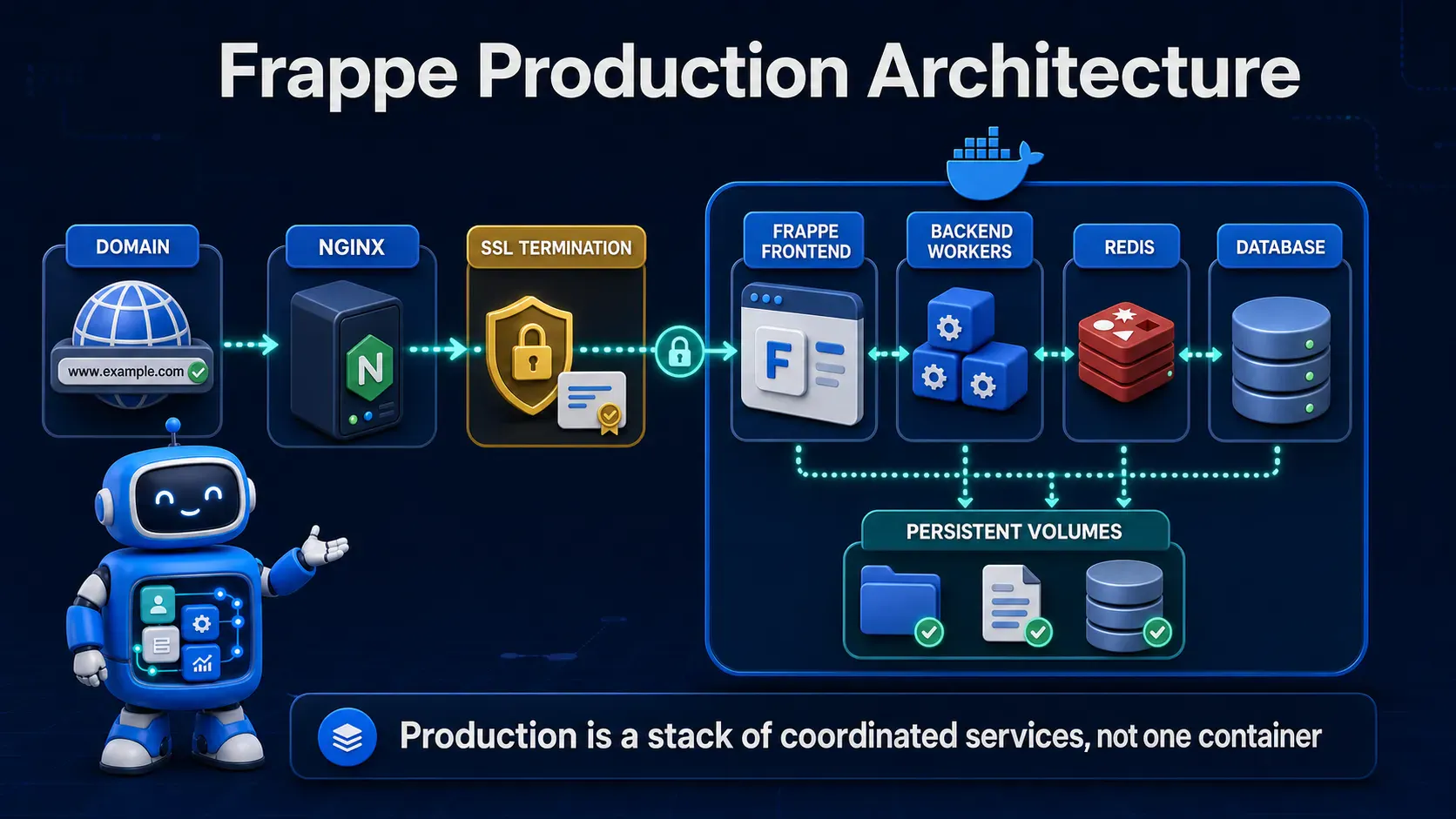
When you run bench start locally, one process juggles everything: the web server, the background workers, the scheduler, and the websocket server, all tied to your terminal session. Close the terminal, and it's gone.
Production needs each of those responsibilities split into its own long-running, independently restartable process 🔁 — which is exactly what containers are good at. frappe_docker doesn't reinvent Frappe; it packages the same components bench uses (gunicorn, a socketio node process, RQ workers, a scheduler loop) into separate Docker services, each supervised and auto-restarting.
A typical production stack looks like this:
| Service | Role |
|---|---|
backend | Gunicorn serving the actual Frappe/Python app |
frontend | Nginx (inside the container) serving static assets and proxying dynamic requests to backend/websocket |
websocket | Node process handling real-time socketio connections |
queue-short / queue-long | RQ workers processing background jobs |
scheduler | Triggers scheduled/cron-style Frappe events |
db | MariaDB, either as a container or an external managed instance |
redis-cache / redis-queue | Redis instances for caching and the job queue |
Your own Nginx (or a bundled Traefik service) sits in front of all of this, terminating SSL and forwarding plain HTTP to the frontend container. That's the whole picture — once it clicks, every step below is just filling in this diagram.
Spin up a VPS 🖥️ (2 vCPU / 4GB RAM is a comfortable starting point for a single site) and create an A record pointing your domain — say app.yourdomain.com — at the server's public IP.
# quick sanity check once DNS is set
dig +short app.yourdomain.com
⚠️ Common Mistake: Jumping straight to the Certbot step before DNS has propagated. Let's Encrypt validates ownership over the public internet — if
digdoesn't return your server's IP yet, the certificate request will fail every time.
DNS propagation is the single most common reason SSL setup "randomly" fails later, so confirm it now while you wait for other steps.
Most modern VPS images can get Docker 🐳 running with the official convenience script:
curl -fsSL https://get.docker.com | sh
sudo usermod -aG docker $USER
Log out and back in so your user picks up the docker group, then confirm both Docker and the Compose plugin are available:
docker --version
docker compose version
This gives you the docker compose subcommand (not the older standalone docker-compose binary) that frappe_docker expects.
frappe_docker and Understand the Layout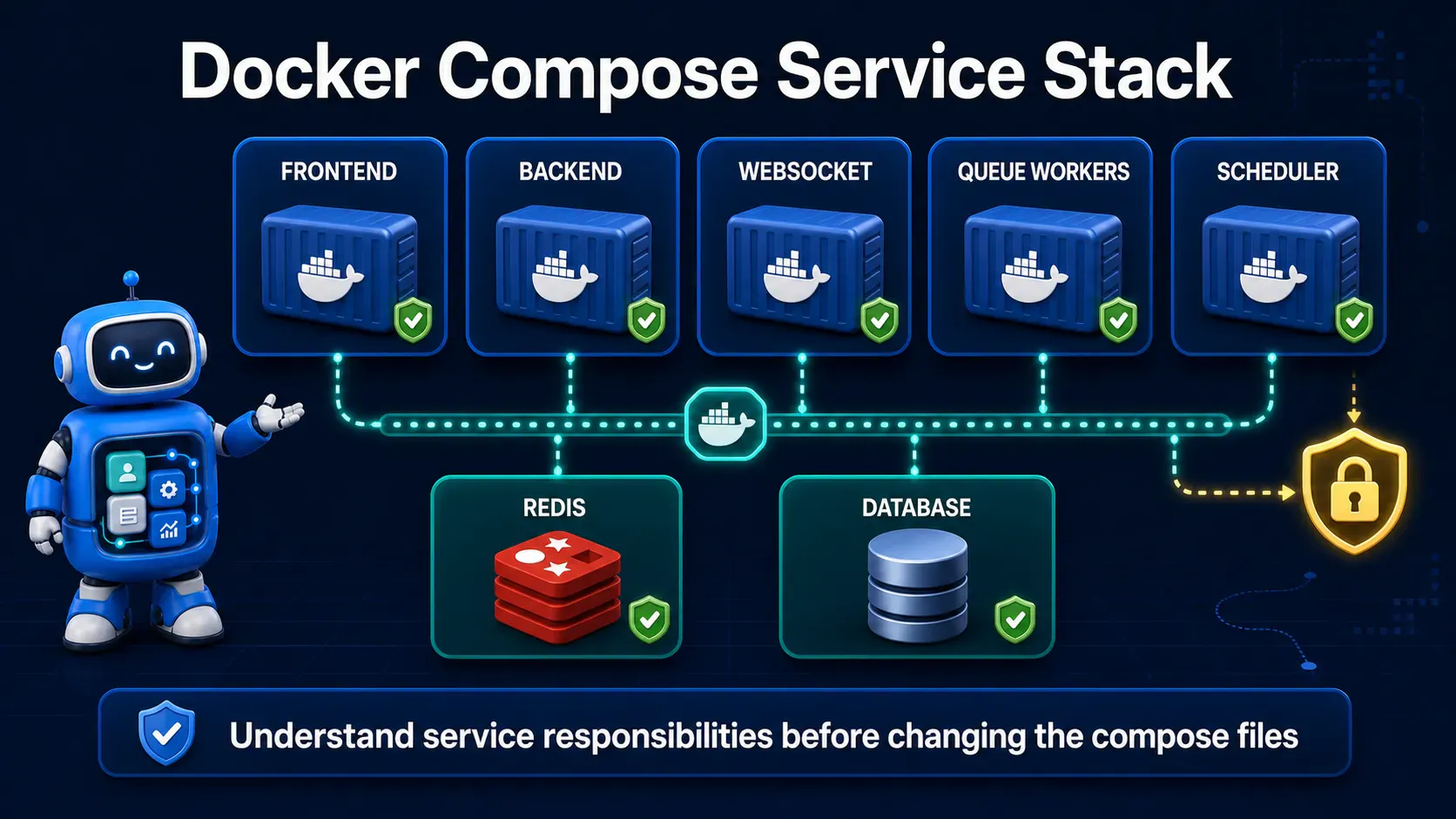
git clone https://github.com/frappe/frappe_docker
cd frappe_docker
Inside, you'll find a base Compose file plus a set of override files you layer on top depending on what you need — one for MariaDB, one for Redis, one for HTTPS/Traefik, and so on. This "base + overrides" pattern is deliberate: it keeps a single source of truth while letting you compose exactly the stack your environment needs (external DB vs. containerized DB, Nginx vs. Traefik for SSL).
You'll also find pwd.yml, a single-container "push-button" demo setup — do not use this for production, it's meant for quick evaluation only.
.env FileCopy the example environment file and fill in the values specific to your deployment:
cp example.env .env
# .env
FRAPPE_VERSION=version-15
DB_PASSWORD=change-this-to-a-strong-random-password
[email protected]
SITE_NAME=app.yourdomain.com
💡 Pro Tip: Generate the DB root password with
openssl rand -base64 24instead of typing one — it never needs to be memorized, only stored.
FRAPPE_VERSION pins the image tag (e.g. version-15), which matters a lot once you get to updates later — pinning avoids silently pulling a breaking major version change.
apps.json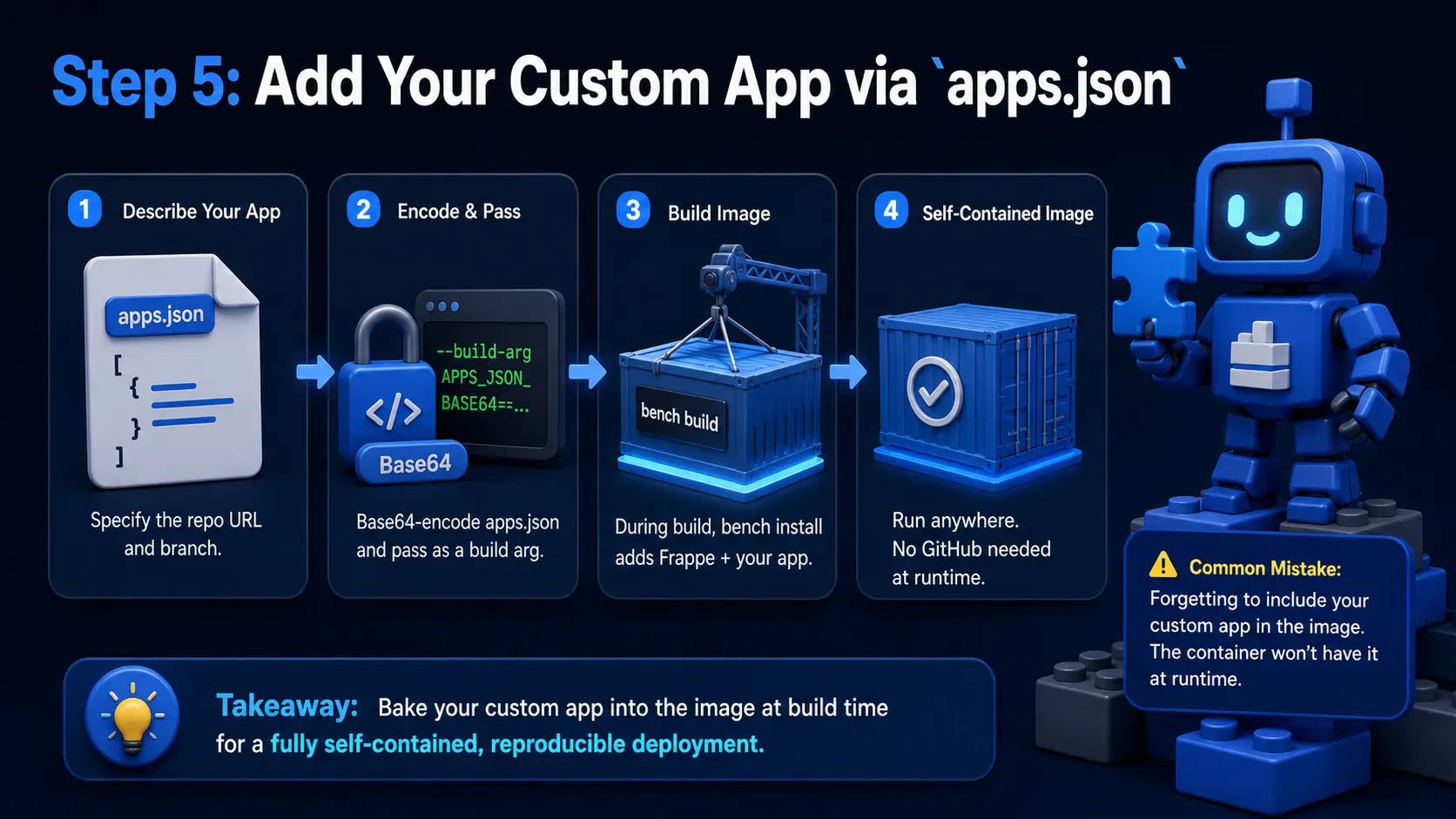
Section visual: Add Your Custom App via apps.json.
If you're deploying a custom app 🧩 (not just stock Frappe), you need a custom image that has your app's code baked in at build time. This is done through an apps.json file describing which apps and branches to pull:
[
  {
    "url": "https://github.com/yourorg/your_custom_app",
    "branch": "main"
  }
]
Base64-encode it and pass it as a build argument to the layered image build:
export APPS_JSON_BASE64=$(base64 -w 0 apps.json)

docker build \
  --build-arg FRAPPE_PATH=https://github.com/frappe/frappe \
  --build-arg FRAPPE_BRANCH=version-15 \
  --build-arg APPS_JSON_BASE64=$APPS_JSON_BASE64 \
  -t yourorg/frappe-custom:latest \
  -f images/layered/Containerfile .
This produces one self-contained image with Frappe and your app already installed via bench build during the image build — the container never needs to reach out to GitHub again at runtime.
⚠️ Common Mistake: Forgetting to bump the image tag after pushing new app code. If your Compose file still references
:latestfrom three deploys ago,docker compose upwill happily start the stale image with no error at all.
With the image ready and .env configured, start the stack 🚀:
docker compose -f compose.yaml \
  -f overrides/compose.mariadb.yaml \
  -f overrides/compose.redis.yaml \
  --project-name frappe_prod up -d
A short-lived create-site job runs once, waiting for the database to be reachable before creating your site. If you need to trigger it manually or create an additional site, exec into the backend container:
docker compose --project-name frappe_prod exec backend \
  bench new-site app.yourdomain.com \
  --install-app your_custom_app \
  --admin-password admin \
  --db-root-password change-this-to-a-strong-random-password
Once this finishes, docker compose ps should show backend, frontend, websocket, queue-short, queue-long, scheduler, db, and both Redis services healthy and running ✅.
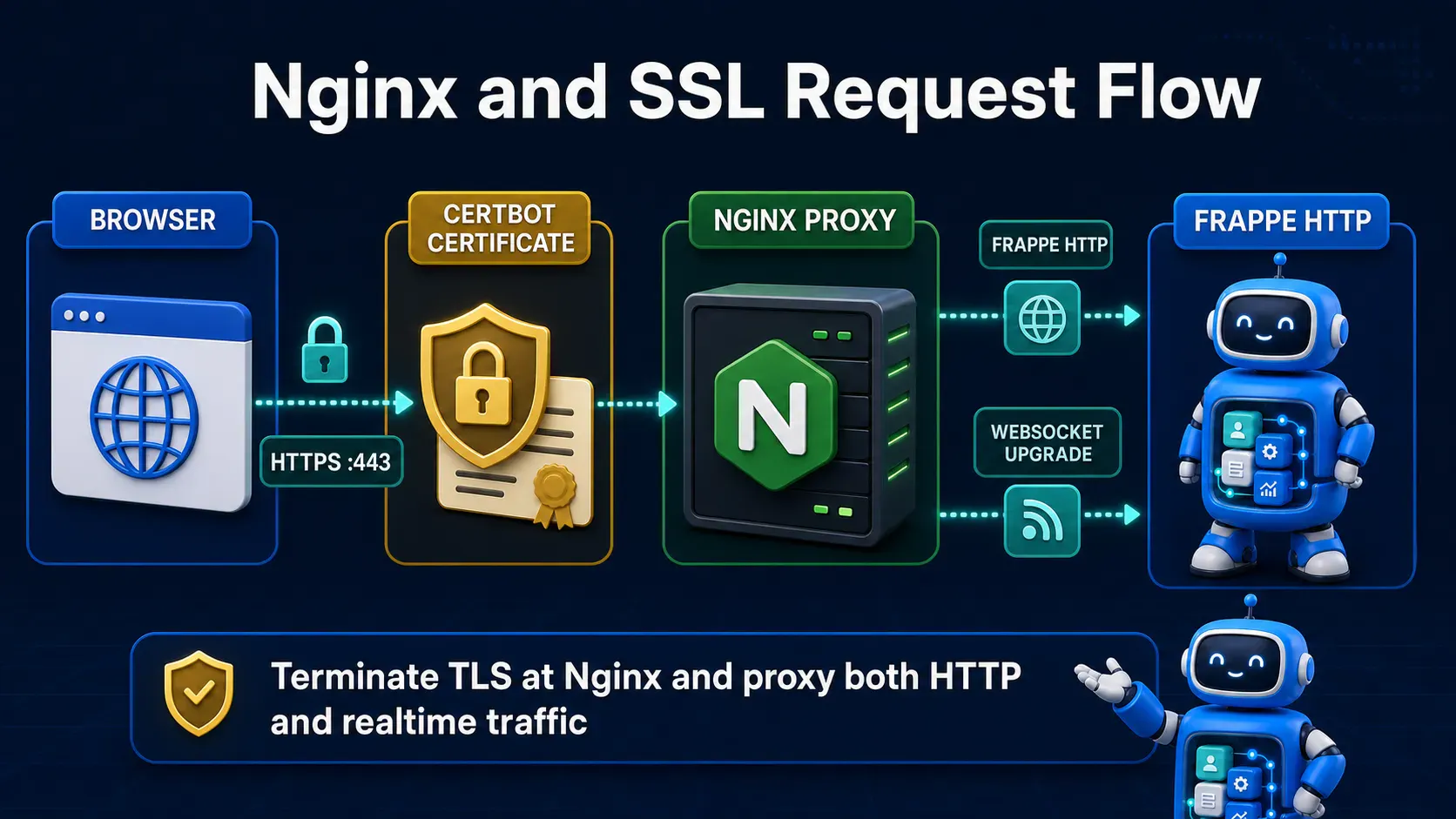
The frontend container already runs its own internal Nginx 🌐 serving static assets and proxying to backend/websocket — but it's only reachable on an internal Docker network port, not the public internet on 443.
Install Nginx on the host and reverse-proxy to that container's exposed port (commonly mapped to something like 8080 in your Compose override):
# /etc/nginx/sites-available/app.yourdomain.com
server {
    listen 80;
    server_name app.yourdomain.com;

    location / {
        proxy_pass http://127.0.0.1:8080;
        proxy_set_header Host $host;
        proxy_set_header X-Real-IP $remote_addr;
        proxy_set_header X-Forwarded-For $proxy_add_x_forwarded_for;
        proxy_set_header X-Forwarded-Proto $scheme;
    }
}
sudo ln -s /etc/nginx/sites-available/app.yourdomain.com /etc/nginx/sites-enabled/
sudo nginx -t && sudo systemctl reload nginx
💡 Pro Tip: If you'd rather skip host Nginx entirely,
frappe_dockerships a Traefik-based override (overrides/compose.https.yaml) that handles reverse-proxying and automatic Let's Encrypt renewal in one service — worth it if you're comfortable letting Traefik own port 443 directly.
At this point your site is reachable over plain HTTP through Nginx — the next step is making that HTTPS.
With Nginx already serving your domain on port 80, Certbot can obtain and install a certificate 🔐 with a single command:
sudo apt install certbot python3-certbot-nginx
sudo certbot --nginx -d app.yourdomain.com
Certbot edits your Nginx config to redirect HTTP to HTTPS and installs a certificate valid for 90 days, alongside a systemd timer that handles renewal automatically:
sudo systemctl status certbot.timer
⚠️ Common Mistake: Running Certbot before opening port 80/443 in the VPS firewall. The HTTP-01 challenge Certbot uses requires your server to be reachable from the internet on port 80 at the exact moment of validation.
Your Frappe site is now served over HTTPS, with the certificate lifecycle fully automated — no more manual renewals to remember.
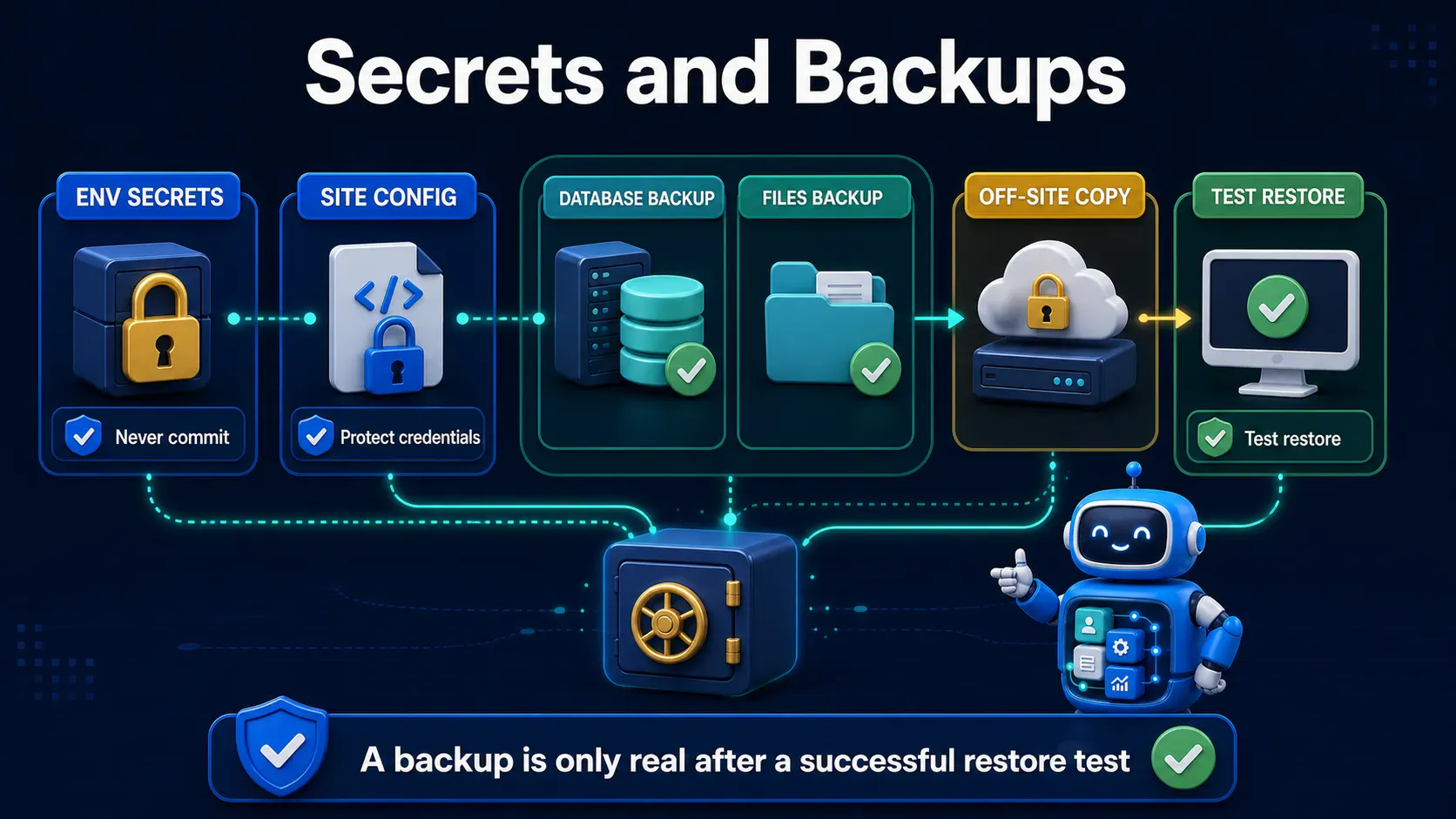
Never commit .env or hardcode DB_PASSWORD 🔑 in a Compose file checked into version control. At minimum:
echo ".env" >> .gitignore
chmod 600 .env
For anything beyond a single VPS, consider Docker secrets or a proper secrets manager (Vault, AWS Secrets Manager, or even a CI/CD-injected environment) instead of a plaintext file sitting on disk.
Back up 💾 both the database and the files volume — bench already has this built in, you just run it inside the container:
docker compose --project-name frappe_prod exec backend \
  bench --site app.yourdomain.com backup --with-files
Wrap that in a nightly cron job on the host, and copy the resulting backup directory off-server (S3, another disk, anywhere but the same VPS).
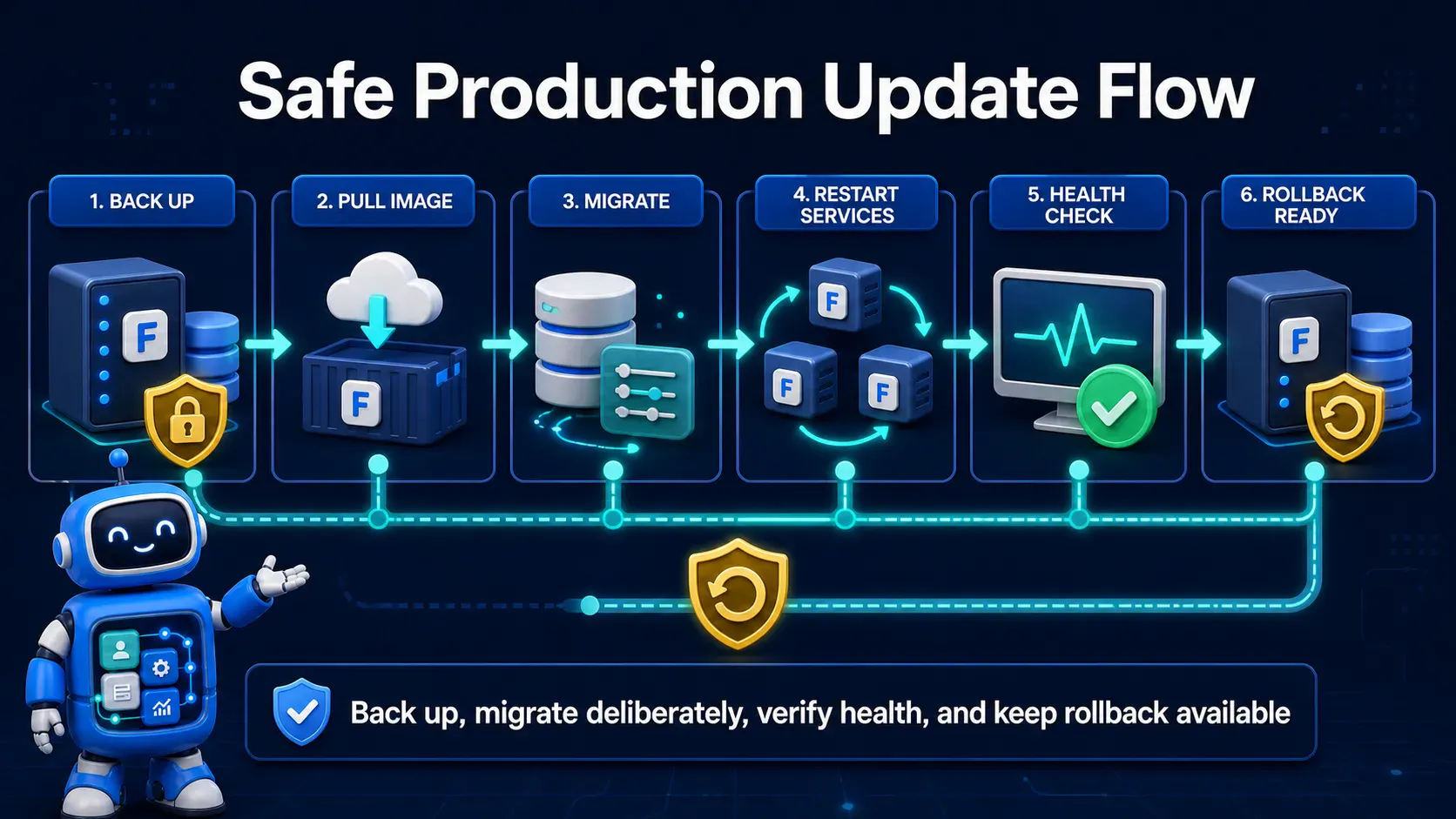
Updating in Docker replaces bench update: pull or rebuild a new image tag, then run migrations against the new code before swapping containers:
docker compose --project-name frappe_prod pull
docker compose --project-name frappe_prod up -d
docker compose --project-name frappe_prod exec backend \
  bench --site app.yourdomain.com migrate
💡 Pro Tip: Tag images by version (
v1.2.0) rather than reusinglatest, so a bad deploy is a one-line rollback — point Compose back at the previous tag and restart.
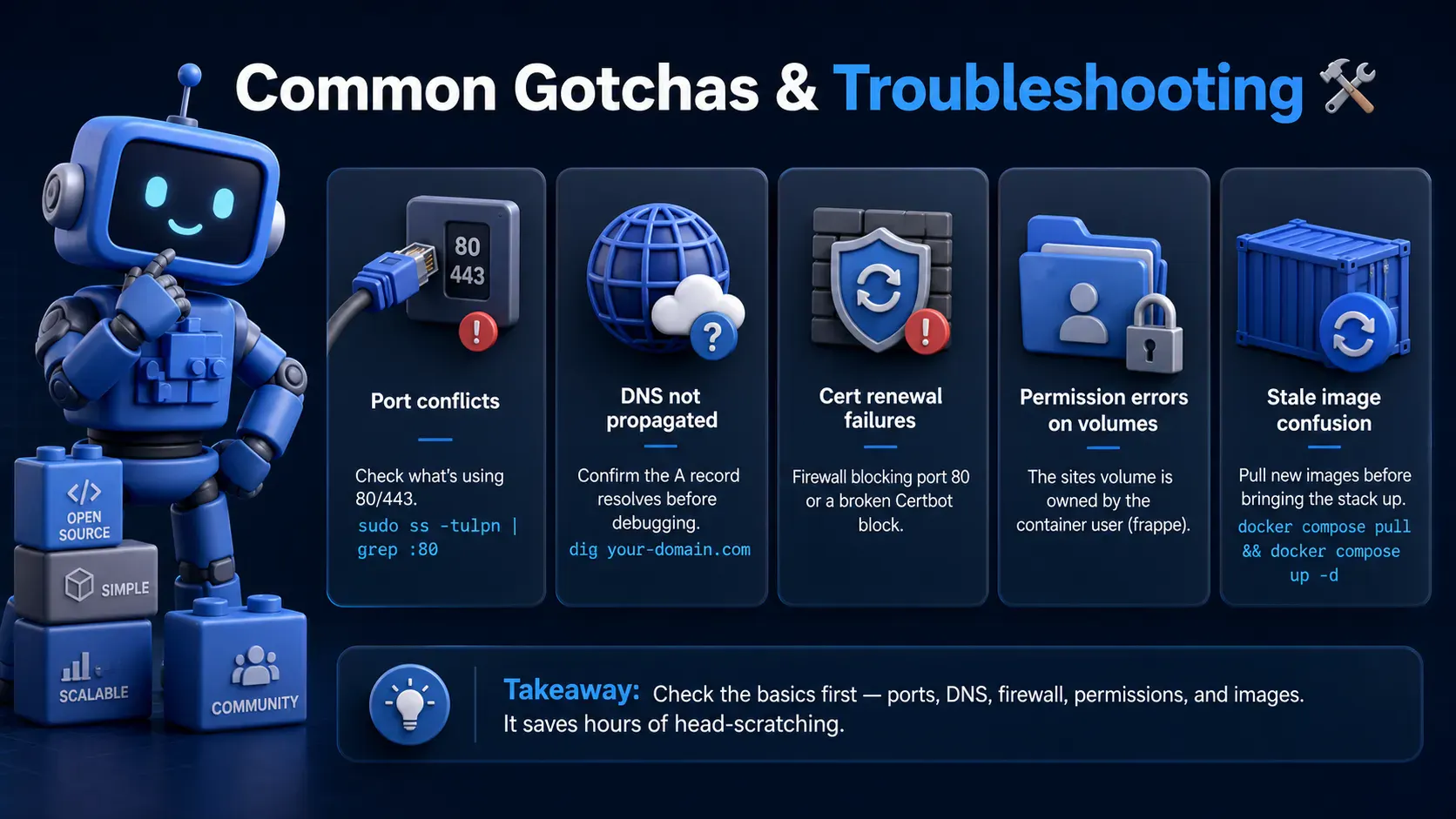
Section visual: Common Gotchas & Troubleshooting.
sudo ss -tulpn | grep :80dig returns the right IPsites volume is owned by the container's internal user (typically frappe); avoid mounting host directories with mismatched UID/GIDdocker compose up -d won't pull a new image unless you pull first — a classic "I updated the code but nothing changed" trapufw/security group) allows only 22, 80, 443developer_mode and debug flags disabled on the site configDB_PASSWORD and admin password, stored outside version controlqueue-short/queue-long replicas) sized to actual job loadsystemctl status certbot.timer)latestDeploying Frappe in production is mostly about accepting that dev-mode conveniences — one process, no auth, no TLS — have to be traded for separated, supervised, secured pieces. frappe_docker does the hard packaging work; your job is mostly configuration and discipline around secrets and updates. Get through this once, write down your exact Compose command, and every future deploy becomes a five-minute routine 🎉 instead of a rediscovery project.
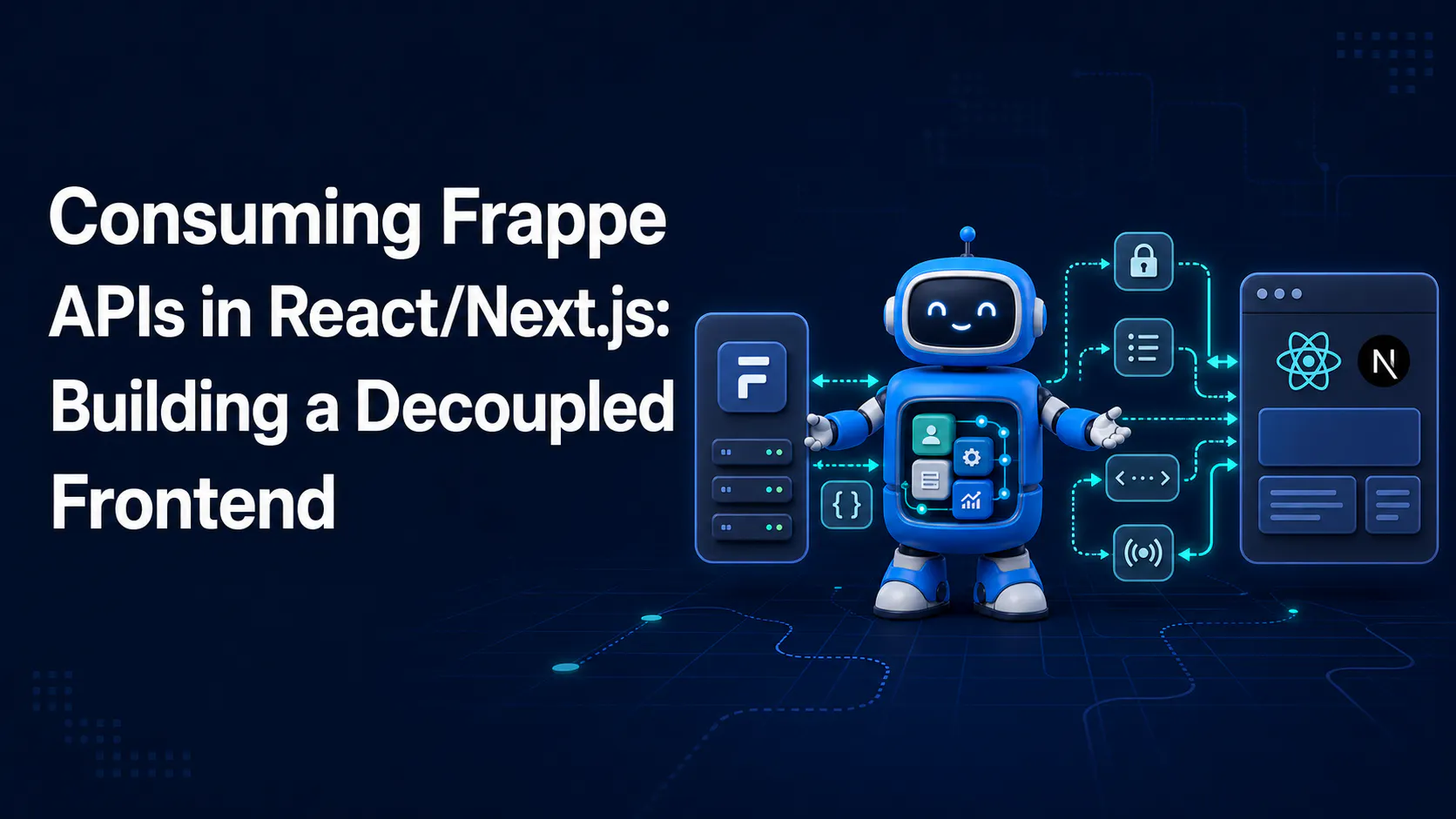
A step-by-step guide to calling Frappe's REST API from React/Next.js, handling session and API-key auth correctly, and wiring up live updates with Socket.IO

Stop fighting the built-in resource API for complex business logic. Here's how to expose your own Python functions as clean, secure REST endpoints in Frappe
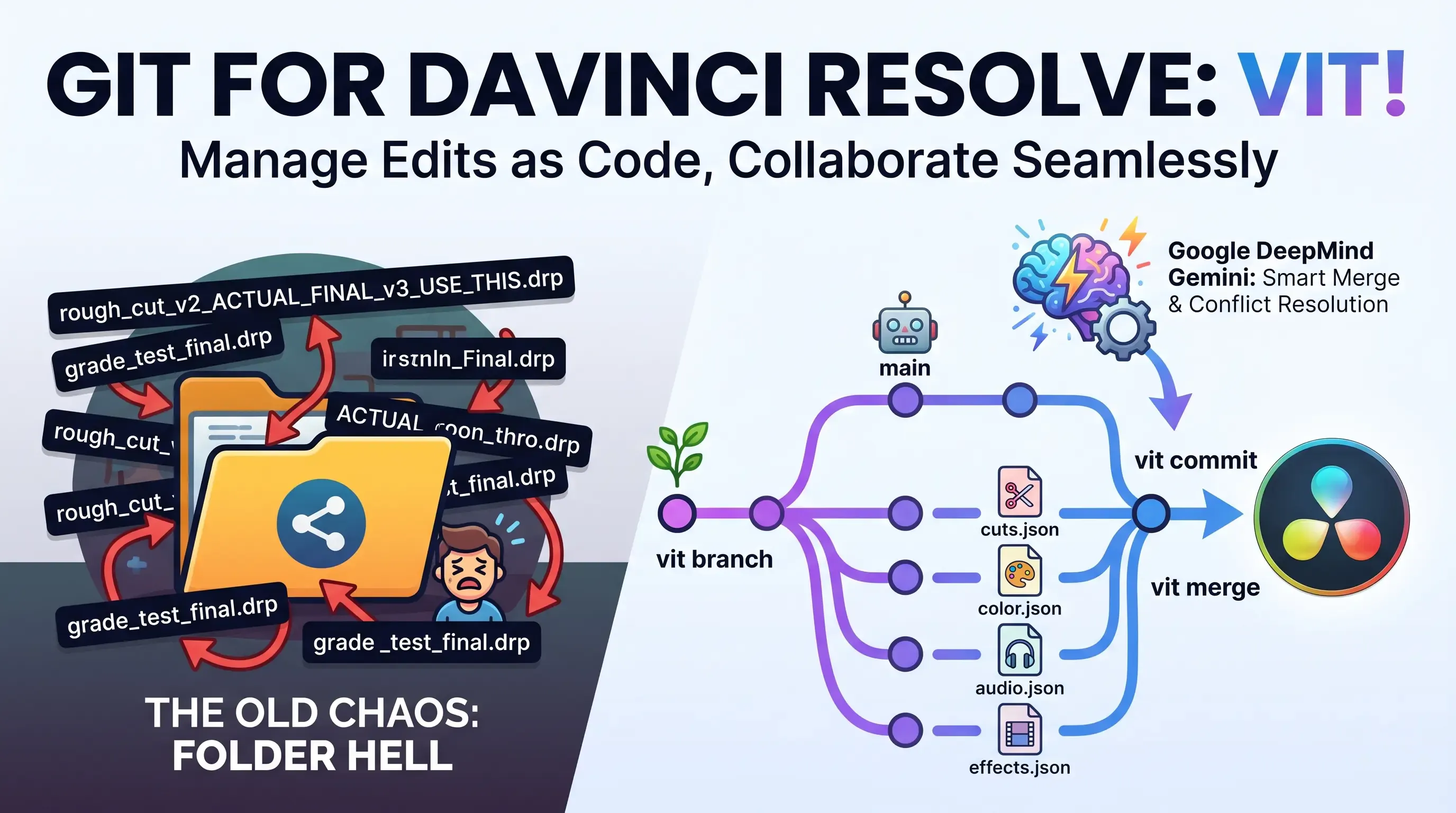
Explore Vit, the revolutionary tool that uses AI semantic merges to resolve video editing conflicts in DaVinci Resolve. Perfect for editors, colorists, and sound designers.