Installing SvelteKit with shadcn-svelte & daisyUI Together

In the world of SvelteKit UI libraries, two giants often stand out: shadcn-svelte and daisyUI.
But what if you want the robust, accessible interactive components of shadcn (like Comboboxes and Datepickers) and the rapid layout classes of daisyUI?
Good news: You can use them together! 🎉
Follow this guide to set up the ultimate SvelteKit development environment. 👇
First things first, let's create a fresh SvelteKit project using the new CLI.
npx sv create ./
Tip: Select the options that best fit your needs. We recommend using TypeScript for better type safety! 🛡️
To make our imports clean and tidy, let's set up some aliases in svelte.config.js. This allows us to use @ or other symbols to reference our directories.
Open svelte.config.js and add the alias object inside kit:
const config = {
  // ... other config
  kit: {
    // ... other config
    alias: {
      "@/*": "./src/lib/*", // 👈 This is a common convention
    },
  },
};
jsconfig.json / tsconfig.jsonIf you want your IDE to be super smart about these paths, create or update jsconfig.json (or tsconfig.json if using TS) in your root directory:
{
  "compilerOptions": {
    "baseUrl": ".",
    "paths": {
      "$lib/*": ["src/lib/*"],
      "$routes/*": ["src/routes/*"],
      "@/*": ["src/lib/*"]
    }
  },
  "include": ["src"]
}
Now, let's bring in the heavy hitter. Run the initialization command:
npx shadcn-svelte@latest init
Follow the prompts:
src/app.csstailwind.config.js (or .ts)$lib/components$lib/utilsshadcn-svelte uses Lucide for its beautiful icons. Let's make sure we have them.
npm install lucide-svelte
Let's test our setup by adding a few essential components.
npx shadcn-svelte@latest add button input label card
Now, let's use them in a page! Create or edit src/routes/+page.svelte:
<script>
  import { Button } from "$lib/components/ui/button";
  import { Input } from "$lib/components/ui/input";
  import { Label } from "$lib/components/ui/label";
  import {
    Card,
    CardContent,
    CardHeader,
    CardTitle,
  } from "$lib/components/ui/card";
</script>

<section class="py-20 flex justify-center">
  <Card class="w-[350px]">
    <CardHeader>
      <CardTitle>Login</CardTitle>
    </CardHeader>
    <CardContent>
      <form class="grid w-full items-center gap-4">
        <div class="flex flex-col space-y-1.5">
          <label for="email">Email</label>
          <input id="email" placeholder="Enter your email" />
        </div>
        <button type="submit">Sign In</button>
      </form>
    </CardContent>
  </Card>
</section>
We want our app to look great in both light and dark modes. We'll use mode-watcher to handle this effortlessly.
Install it:
npm install mode-watcher
Add it to your layout:
Open src/routes/+layout.svelte and add the <ModeWatcher /> component.
<script>
  import "./layout.css";
  import { ModeWatcher } from "mode-watcher";
</script>

<ModeWatcher />
<slot />
Add a Theme Toggle: Let's create a button to switch themes. You can place this in your header or navbar.
<script>
  import Sun from "lucide-svelte/icons/sun";
  import Moon from "lucide-svelte/icons/moon";
  import { toggleMode } from "mode-watcher";
  import { Button } from "$lib/components/ui/button";
</script>

<button on:click="{toggleMode}" variant="outline" size="icon">
  <Sun
    class="h-[1.2rem] w-[1.2rem] rotate-0 scale-100 transition-all dark:-rotate-90 dark:scale-0"
  />
  <Moon
    class="absolute h-[1.2rem] w-[1.2rem] rotate-90 scale-0 transition-all dark:rotate-0 dark:scale-100"
  />
  <span class="sr-only">Toggle theme</span>
</button>
Now, let's add daisyUI to the mix for those quick, beautiful pre-styled components.
Install daisyUI:
npm i -D daisyui@latest
Configure Tailwind:
Open layout.css inside the routes folder, and import daisyui
@import "tailwindcss";
@import "tw-animate-css";
@plugin 'daisyui';
/* rest of the code */
Here is where things can get tricky.
class="dark" strategy on the HTML element.data-theme attribute.If you just run the app now, switching to dark mode might turn your shadcn components dark, but your daisyUI components might stay light (or vice versa)! 😱
The Fix: Use Tailwind's dark: variant!
Since shadcn-svelte (via mode-watcher) toggles the dark class on the html tag, we can simply use Tailwind's dark: modifier to adjust our daisyUI components. This avoids complex theme syncing scripts and keeps your logic clean.
Example:
<div class="card bg-base-100 dark:bg-slate-900 shadow-xl">
  <div class="card-body">
    <h2 class="card-title text-base-content dark:text-white">Shoes!</h2>
    <p class="text-base-content/70 dark:text-gray-300">
      If a dog chews shoes...
    </p>
    <div class="card-actions justify-end">
      <button class="btn btn-primary">Buy Now</button>
    </div>
  </div>
</div>
By adding classes like dark:bg-slate-900 or dark:text-white, you ensure your daisyUI components look perfect in dark mode while letting shadcn handle the actual toggle.
Perfect harmony! 🎶
Now you can use a daisyUI Hero section right next to a shadcn Form.
<div class="divider">DAISYUI</div>

<section class="pb-20">
  <div class="hero">
    <div class="hero-content text-center">
      <div class="max-w-md">
        <h1 class="text-5xl font-bold">Hello there</h1>
        <p class="py-6">
          Provident cupiditate voluptatem et in. Quaerat fugiat ut assumenda
          excepturi exercitationem quasi. In deleniti eaque aut repudiandae et a
          id nisi.
        </p>
        <button class="btn btn-primary">Get Started</button>
      </div>
    </div>
  </div>
</section>

<section class="flex justify-center bg-background pb-20">
  <div class="card bg-base-100 w-96 shadow-xl">
    <figure>
      <img
        src="https://img.daisyui.com/images/stock/photo-1606107557195-0e29a4b5b4aa.webp"
        alt="Shoes"
      />
    </figure>
    <div class="card-body dark:bg-gray-800">
      <h2 class="text-gray-300 dark:text-blue-300">Shoes!</h2>
      <p class="text-gray-400 dark:text-blue-300">
        If a dog chews shoes, whose shoes does he choose?
      </p>
      <div class="card-actions justify-end">
        <button class="btn btn-primary">Buy Now</button>
      </div>
    </div>
  </div>
</section>
You no longer have to compromise. By combining SvelteKit, shadcn-svelte, and daisyUI, you get the best of all worlds:
Happy Coding! 💻✨
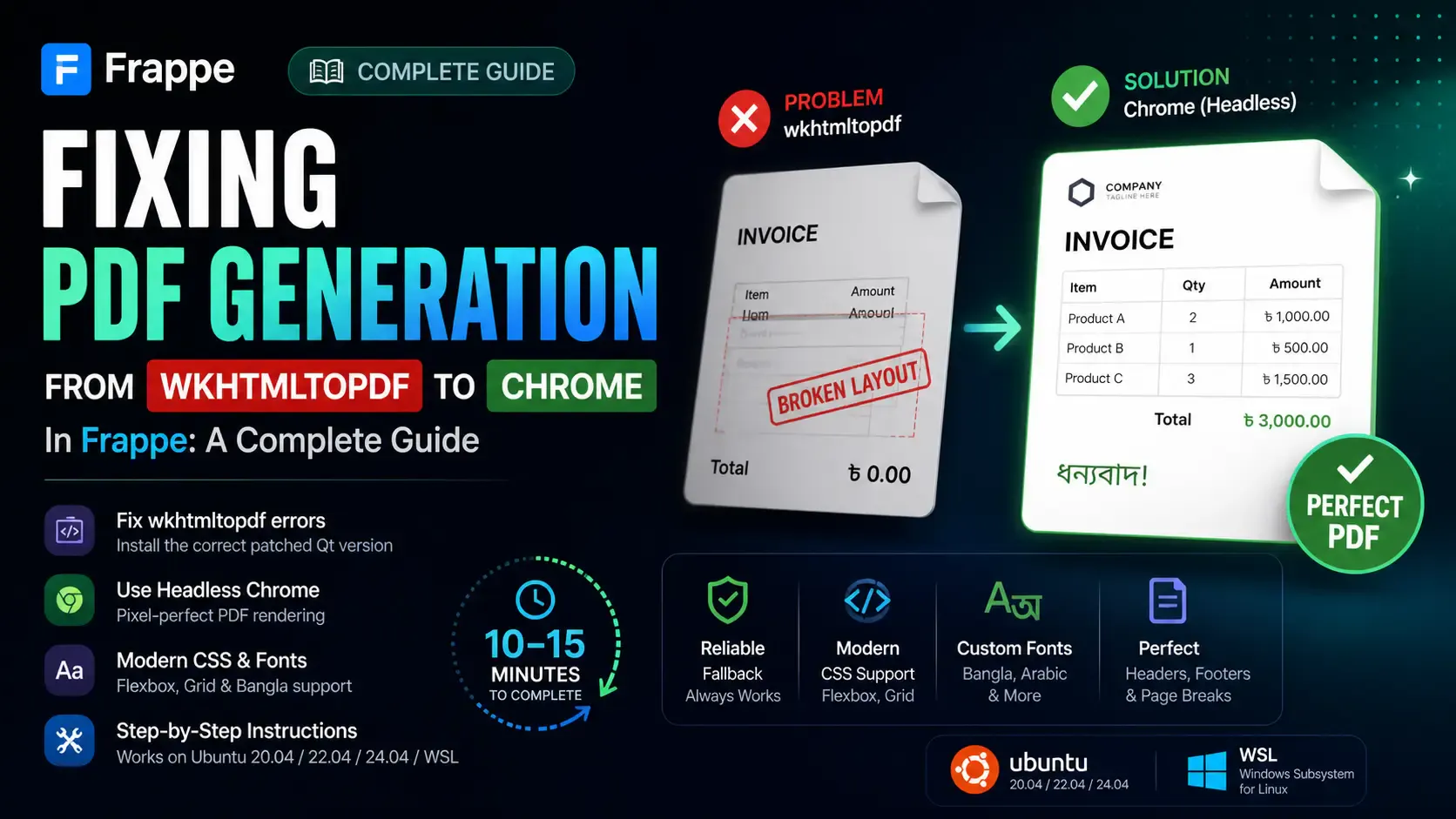
Getting the "Invalid wkhtmltopdf version" error in Frappe or ERPNext? Learn how to fix broken PDFs, install the patched Qt version, and switch to headless Chrome for pixel-perfect modern CSS and custom font support.

Learn how to build custom, role-based dashboards in Frappe v16 using Workspaces, Custom HTML blocks, and Python APIs. Perfect for ERPNext developers
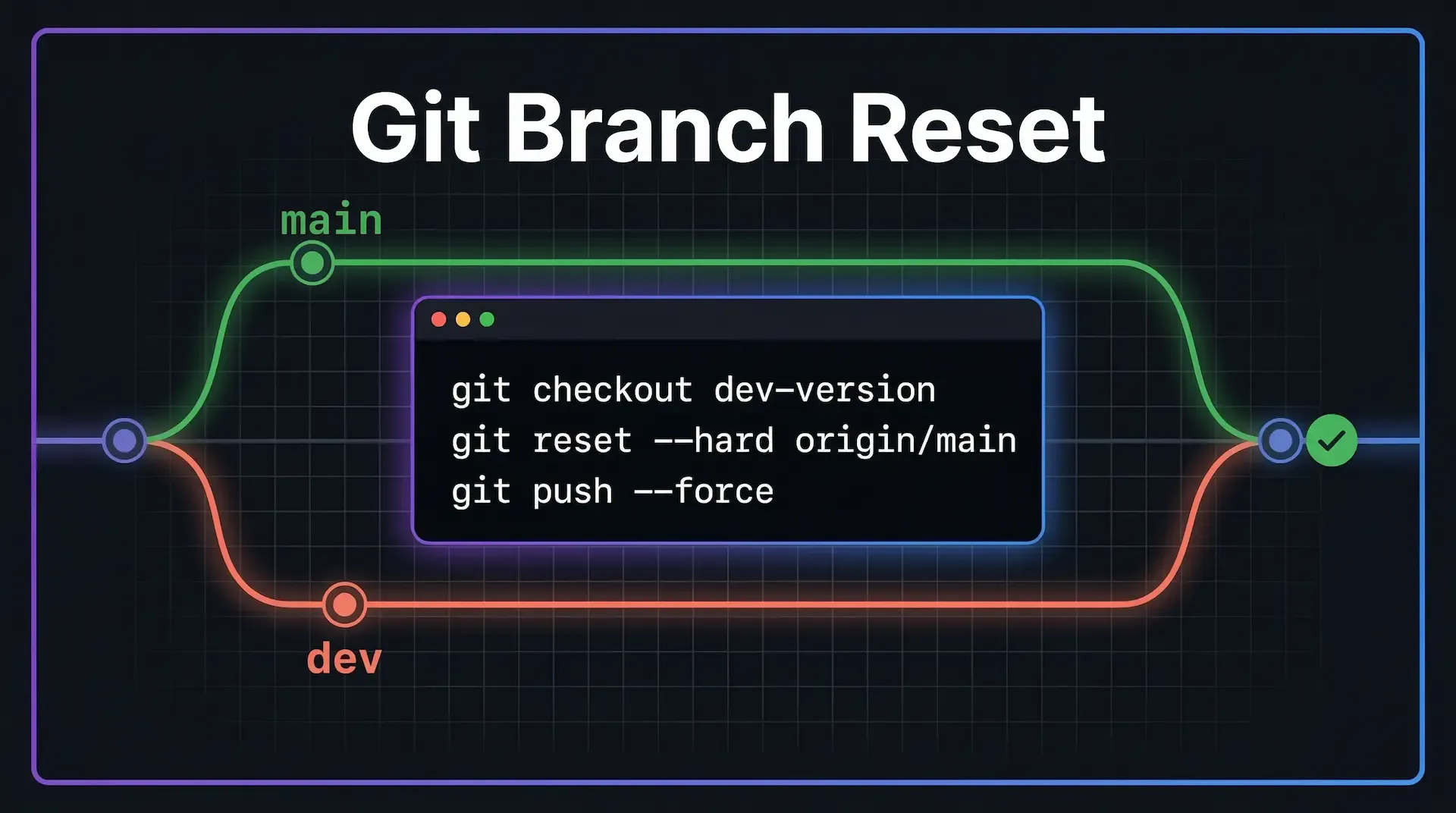
Clicked Update from Main in GitHub Desktop, but your dev branch still has old code? Here's exactly why it happens and the 3-command Git fix to make branches identical.