How to Configure Nginx in WSL to Access from other devices on the same network

This guide explains how to set up Nginx in WSL (Windows Subsystem for Linux) so it can be accessed from both Windows and other devices on the same network.
Ubuntu Distro on WindowsWSL is installed, and you have an Ubuntu distribution set up.root and create a new userwsl from another device on the same networkWSL
sudo apt update
sudo apt install openssh-server
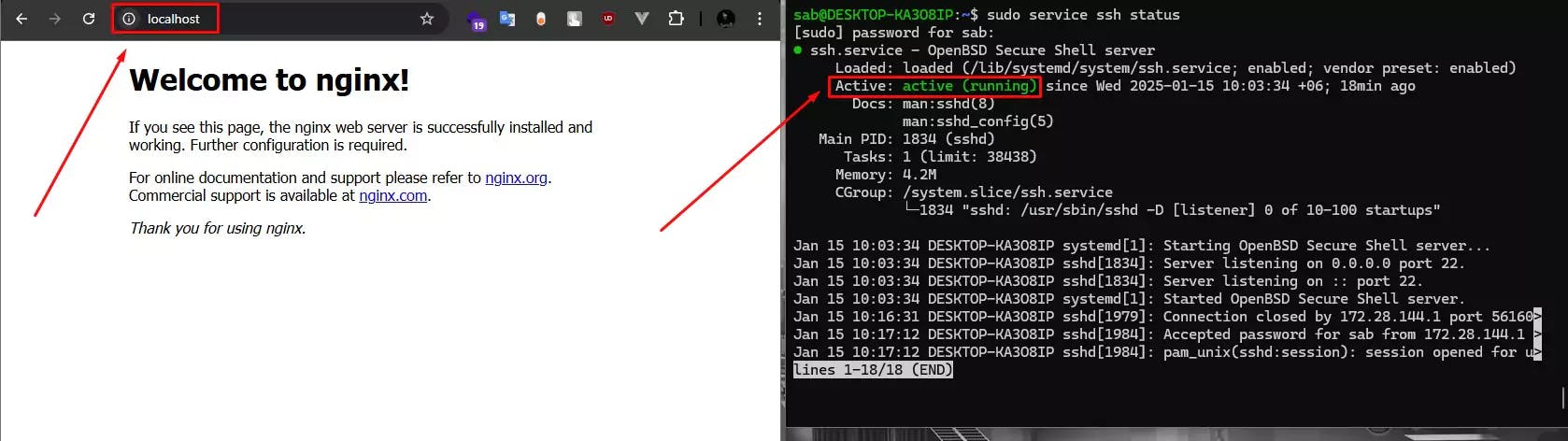
SSH service is up and running
sudo service ssh status
If the service is not action then
startthe servicesudo service ssh start
ssh on bootSSH to start on boot
sudo systemctl enable ssh --now
ssh service status
service sshd status
wsl on windows to access from another devices on the same networkIP Address of wsl
ip addr
Keep a note of the
IP address, it will be required for the next step
Windows Terminal with administrator privileges
netsh interface portproxy add v4tov4 listenport=22 listenaddress=0.0.0.0 connectport=22 connectaddress=[wsl_ip_address]
netsh interface portproxy show all
windows firewall to access the wslwf to open Windows Advanced firewall
IP address that we are listening to, in this case, it is port 22IP address of the Windows Machine
ipconfig
wsl from another device on the same networkNow from another device with the same network SSH using the pc IP address with the username of wsl
ssh userName_or_root@[pc_ip_address]
Nginx in WSLNginxWSL terminal.Nginx:
sudo apt update
sudo apt install nginx -y
-y: This flag automates the installation process by automatically answering "yes" to any questions that might arise during the installation
Check if Nginx is running:
sudo service nginx status
If it's not running, start the service:
sudo service nginx start
Nginx should be running on localhostIf you visit http://localhost in the browser on your Windows machine, you should see the default Nginx welcome page.
Nginx on BootEnsure Nginx starts automatically when WSL is started:
sudo systemctl enable nginx --now
Nginx to Listen on All InterfacesBy default, Nginx listens only on localhost. Update its configuration to listen on all interfaces:
Open the Nginx configuration file:
sudo nano /etc/nginx/sites-enabled/default
Look for the server block and update the listen directive:
server {
    listen 0.0.0.0:80;
    server_name localhost;
    root /var/www/html;
    index index.html;
}
Save the file and restart Nginx:
sudo service nginx restart
WSL IP AddressFind the IP address of your WSL instance:
ip addr
or
hostname -I
You will see something like 172.28.x.x. Note this IP for the next step.
To make Nginx accessible from other devices (including Windows machine, macOS, android, ios, linux) on the same network via http://localhost:
Open Command Prompt as Administrator on Windows.
Add a port forwarding rule:
netsh interface portproxy add v4tov4 listenaddress=0.0.0.0 listenport=80 connectaddress=<WSL-IP> connectport=80
Replace <WSL-IP> with the IP address you found in the previous step.
Verify the port forwarding rule:
netsh interface portproxy show all
It should display:
Listen on ipv4:             Connect to ipv4:
0.0.0.0         80          172.28.x.x      80
FirewallAllow external traffic to port 80 on Windows:
Allow Nginx Port 80).Nginx on Windows:
curl http://localhost
browser and navigate to:
http://localhost
Nginx page.To allow access from other devices on the network:
Find the Windows host's IP address:
ipconfig
or
ipconfig | findstr "IPv4"
Look for the IPv4 Address under your active network adapter.
From another device on the same network, open a browser and enter:
http://<Windows-IP>
Replace <Windows-IP> with your Windows machine's IP.
If Not Accessible:
80 is allowed.netsh interface portproxy show all displays the correct forwarding.Check Nginx Logs:
In WSL, inspect the logs for errors:
sudo tail -f /var/log/nginx/access.log
sudo tail -f /var/log/nginx/error.log
By following these steps, you can configure Nginx on WSL to be accessible both from Windows and from other devices on the same network. Let me know if you have any issues!
Getting the "Invalid wkhtmltopdf version" error in Frappe or ERPNext? Learn how to fix broken PDFs, install the patched Qt version, and switch to headless Chrome for pixel-perfect modern CSS and custom font support.

Learn how to quickly expose a localhost server to your local network on Windows using netsh portproxy. A step-by-step guide to accessing local apps from any device.
Learn how to enhance your Frappe Desk UI by adding a custom, dynamic top bar. Follow this beginner-friendly, step-by-step tutorial to display user profiles, statuses, and more!