Guide to Frappe PDF Generation & Fixing wkhtmltopdf Meta
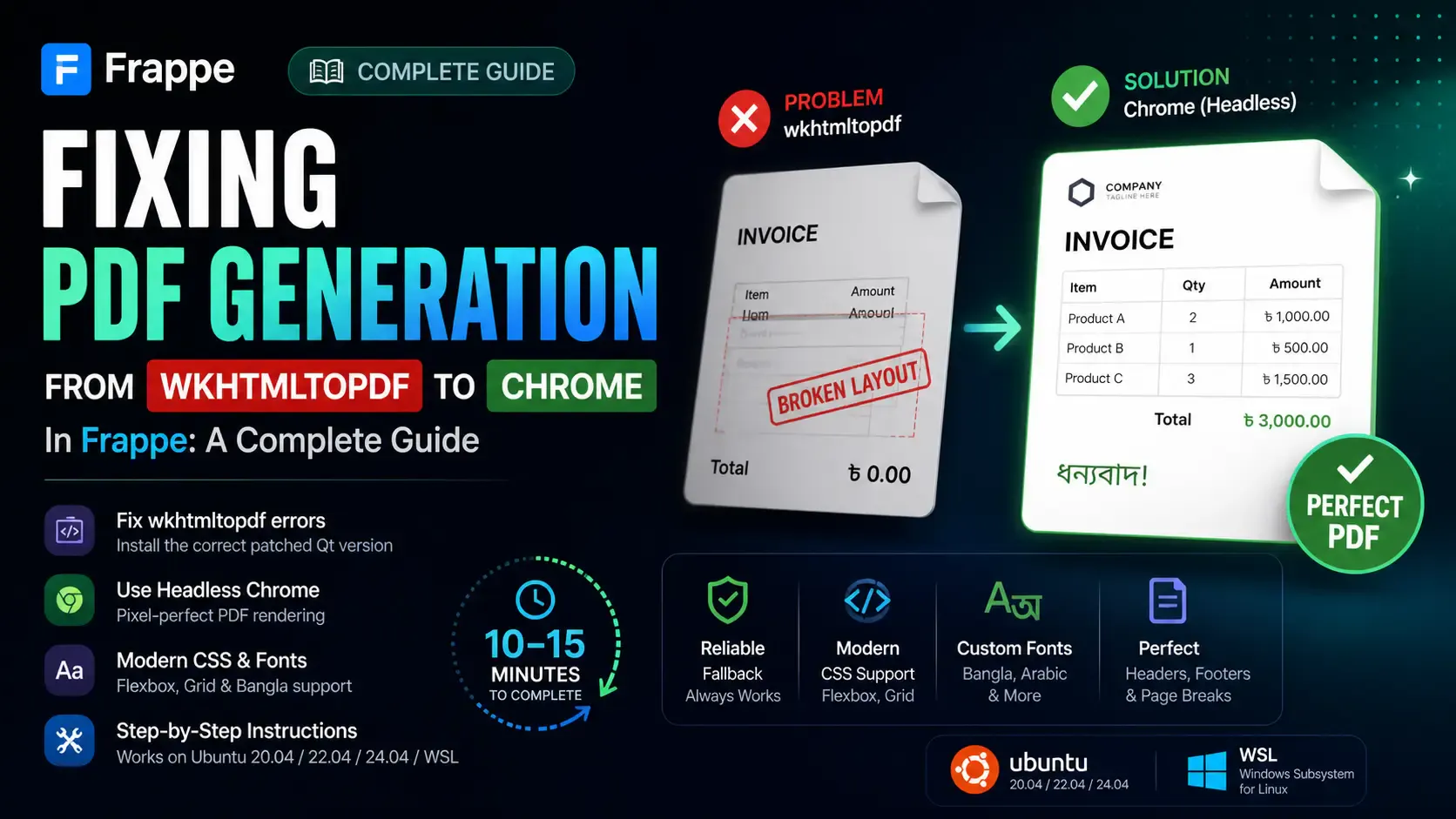
If you've landed here, you're probably staring at one of these frustrating messages in your Frappe or ERPNext application:
⚠️ Invalid wkhtmltopdf version — PDF generation may not work as expected.
Or maybe your PDF button clicks just silently fail, or your custom fonts (like Bangla) and modern CSS layouts look completely broken in the generated document. I ran into all of these exact issues while working on a custom Frappe v16 application, and this guide walks through every step I took to fully fix it. Let's get your PDFs looking pristine! ✨
⏱️ Time to Complete: 10–15 Minutes
🎯 What You’ll Achieve & Learn:
Invalid wkhtmltopdf version error.wkhtmltopdf on modern Ubuntu systems.Frappe supports two primary PDF generators under the hood:
The default in newer Frappe versions is Chrome. However, if Chrome isn't installed or configured correctly on your server, you'll be hit with a ConnectionRefusedError crash. And if you simply fall back to wkhtmltopdf, your design breaks.
This guide tackles both scenarios—ensuring you have a reliable fallback and getting Chrome-based PDF generation working like a charm.
Before we dive in, ensure you have:
sudo access on your system.mysite.local).wkhtmltopdf Version 🕵️♂️Even if you plan to use Chrome as your primary PDF generator, it's highly recommended to have the correct wkhtmltopdf installed as a reliable fallback.
wkhtmltopdf --version
What to look for:
✅ Good — This is exactly what you want:
wkhtmltopdf 0.12.6.1 (with patched qt)
❌ Bad — These require immediate fixing:
wkhtmltopdf 0.12.6          ← Missing the crucial "with patched qt"
wkhtmltopdf 0.12.5          ← Too old
command not found           ← Not installed at all
If your output matches the "Good" version, feel free to skip ahead to Step 3. Otherwise, let's get it fixed in Step 2.
wkhtmltopdf 📦The default version you get from running apt-get install wkhtmltopdf is not the patched Qt version that Frappe strictly requires. We need to install it manually from the official GitHub releases.
lsb_release -cs
Note the output—it will be something like jammy, focal, or noble.
sudo apt-get remove wkhtmltopdf -y
sudo apt-get install -y xfonts-75dpi fontconfig libfontconfig1 libxrender1
Select the block corresponding to your Ubuntu version.
Ubuntu 24.04 (Noble) & Ubuntu 22.04 (Jammy) (Use the Jammy build for Noble, it works perfectly):
wget https://github.com/wkhtmltopdf/packaging/releases/download/0.12.6.1-2/wkhtmltox_0.12.6.1-2.jammy_amd64.deb
sudo apt install -f ./wkhtmltox_0.12.6.1-2.jammy_amd64.deb
Ubuntu 20.04 (Focal):
wget https://github.com/wkhtmltopdf/packaging/releases/download/0.12.6.1-2/wkhtmltox_0.12.6.1-2.focal_amd64.deb
sudo apt install -f ./wkhtmltox_0.12.6.1-2.focal_amd64.deb
Ubuntu 18.04 (Bionic):
wget https://github.com/wkhtmltopdf/packaging/releases/download/0.12.6.1-2/wkhtmltox_0.12.6.1-2.bionic_amd64.deb
sudo apt install -f ./wkhtmltox_0.12.6.1-2.bionic_amd64.deb
Just in case the binary landed in /usr/local/bin, let's link it to /usr/bin:
sudo ln -sf /usr/local/bin/wkhtmltopdf /usr/bin/wkhtmltopdf
wkhtmltopdf --version
Expected Output:
wkhtmltopdf 0.12.6.1 (with patched qt)
💡 Why does "with patched qt" matter? The patched Qt build includes essential support for headers, footers, page breaks, and specific custom CSS that Frappe relies upon. The unpatched version silently ignores half the flags Frappe passes to it, resulting in broken PDFs!
If you're on Ubuntu (especially via WSL), you might already have Chromium installed via snap. Let's check:
chromium --version
⚠️ If the output mentions snap, do not use it. The snap version enforces sandbox restrictions that break headless CDP connections in server and WSL environments.
snap list | grep chromium
sudo snap remove chromium
.deb Version)Run the following commands to add Google's official repository and install Chrome:
# Add Google's signing key
wget -q -O - https://dl.google.com/linux/linux_signing_key.pub | sudo gpg --dearmor -o /usr/share/keyrings/google-chrome.gpg

# Add the Chrome repository
echo "deb [arch=amd64 signed-by=/usr/share/keyrings/google-chrome.gpg] http://dl.google.com/linux/chrome/deb/ stable main" | sudo tee /etc/apt/sources.list.d/google-chrome.list

# Update and Install
sudo apt-get update
sudo apt-get install -y google-chrome-stable
google-chrome --version
Expected output: Google Chrome 147.x.x.x (or newer)
💡 Note: You don't need to manually run Chrome. Frappe will launch it headlessly on demand. You simply need the binary installed and properly configured.
Now, let's tell your Frappe site where Chrome is located and instruct it to use Chrome as the default generator.
bench --site your-site-name set-config google_chrome_path $(which google-chrome)
bench --site your-site-name set-config pdf_generator chrome
cat sites/your-site-name/site_config.json
Your configuration file should now contain these keys:
{
  "google_chrome_path": "/usr/bin/google-chrome",
  "pdf_generator": "chrome"
}
Apply your changes by restarting your bench workers:
bench restart
Wait a few seconds for all background workers to spin back up, then try generating a PDF from your application. It should work flawlessly!
Even with the global site configuration set perfectly, individual Print Formats within Frappe can override the PDF generator. If a specific print format was previously saved with wkhtmltopdf selected, it will ignore your new global Chrome setting.
To check this via the bench console:
bench --site your-site-name console
Then, inside the Python interactive prompt, run:
frappe.get_all("Print Format", fields=["name", "pdf_generator"])
This command lists all your print formats alongside their explicitly set generator. If you spot any format showing wkhtmltopdf that should be using Chrome, simply open that Print Format in the Frappe Desk UI, change the PDF Generator field to Chrome, and save.
Invalid wkhtmltopdf versionYou likely have the unpatched version from the default apt repository. Head back to Step 2 to replace it with the patched Qt build.
ConnectionRefusedError: Connect call failed ('127.0.0.1', XXXXX)Frappe is trying to utilize Chrome but can't find or connect to it. Double-check:
google-chrome installed? Run google-chrome --version.site_config.json? Run which google-chrome and compare.bench restart after making config changes?404 Not Found when downloading wkhtmltopdfThere is no "Noble" specific build available yet. Use the "Jammy" build instead—it is fully compatible with Ubuntu 24.04.
You're still utilizing wkhtmltopdf. Ensure you've fully switched to Chrome as outlined in Steps 3–5. Chrome is capable of rendering everything exactly as it appears in a modern browser window.
libpxbackend, xdg-settings not found)Snap's sandboxing is interfering. Remove snap Chromium and install the standard .deb version of Google Chrome as explained in Step 3.
| Feature | wkhtmltopdf | Chrome (headless) |
|---|---|---|
| Modern CSS (Flexbox, Grid) | ❌ Broken | ✅ Pixel Perfect |
| CSS Variables | ❌ Broken | ✅ Pixel Perfect |
| Complex Scripts (Bangla, Arabic) | ❌ Broken | ✅ Pixel Perfect |
| Custom Web Fonts | ❌ Unreliable | ✅ Reliable |
| Overall Print Fidelity | ❌ Often mismatched | ✅ Exactly like browser |
| Setup Complexity | ✅ Simple (Usually) | ⚠️ Moderate |
The verdict: If your print formats utilize any modern web design principles—and especially if they incorporate non-Latin scripts—Chrome isn't just the better option; it's the only viable option.
For the seasoned devs who just want the copy-paste solution, here is the complete fix in one continuous block:
# 1. Install patched wkhtmltopdf (Compatible with Noble/Jammy)
sudo apt-get remove wkhtmltopdf -y
sudo apt-get install -y xfonts-75dpi fontconfig libfontconfig1 libxrender1
wget https://github.com/wkhtmltopdf/packaging/releases/download/0.12.6.1-2/wkhtmltox_0.12.6.1-2.jammy_amd64.deb
sudo apt install -f ./wkhtmltox_0.12.6.1-2.jammy_amd64.deb
sudo ln -sf /usr/local/bin/wkhtmltopdf /usr/bin/wkhtmltopdf

# 2. Install Google Chrome (Strictly non-snap)
sudo snap remove chromium 2>/dev/null || true
wget -q -O - https://dl.google.com/linux/linux_signing_key.pub | sudo gpg --dearmor -o /usr/share/keyrings/google-chrome.gpg
echo "deb [arch=amd64 signed-by=/usr/share/keyrings/google-chrome.gpg] http://dl.google.com/linux/chrome/deb/ stable main" | sudo tee /etc/apt/sources.list.d/google-chrome.list
sudo apt-get update && sudo apt-get install -y google-chrome-stable

# 3. Configure Frappe site (Replace 'your-site-name'!)
bench --site your-site-name set-config google_chrome_path $(which google-chrome)
bench --site your-site-name set-config pdf_generator chrome

# 4. Apply Changes
bench restart
Reminder: Don't forget to replace
your-site-namewith your actual site directory name (e.g.,erp.mycompany.com).

Learn how to add Stripe and Razorpay subscription billing to a custom Frappe app — whitelisted APIs, webhook signature verification, and scheduler-based renewals.

Stop fighting the built-in resource API for complex business logic. Here's how to expose your own Python functions as clean, secure REST endpoints in Frappe

A practical Frappe tutorial for fixing wrong workspace redirects using role-to-route mapping, capture-phase click handling, and a reusable Desk JavaScript file.