Why "Update from Main" Doesn't Work — And How to Fully Sync Your Dev Branch with Main
You hit "Update from Main" in GitHub Desktop. It spins for a second. Says it's done. But your old code is... still there. 😤
If that's happened to you, this article is exactly what you need.
⏱️ Time to Complete: ~5 minutes
🎯 What You'll Learn:
Here's the thing — GitHub Desktop isn't broken. It's doing exactly what it's supposed to do. The problem is that "Update from Main" uses a merge, and a merge is fundamentally different from what you actually want.
Let's use a simple analogy.
Imagine your main branch is a freshly written recipe 🍝. Your dev-version branch is an older version of that same recipe where someone scribbled in some experimental changes with a pen.
When you click "Update from Main", Git is blending your branch histories together — not replacing them. So your old commits from dev-version don't disappear. They get preserved, because Git is designed first and foremost to protect your work history.
That's a feature, not a bug — until it's a bug for you. 😅
Before jumping into the fix, it's worth spending 60 seconds understanding these two concepts. They come up constantly in real-world Git work.
git merge | git reset --hard | |
|---|---|---|
| What it does | Combines two branch histories | Moves a branch pointer to a specific commit, discarding everything after it |
| Old commits | Preserved | Discarded |
| Safe for shared branches? | ✅ Yes | ⚠️ Only if you know what you're doing |
| GitHub Desktop supports it? | ✅ Yes | ❌ No (terminal only) |
| Use case | Bringing in updates while keeping your work | Making a branch identical to another |
The moment you understand that merge adds and reset replaces, a huge chunk of Git confusion disappears forever. 🙌
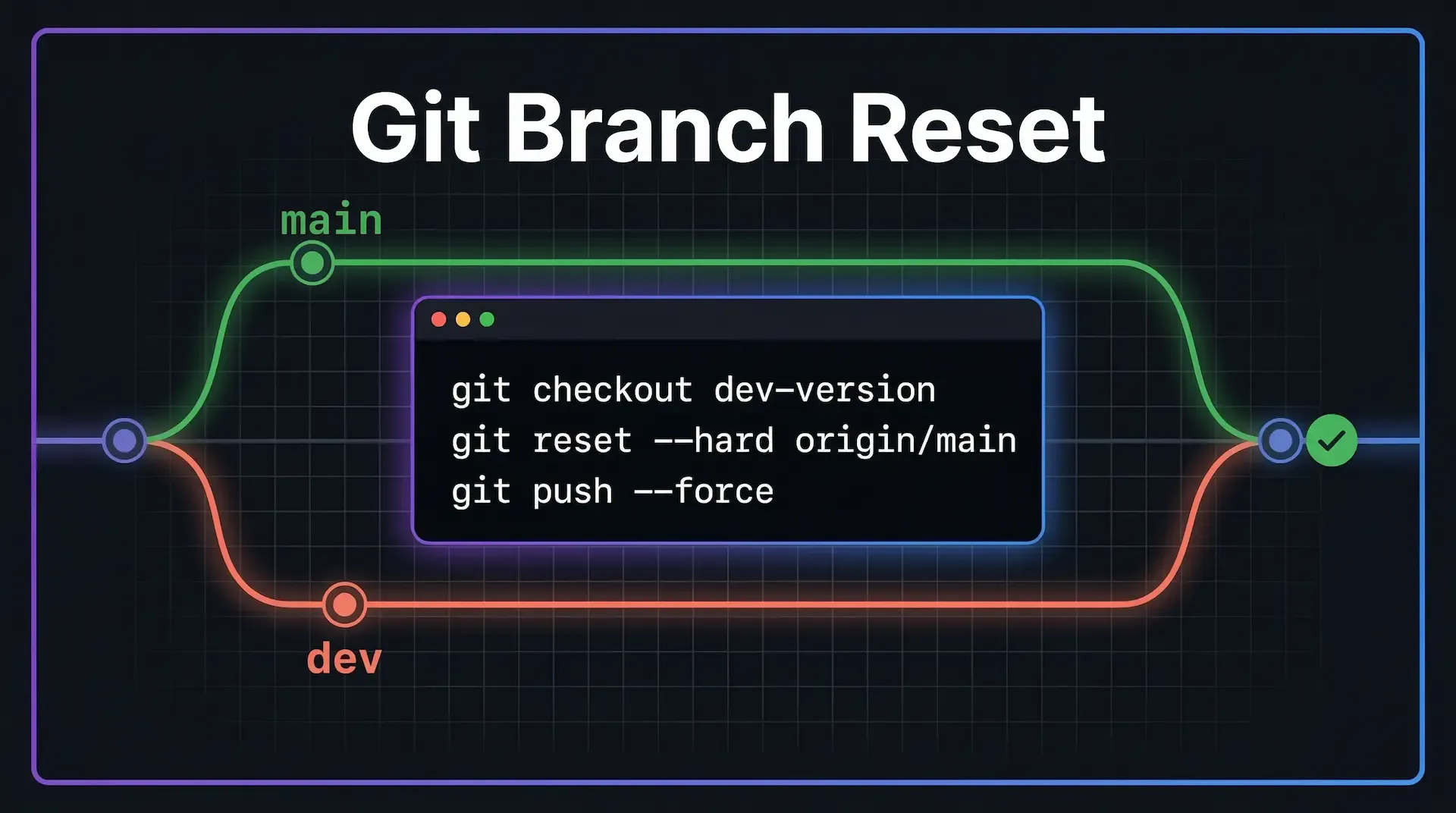
Alright, let's get to it. Open your terminal (Git Bash on Windows, Terminal on Mac/Linux) and run these three commands in order.
git checkout dev-version
This makes sure you're working on the right branch. Swap dev-version with whatever your branch is actually named.
git reset --hard origin/main
This is the key command. Here's what it does precisely:
origin/main refers to the latest version of main on your remote (i.e., GitHub)--hard tells Git to move the branch pointer and wipe out all local changes and history that diverged from itdev-version is byte-for-byte identical to main⚠️ Heads up: Make sure you've saved or cherry-picked anything from
dev-versionthat you actually want to keep. Once you run this, those commits are gone locally.
git push origin dev-version --force
Why does this need --force? Because you've rewritten history — your local dev-version now has a completely different commit history than what's on GitHub. A normal push would be rejected with an error like:
! [rejected] dev-version -> dev-version (non-fast-forward)
The --force flag tells GitHub: "I know what I'm doing. Overwrite the remote branch with what I have locally."
💡 Pro tip: If you're on a team, consider using
--force-with-leaseinstead of--force. It's a safer version that will fail if someone else has pushed to the branch since your last fetch — protecting you from accidentally overwriting a teammate's work.git push origin dev-version --force-with-lease
Run this command to confirm both branches are now identical:
git diff dev-version origin/main
No output = success. 🎉 If nothing is printed, the branches are identical and you're done.
You can also check visually on GitHub — navigate to your repo, switch to the dev-version branch, and it should say "This branch is up to date with main".
GitHub Desktop is an excellent tool for day-to-day Git work — committing changes, switching branches, opening pull requests. But it intentionally hides destructive operations like --force push and --hard reset.
Why? Because one wrong click in a GUI can permanently wipe out work that took hours. The GitHub Desktop team made a conscious UX decision: if something is irreversible, make the user go to the terminal where it takes deliberate, conscious effort.
This is actually great design. But it does mean that for operations like this one, the terminal is your only option. And that's okay — three commands, thirty seconds, done.
Save this for later 👇
# Make dev-version identical to main

git checkout dev-version               # Switch to the branch you want to reset
git reset --hard origin/main          # Wipe its history, point it to main
git push origin dev-version --force   # Overwrite the remote branch

# Verify
git diff dev-version origin/main      # Empty output = success ✅
Merge = combine histories. Reset = replace history.
If you want two branches to be identical, a merge will never fully get you there. You need a hard reset + force push. Now you know.
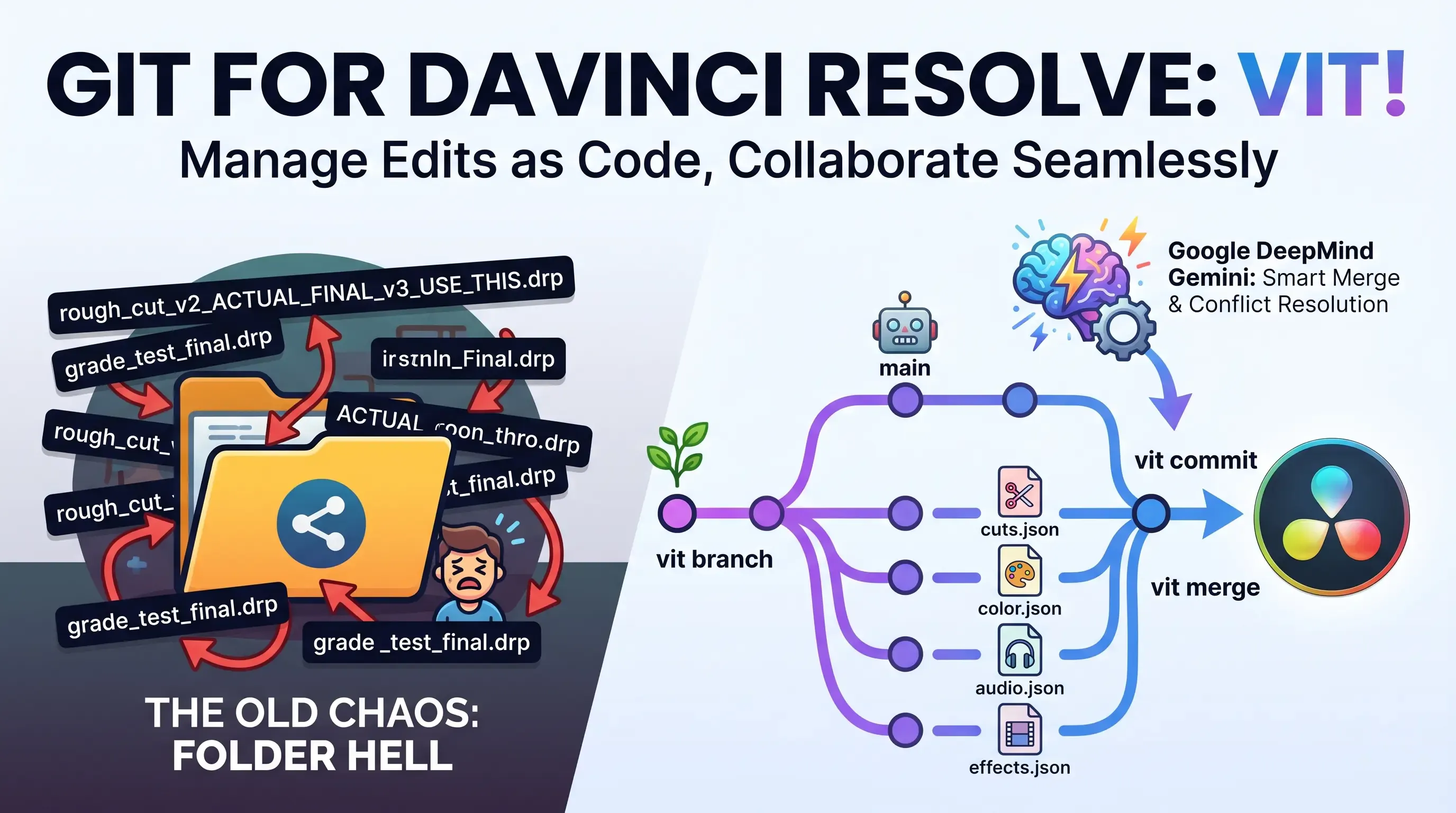
Explore Vit, the revolutionary tool that uses AI semantic merges to resolve video editing conflicts in DaVinci Resolve. Perfect for editors, colorists, and sound designers.
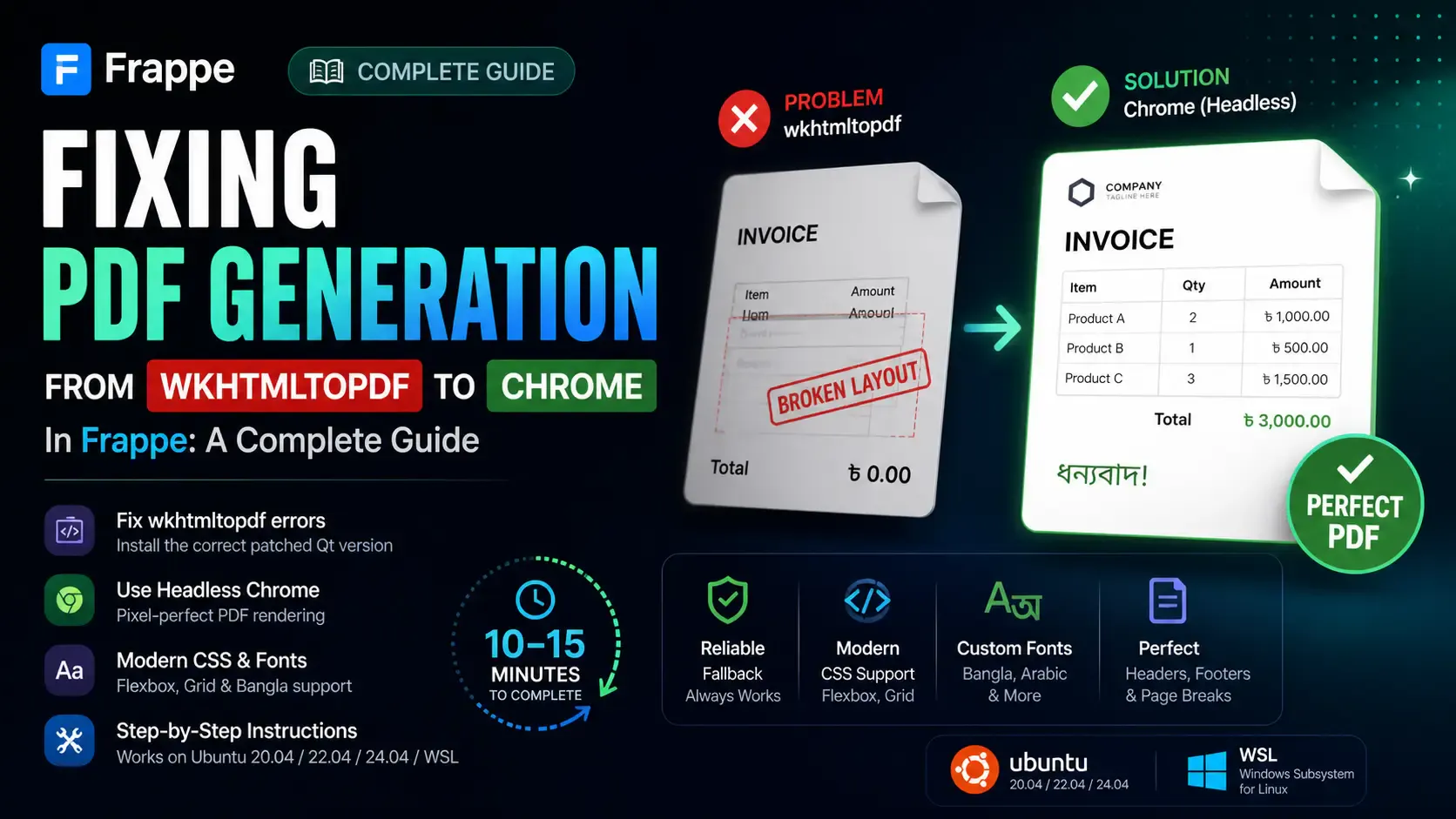
Getting the "Invalid wkhtmltopdf version" error in Frappe or ERPNext? Learn how to fix broken PDFs, install the patched Qt version, and switch to headless Chrome for pixel-perfect modern CSS and custom font support.
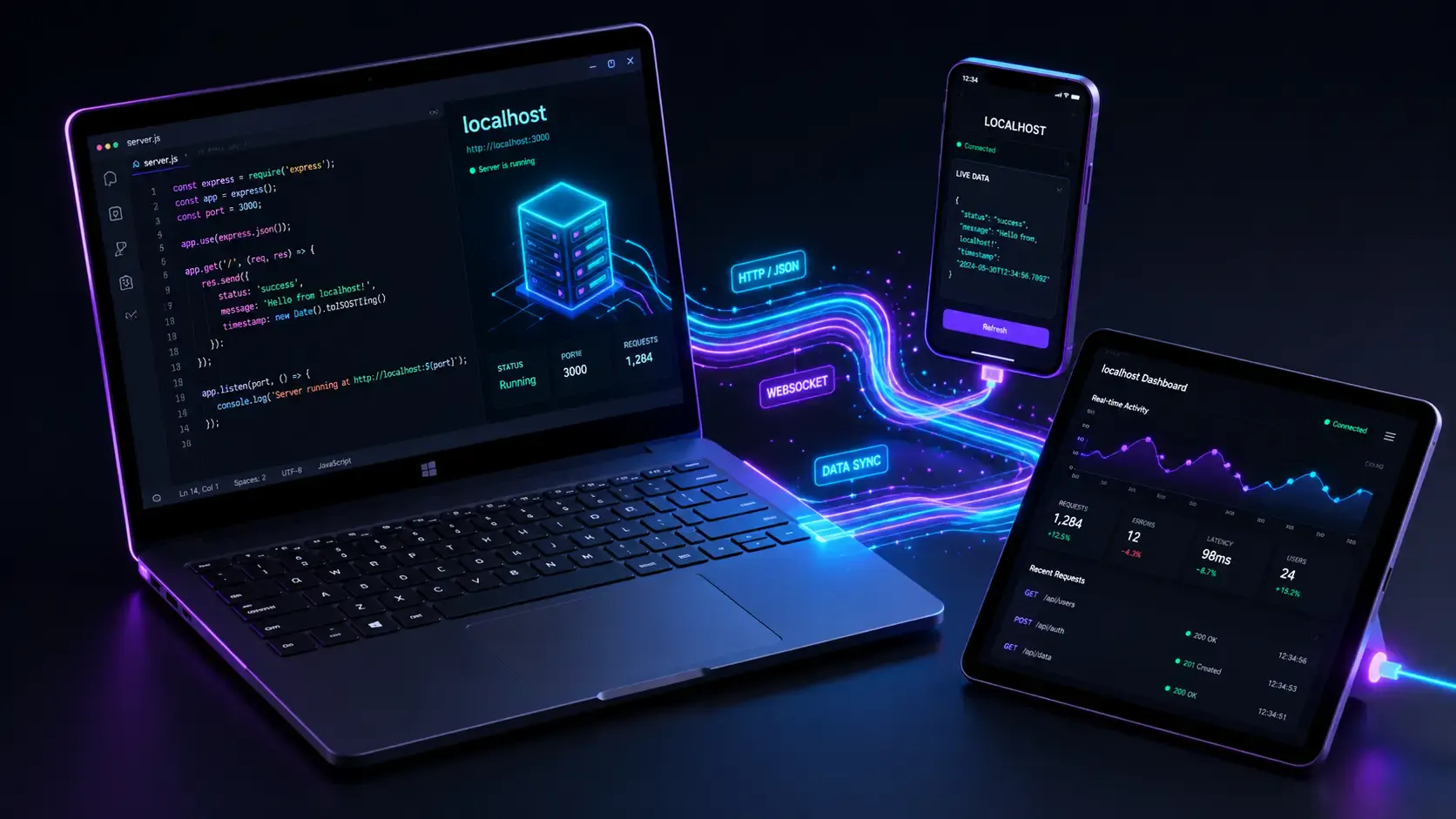
Learn how to quickly expose a localhost server to your local network on Windows using netsh portproxy. A step-by-step guide to accessing local apps from any device.