How to Run Ollama Models Locally and Access Them Over a Network - Part 2
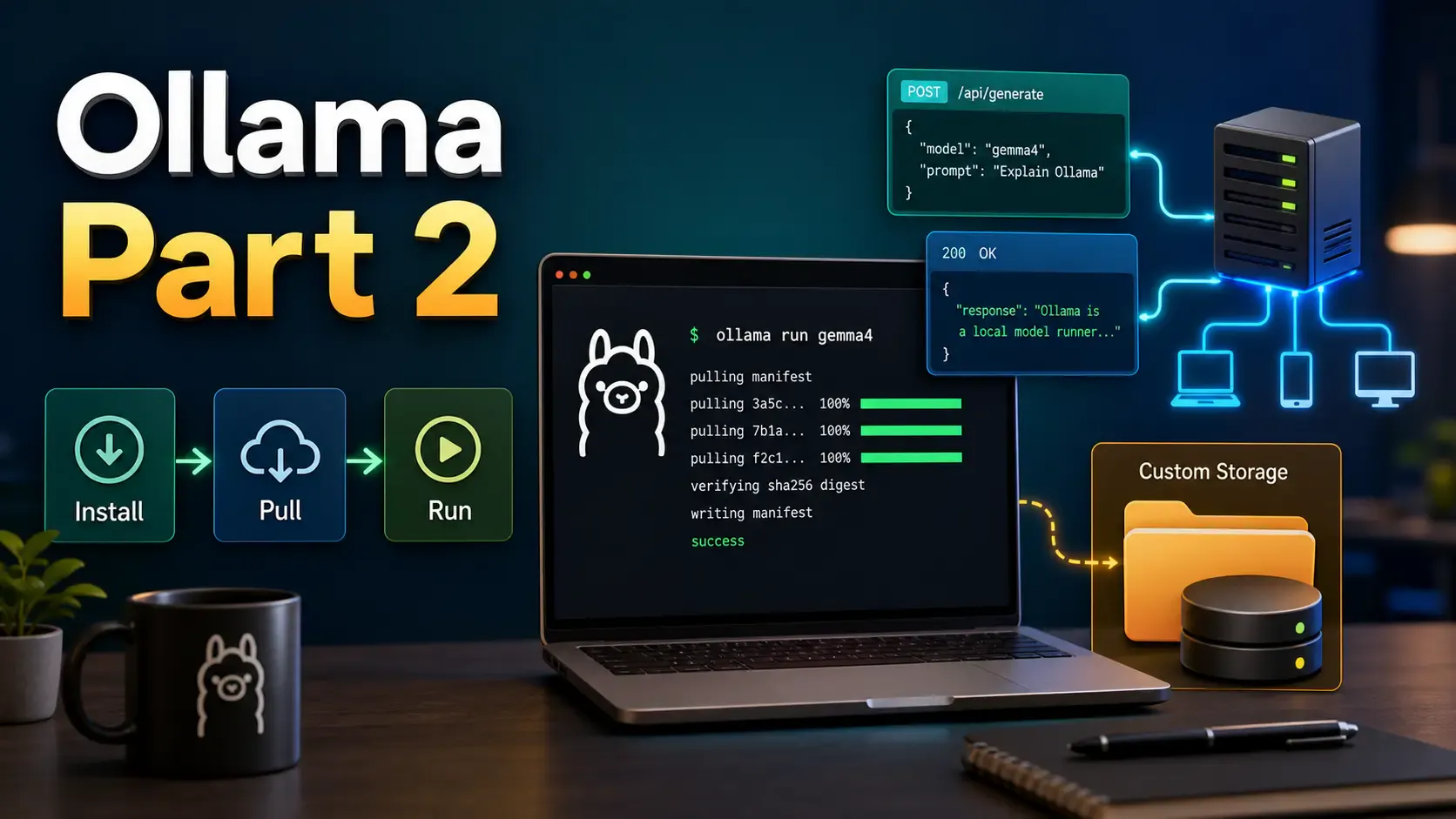
In Everything a Developer Should Know About Ollama - Part 1, we built the Ollama mental model. Now let’s use it like a developer: install it, run models, call the API, move model storage, and expose it safely on your network.
Around 10-15 minutes.
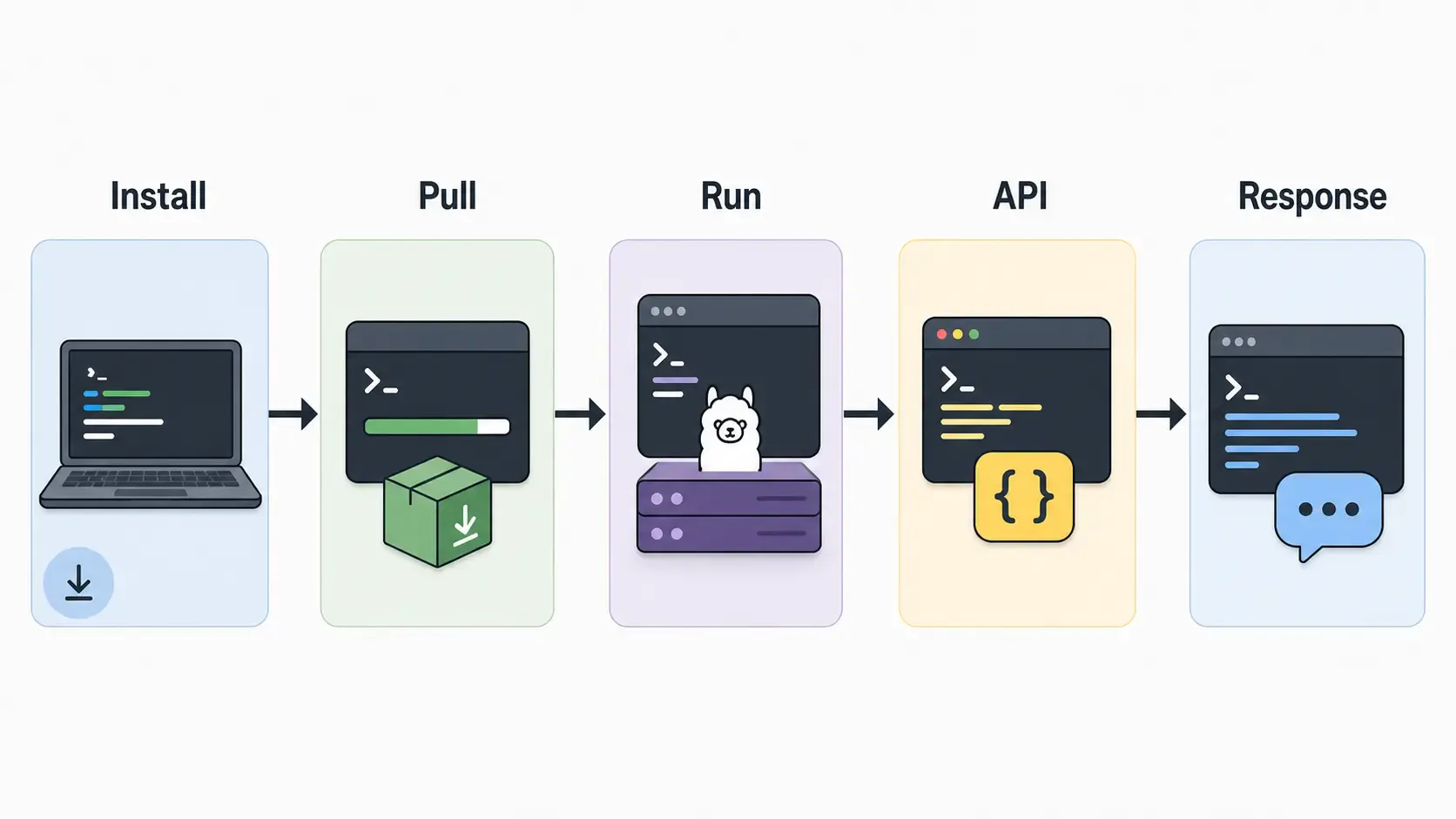
Download Ollama from the official download page:
On Windows and macOS, install the app from the download page. On Linux, the official install command is:
curl -fsSL https://ollama.com/install.sh | sh
After installation, check that the CLI works:
ollama --version
Start the local server manually if needed:
ollama serve
Most desktop installs start the Ollama background service automatically.
Find models in the Ollama library, then run one by name.
ollama run gemma4
Pull without immediately chatting:
ollama pull gemma4
List downloaded models:
ollama ls
Remove a model:
ollama rm gemma4
See which models are currently loaded:
ollama ps
Stop a running model:
ollama stop gemma4
Run a one-shot prompt:
ollama run gemma4 "Explain dependency injection in one paragraph."
Use a multimodal model with an image, if that model supports vision:
ollama run gemma4 "What is in this image? C:\Users\me\Desktop\screenshot.png"
Generate embeddings:
ollama run embeddinggemma "Hello world"
There are a few UI paths.
First, Ollama's desktop app may be enough for normal local chatting if your platform/install includes the app UI. Install Ollama, open the app, choose or enter a model, and start chatting.
Use the CLI for advanced commands like pull, rm, create, ps, and custom Modelfile workflows.
Second, you can use a web UI on top of Ollama. Popular choices include:
The usual flow is:
ollama pull <model>http://localhost:11434For example, if a UI asks for the Ollama host/base URL, try:
http://localhost:11434
If it asks for the API base URL:
http://localhost:11434/api
Ollama exposes an HTTP API, so you can test it with curl before writing code.
The official local API base URL is:
http://localhost:11434/api
Generate endpoint:
curl http://localhost:11434/api/generate -d '{
  "model": "gemma4",
  "prompt": "Why is the sky blue?"
}'
Chat endpoint:
curl http://localhost:11434/api/chat -d '{
  "model": "gemma4",
  "messages": [
    { "role": "user", "content": "Explain REST APIs to a junior developer." }
  ]
}'
List local models through the API:
curl http://localhost:11434/api/tags
Check version:
curl http://localhost:11434/api/version
The API also includes endpoints for embeddings, model details, pulling, creating, copying, pushing, deleting, and listing running models. See the official Ollama API docs.
If you are building an app, you can connect this API to stacks like Next.js, Node.js, Python FastAPI, LangChain, or LlamaIndex.
Ollama models can become large very quickly. If your system drive is small, move them to a bigger disk.
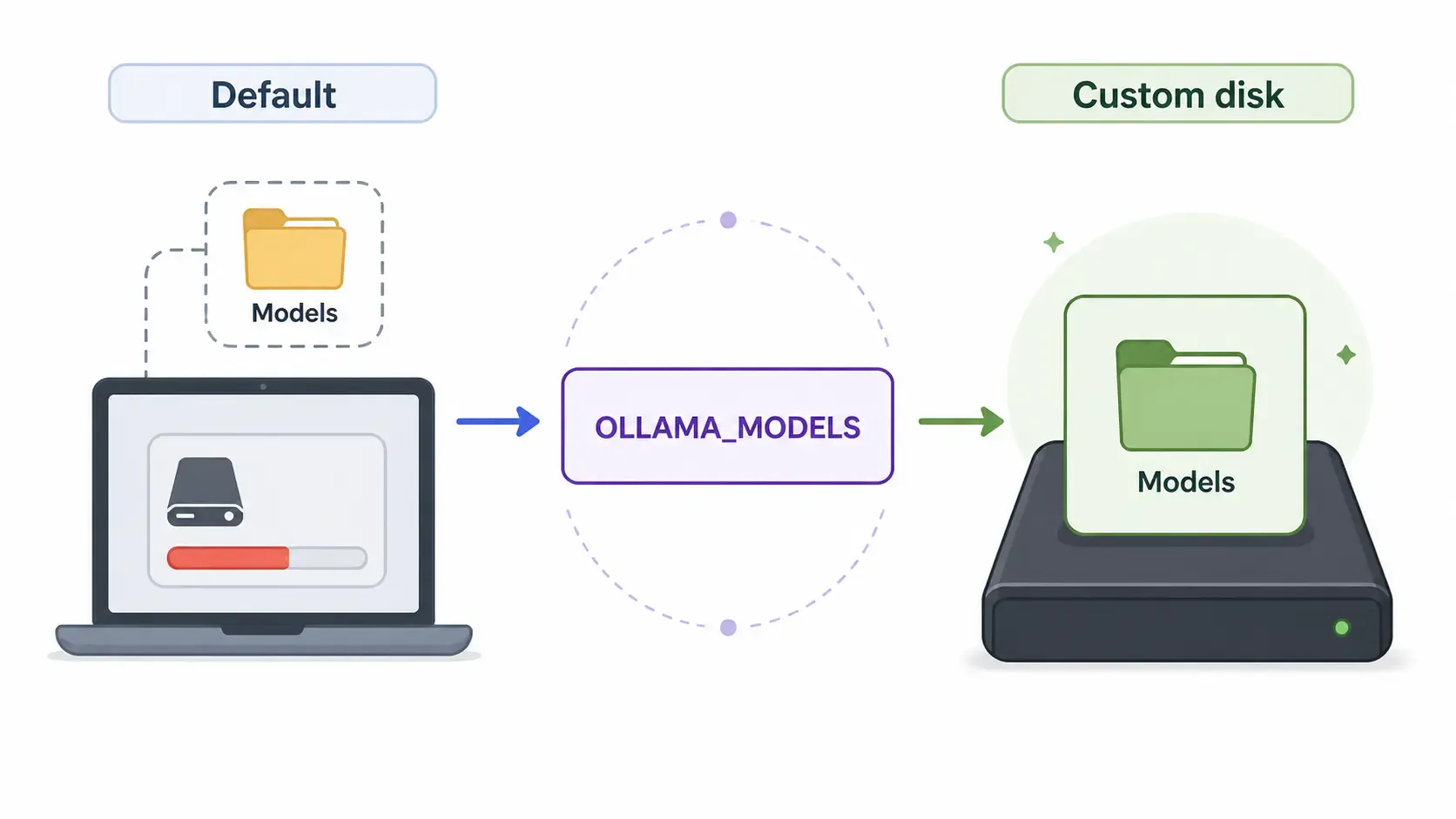
Default model locations from the official FAQ:
| OS | Default model path |
|---|---|
| macOS | ~/.ollama/models |
| Linux | /usr/share/ollama/.ollama/models |
| Windows | C:\Users\%username%\.ollama\models |
To use another folder, set the OLLAMA_MODELS environment variable.
Windows PowerShell for the current shell:
$env:OLLAMA_MODELS = "D:\ollama-models"
ollama serve
Windows permanent user environment variable:
[Environment]::SetEnvironmentVariable("OLLAMA_MODELS", "D:\ollama-models", "User")
Then quit and restart Ollama from the Start menu.
Linux with systemd:
sudo systemctl edit ollama.service
Add:
[Service]
Environment="OLLAMA_MODELS=/mnt/ai/ollama-models"
Then reload:
sudo systemctl daemon-reload
sudo systemctl restart ollama
On Linux, make sure the ollama service user can read and write to that directory:
sudo chown -R ollama:ollama /mnt/ai/ollama-models
By default, Ollama binds to 127.0.0.1:11434. That means only your own machine can reach it.
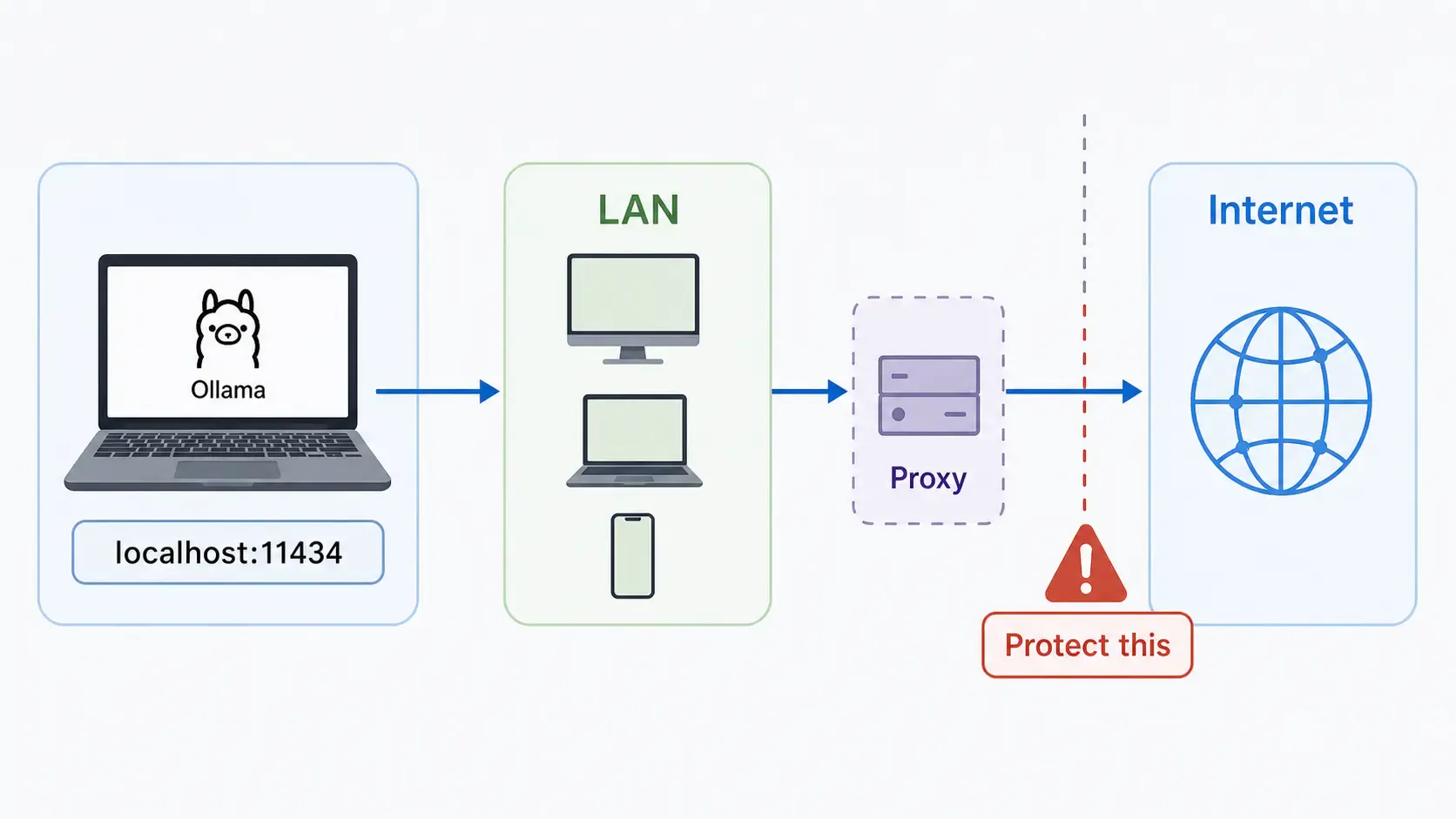
To expose it to other devices on your LAN, set OLLAMA_HOST:
OLLAMA_HOST=0.0.0.0:11434 ollama serve
On Windows PowerShell for the current shell:
$env:OLLAMA_HOST = "0.0.0.0:11434"
ollama serve
On Linux systemd:
[Service]
Environment="OLLAMA_HOST=0.0.0.0:11434"
Then:
sudo systemctl daemon-reload
sudo systemctl restart ollama
From another machine on the same network, test:
curl http://YOUR_HOST_IP:11434/api/version
Or:
curl http://YOUR_HOST_IP:11434/api/tags
Common endpoints to remember:
| Purpose | Endpoint |
|---|---|
| Health/version check | GET /api/version |
| List local models | GET /api/tags |
| Generate text | POST /api/generate |
| Chat messages | POST /api/chat |
| List loaded models | GET /api/ps |
Security warning: do not expose Ollama directly to the public internet without protection. Put it behind a reverse proxy, firewall, VPN, tunnel with access controls, or an auth layer. Tools like Nginx, Cloudflare Tunnel, Tailscale, and WireGuard are common options depending on your setup.
If a browser app or extension cannot call Ollama because of CORS/origin rules, configure OLLAMA_ORIGINS. For example:
OLLAMA_ORIGINS=http://localhost:3000,chrome-extension://* ollama serve
Only allow the origins you actually need.
# Run a model
ollama run gemma4

# Download a model
ollama pull gemma4

# List downloaded models
ollama ls

# List loaded/running models
ollama ps

# Remove a model
ollama rm gemma4

# Stop a model
ollama stop gemma4

# Start the server manually
ollama serve

# Create a custom model from a Modelfile
ollama create dev-helper -f ./Modelfile

# API checks
curl http://localhost:11434/api/version
curl http://localhost:11434/api/tags
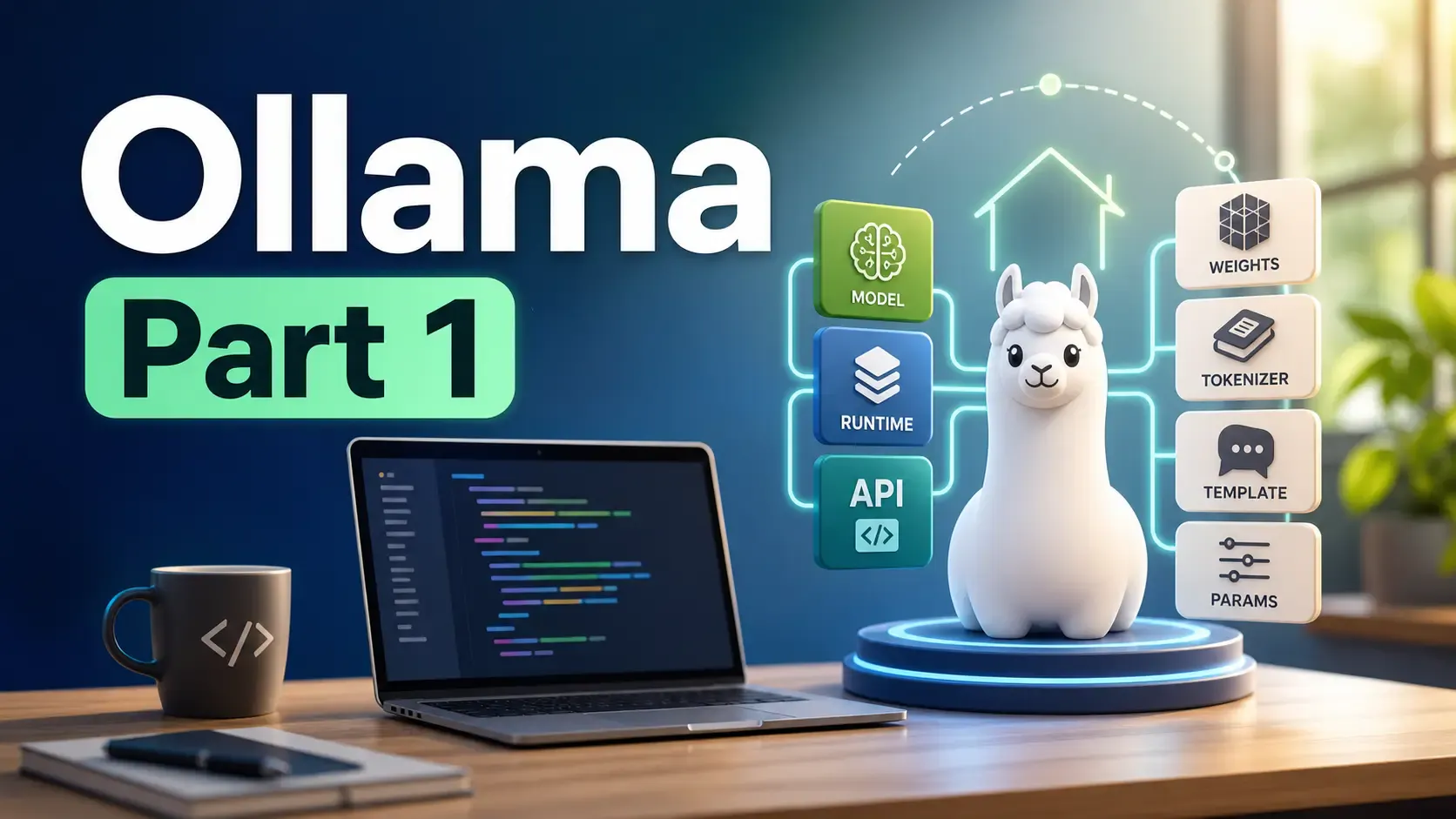
Learn what Ollama is, how it differs from Llama, how local AI models are packaged, and where Ollama fits in a developer workflow.
Getting the claude-vscode.editor.openLast not found error after updating Claude Code? This step-by-step guide shows you how to roll back to a stable version and get Claude working again in 5 minutes.

Confused by AI model formats on Hugging Face? Learn the differences between GGUF, FP8, SafeTensors, Distilled, and VAE to choose the right file for your PC hardware.