How to Unshallow a Git Repository & Restore Full History
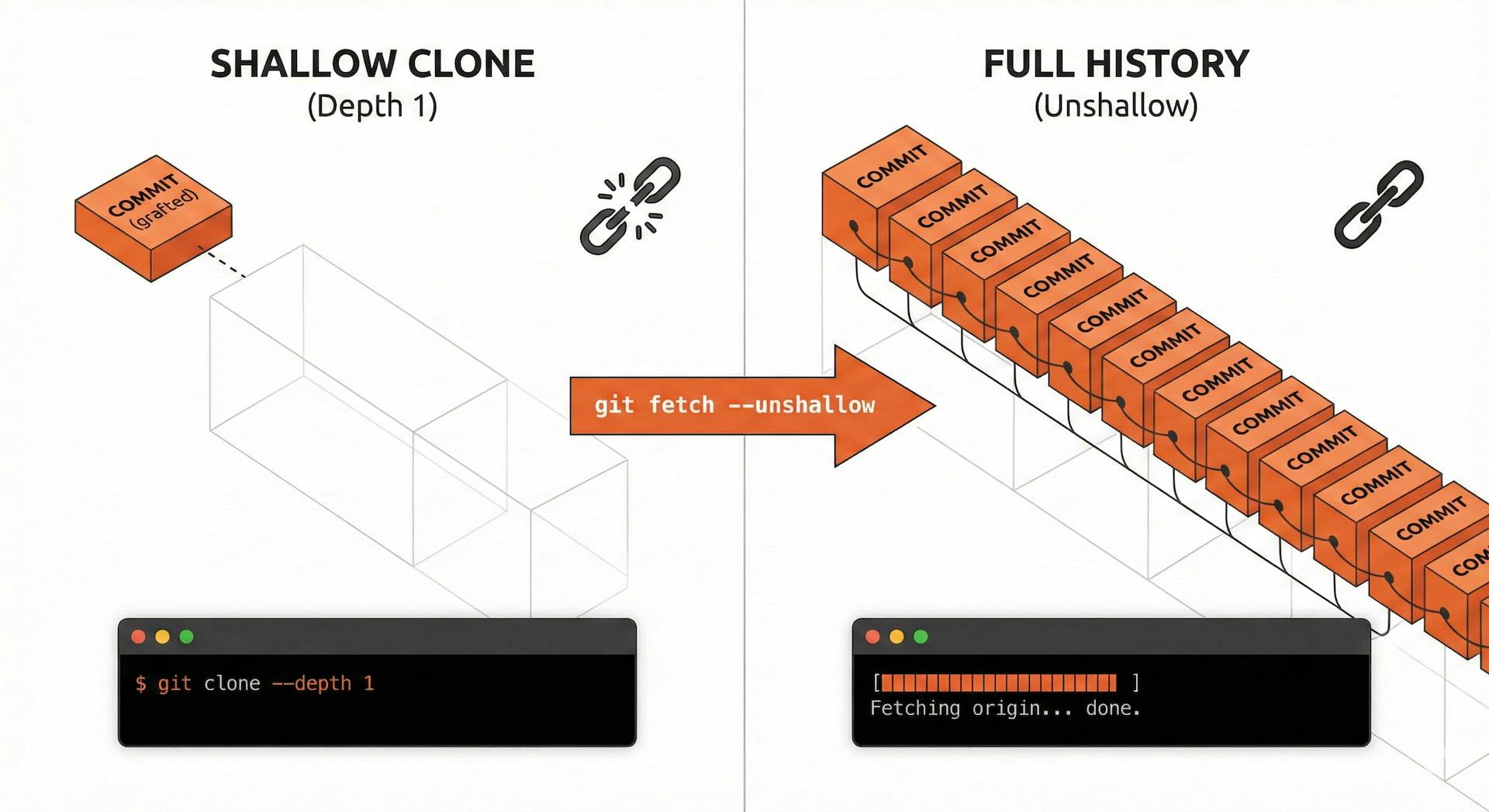
We’ve all been there. You’re racing against a deadline ⏰, or you're stuck on a server with internet speeds from the 90s 🐢. You need that massive repository right now, so you pull out the oldest trick in the book: the Shallow Clone.
When you eventually need to git blame or merge complex branches, you'll hit a wall. Don't panic! 😱 You don't need to re-clone. Here is how to correctly perform a shallow clone and "unshallow" it to restore full history without losing your work.
First things first—if you haven't done it yet, here is how you create a shallow clone. This is standard practice in CI/CD pipelines (like GitHub Actions or GitLab CI) to save bandwidth and build time.
To clone only the latest commit (head) of a repository, use the --depth flag:
git clone --depth 1 <repository-url>
Why do this?
But as useful as this is, it creates a "truncated" history. ✂️
Not sure if your repo is shallow? Git leaves a tell-tale sign. Run this command in your terminal:
git log

If you only see one or two commits, look closely at the commit hash. If you see the tag grafted next to the commit ID, you're in a shallow repo.
commit e7fc206b... (grafted, HEAD -> main)
That (grafted) tag is Git’s way of saying, "I chopped the history off here to save space." It treats this commit as the pseudo-root of your repository.
So, you need the history back? Maybe you're moving from a quick deployment to full-on development. To restore the history, do not re-clone. 🚫
We just need to ask Git to go back to the server and fetch the missing pieces of the timeline.
Run this simple command:
git fetch --unshallow

Depending on the size of your project (looking at you, massive monorepos), this might take a while. Git is effectively downloading every commit, branch, and tag that ever existed in the project's history.
Once it finishes, run git log again. The (grafted) tag will be gone, and you’ll see the beautiful, endless timeline of your project. ✨
Sometimes, standard users run into a wall. You might hit this error:

error: cannot open '.git/FETCH_HEAD': Permission denied
This usually occurs if you originally cloned the repository using sudo (a big no-no for standard development) or if your folder permissions got messed up during a copy operation. Your current user simply doesn't have the keys to the .git kingdom.
You need to reclaim ownership of the folder. Run this command to take back what is yours:
# Replace $USER with your actual username if usually required,
# but most shells handle this variable automatically.
sudo chown -R $USER:$USER .
Now, try the git fetch --unshallow command again. It should work like a charm! 🍀
Shallow clones (--depth 1) are powerful tools for DevOps engineers and developers working with massive codebases like Linux or Chromium. They save time and resources.
But when you need to dig deep, git fetch --unshallow is your best friend. It transforms your lightweight snapshot back into a fully functional version control powerhouse.
Happy Coding! 💻🚀

Explore Vit, the revolutionary tool that uses AI semantic merges to resolve video editing conflicts in DaVinci Resolve. Perfect for editors, colorists, and sound designers.

Getting the "Invalid wkhtmltopdf version" error in Frappe or ERPNext? Learn how to fix broken PDFs, install the patched Qt version, and switch to headless Chrome for pixel-perfect modern CSS and custom font support.

Learn how to quickly expose a localhost server to your local network on Windows using netsh portproxy. A step-by-step guide to accessing local apps from any device.