Common MySQL Issues: Set root user password and solve the access denied error
Starting with MySQL can be a bumpy road. Many beginners face common roadblocks that can feel frustrating and confusing. This guide breaks down some of the most frequent issues and provides simple, step-by-step solutions to get you back on track. Let's solve these problems together! 🚀
A common initial setup issue is not being able to log in to the MySQL server or accidentally logging in with no password. This is a major security risk and a problem you must fix immediately.
You run sudo mysql and it gives you immediate access without asking for a password. This means your root user has no password set, leaving your database completely exposed. 🚩
Access MySQL: First, log in using the same command that worked before:
sudo mysql
Set the Password: Once inside, run this command to set a new password. Remember to replace 'your_new_password' with a secure, unique password.
ALTER USER 'root'@'localhost' IDENTIFIED WITH mysql_native_password BY 'your_new_password';
FLUSH PRIVILEGES;
ALTER USER is used to change user authentication details.FLUSH PRIVILEGES reloads the user permissions, making the new password active right away.Verify the Fix: Now, try to log in using the standard, password-based command.
mysql -u root -p
You will be prompted to enter your new password. If you are, congratulations—you've successfully secured your database! ✅
This is a classic issue. You're trying to connect but are hit with an "Access denied" message. This usually means the username, password, or host you're using is incorrect.
Your command mysql -u myuser -p results in an Access denied error. This could be due to a wrong password, an incorrect username, or the user not having permission to connect from your location (Host).
To troubleshoot this, you need to see exactly what users and hosts exist on your MySQL server.
List All Users: Log in as the root user (using the password you just set!) and run the following query to see all available users and their allowed hosts:
SELECT User, Host FROM mysql.user;
This shows a full list of accounts and where they can connect from (e.g., 'root'@'localhost'). Double-check the spelling of the username and the host.
Identify Powerful Users: If you're still having trouble, you might be using a user without the correct privileges. Use this command to find all users with administrative control (GRANT privilege), as they can manage other users.
SELECT User, Host FROM mysql.user WHERE Grant_priv = 'Y';
This helps you identify accounts that can fix or change permissions for other users, including the one you're struggling with.
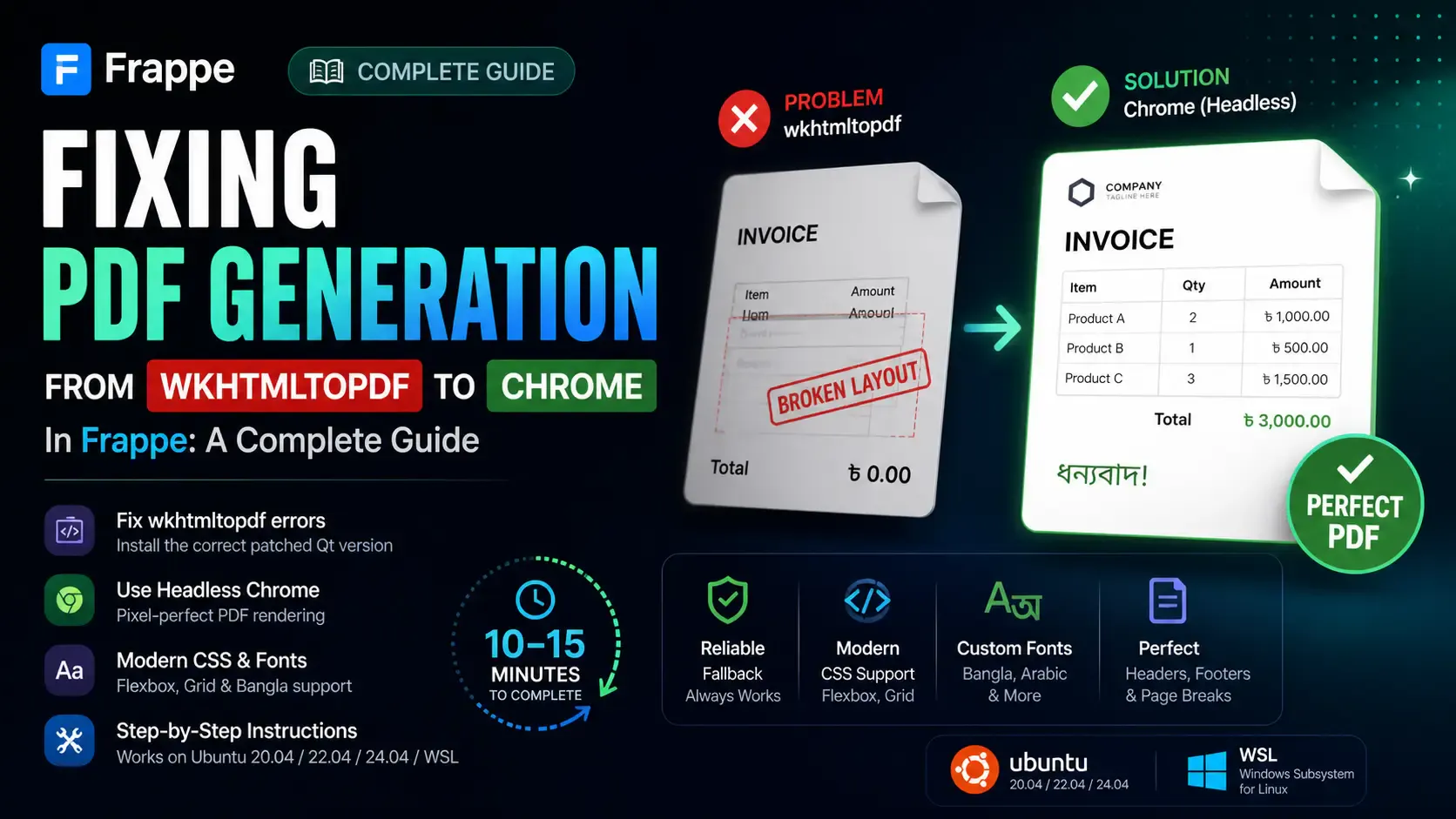
Getting the "Invalid wkhtmltopdf version" error in Frappe or ERPNext? Learn how to fix broken PDFs, install the patched Qt version, and switch to headless Chrome for pixel-perfect modern CSS and custom font support.

Learn how to quickly expose a localhost server to your local network on Windows using netsh portproxy. A step-by-step guide to accessing local apps from any device.
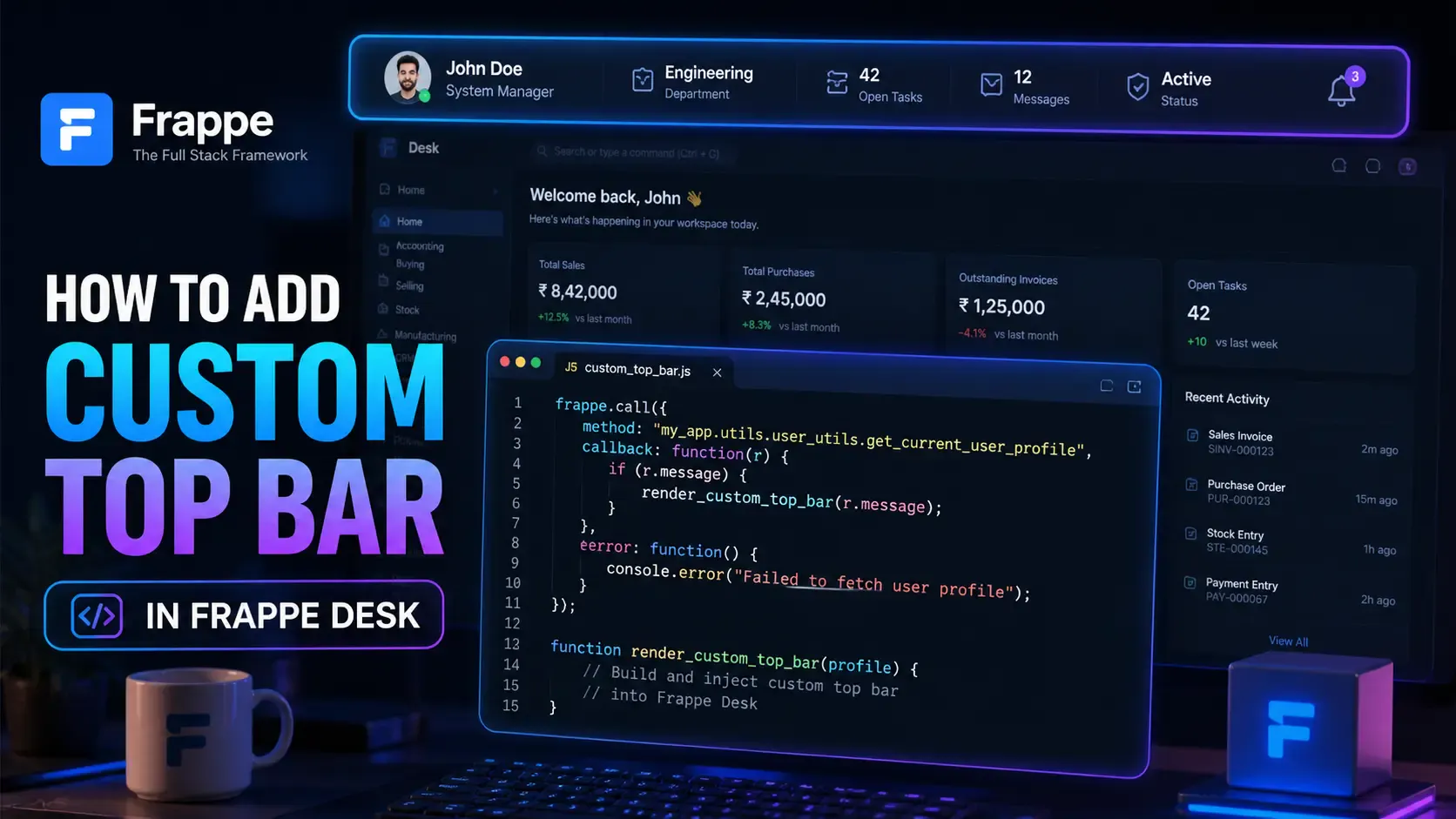
Learn how to enhance your Frappe Desk UI by adding a custom, dynamic top bar. Follow this beginner-friendly, step-by-step tutorial to display user profiles, statuses, and more!