Multi-tenant vs. Single-tenant Modes in Frappe for Windows, macOS, and Linux

To activate single-tenant mode, use the following command:
bench use [siteName]
Running this command effectively active single tenant mode and disables multi-tenant mode.
It updates the sites/common_site_config.json file, setting the default_site property for your designated site.
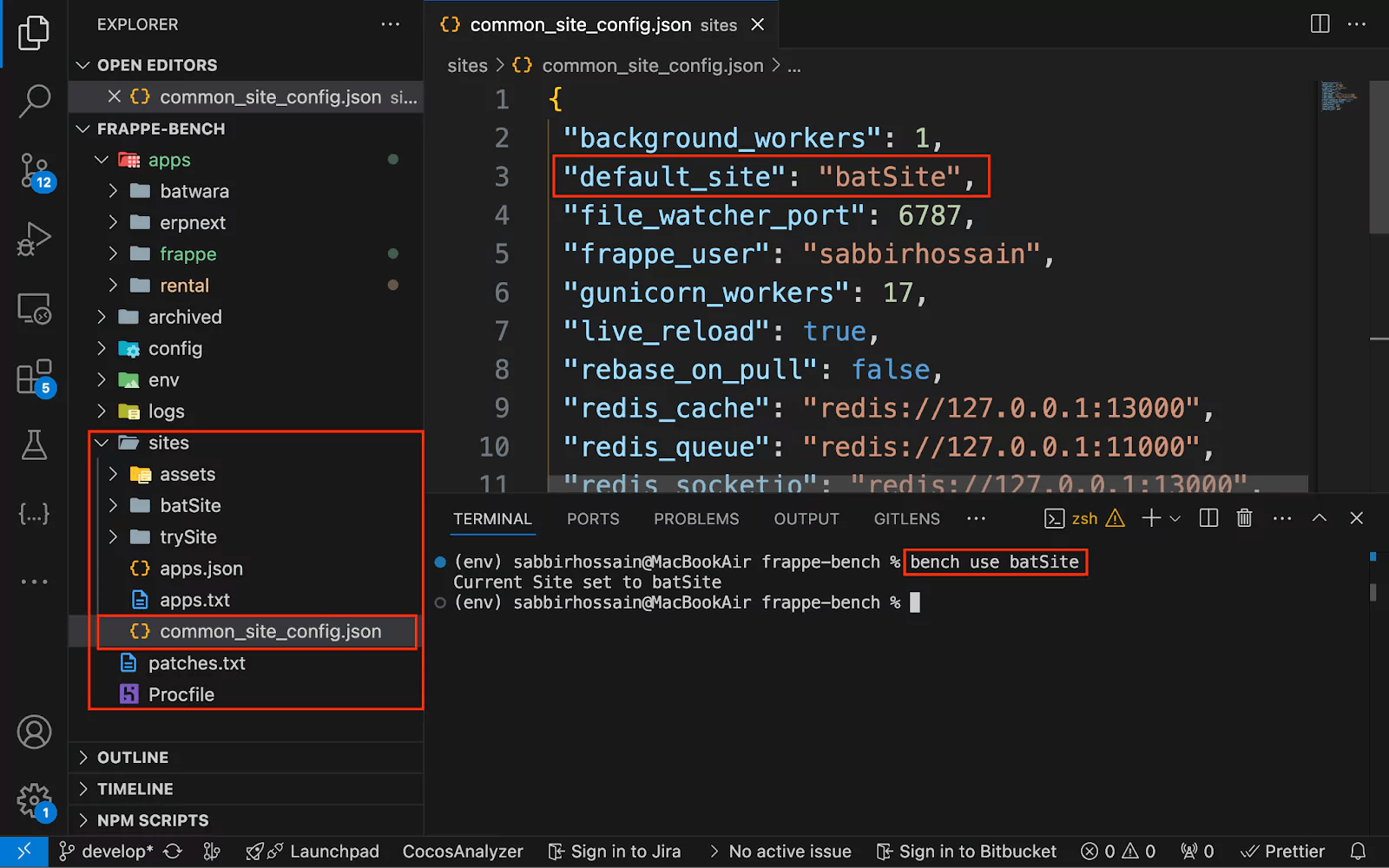
macOS and LinuxTo switch to multi-tenant mode on macOS or Linux, follow these steps:
common_site_config.json.default_site entry and remove this line.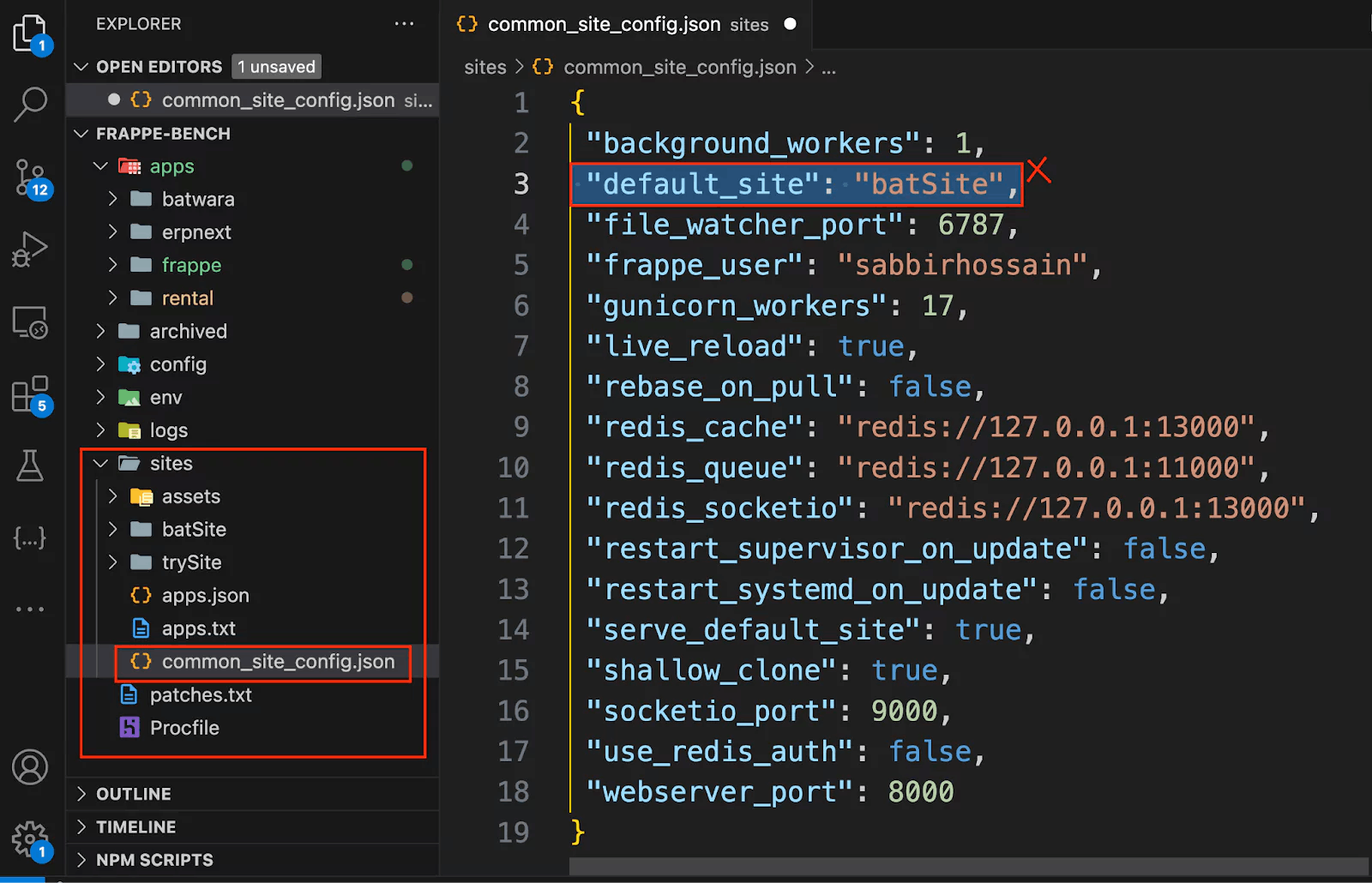
Next, run:
bench --site [siteName] add-to-hosts
This command binds your [siteName] to localhost. To verify, check the hosts file by entering the following command (for Ubuntu):
sudo nano /etc/hosts
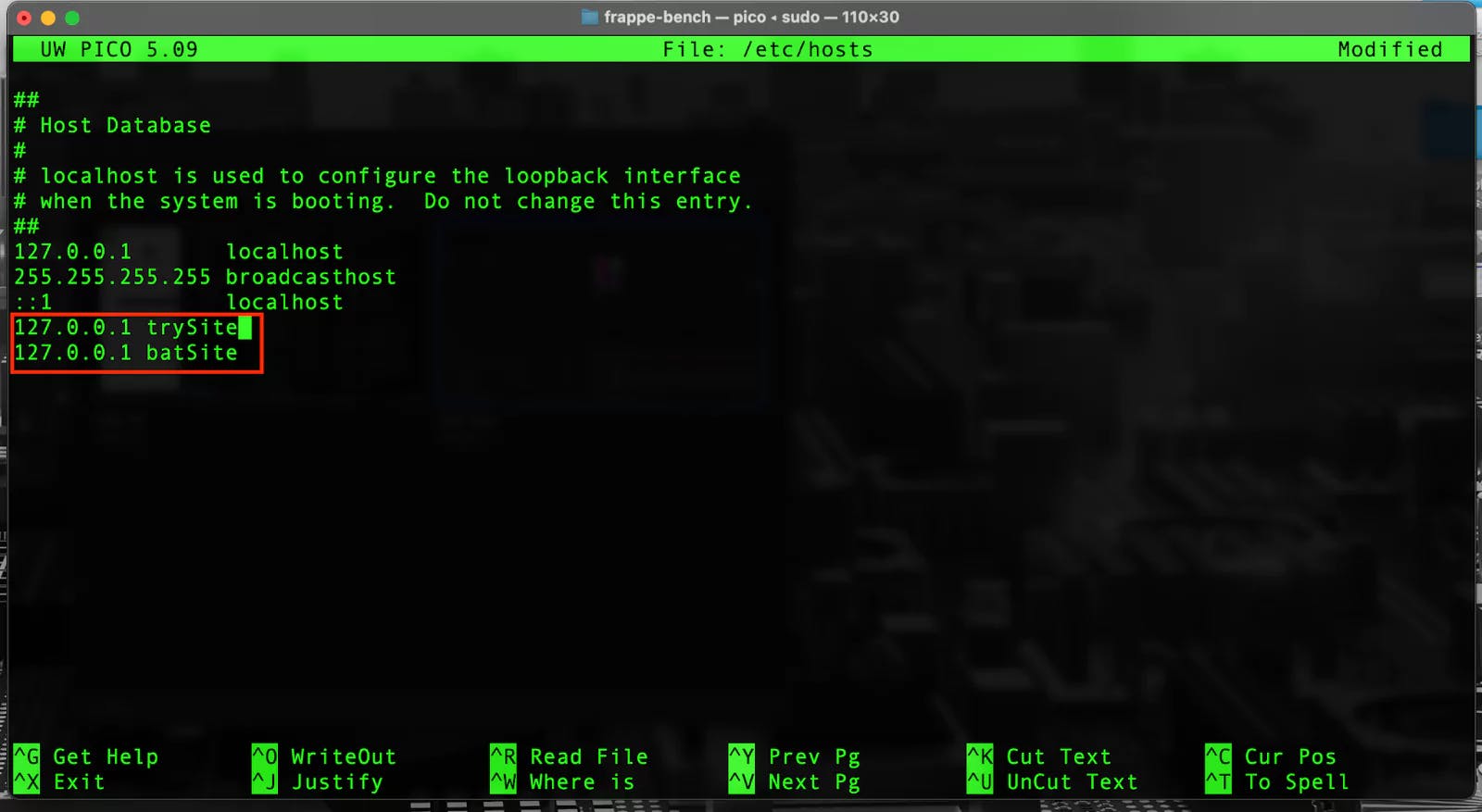
Finally, initiate the server:
bench start
Your site should now be accessible at [siteName]:8000.
Important Notes:
- Avoid using camel case in the site name (
aSiteis invalid;asiteis valid).- You can rename the site at any time by renaming the site folder.
- It's recommended to append
.localto your site name.
Determine the IP address of WSL2 by running:
hostname -I
Save this IP for future steps.
Open the Windows hosts file located at:
C:\Windows\System32\drivers\etc
Edit the hosts file by adding the following rules:
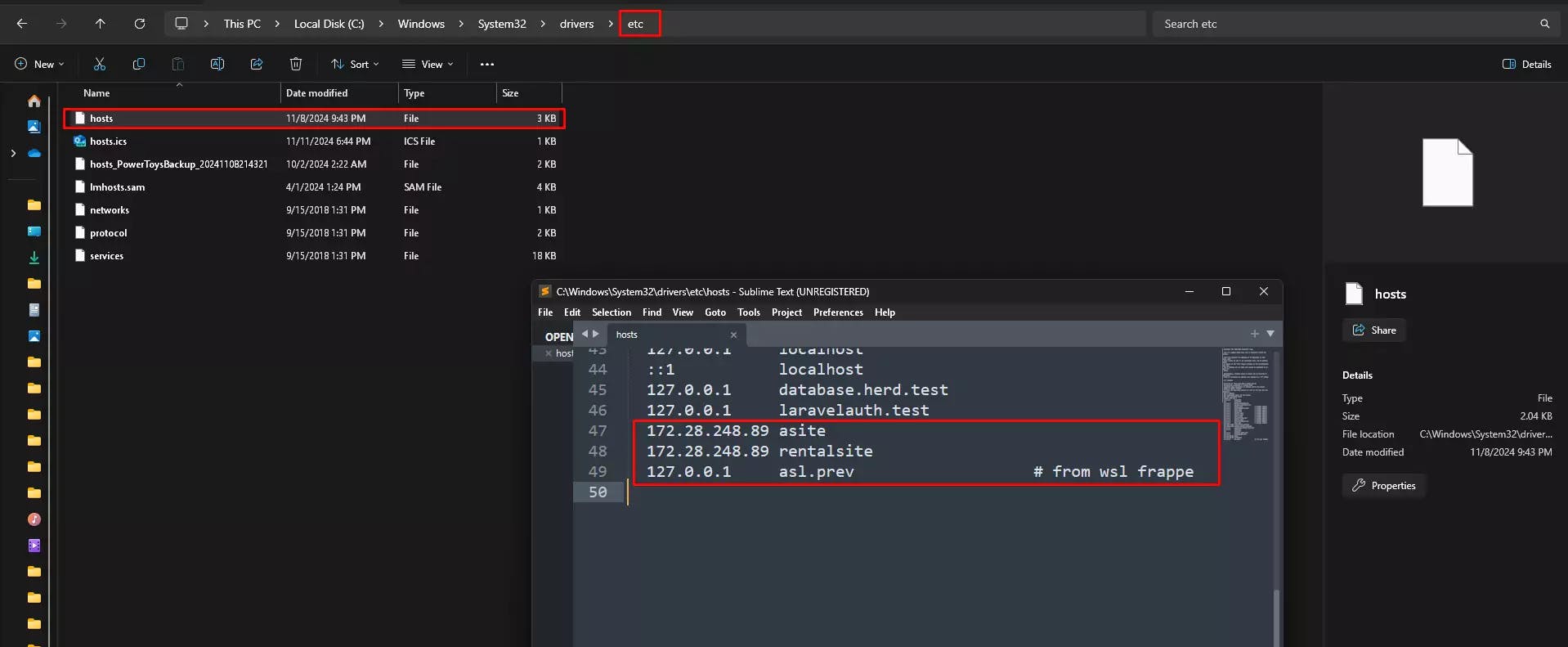
# Frappe with WSL 2
[WSL2-IP] [yourFrappeSiteName]
[WSL2-IP] [yourFrappeSiteName]
Example:
# Frappe with WSL 2
172.28.248.89 asite
172.28.248.89 rentalsite
Start the server with:
bench start
Your site is now accessible via:
http://[siteName]:8000

Learn how to add Stripe and Razorpay subscription billing to a custom Frappe app — whitelisted APIs, webhook signature verification, and scheduler-based renewals.

Stop fighting the built-in resource API for complex business logic. Here's how to expose your own Python functions as clean, secure REST endpoints in Frappe

A practical Frappe tutorial for fixing wrong workspace redirects using role-to-route mapping, capture-phase click handling, and a reusable Desk JavaScript file.