How to Fix Git Showing 500+ Changed Files (CRLF vs LF)
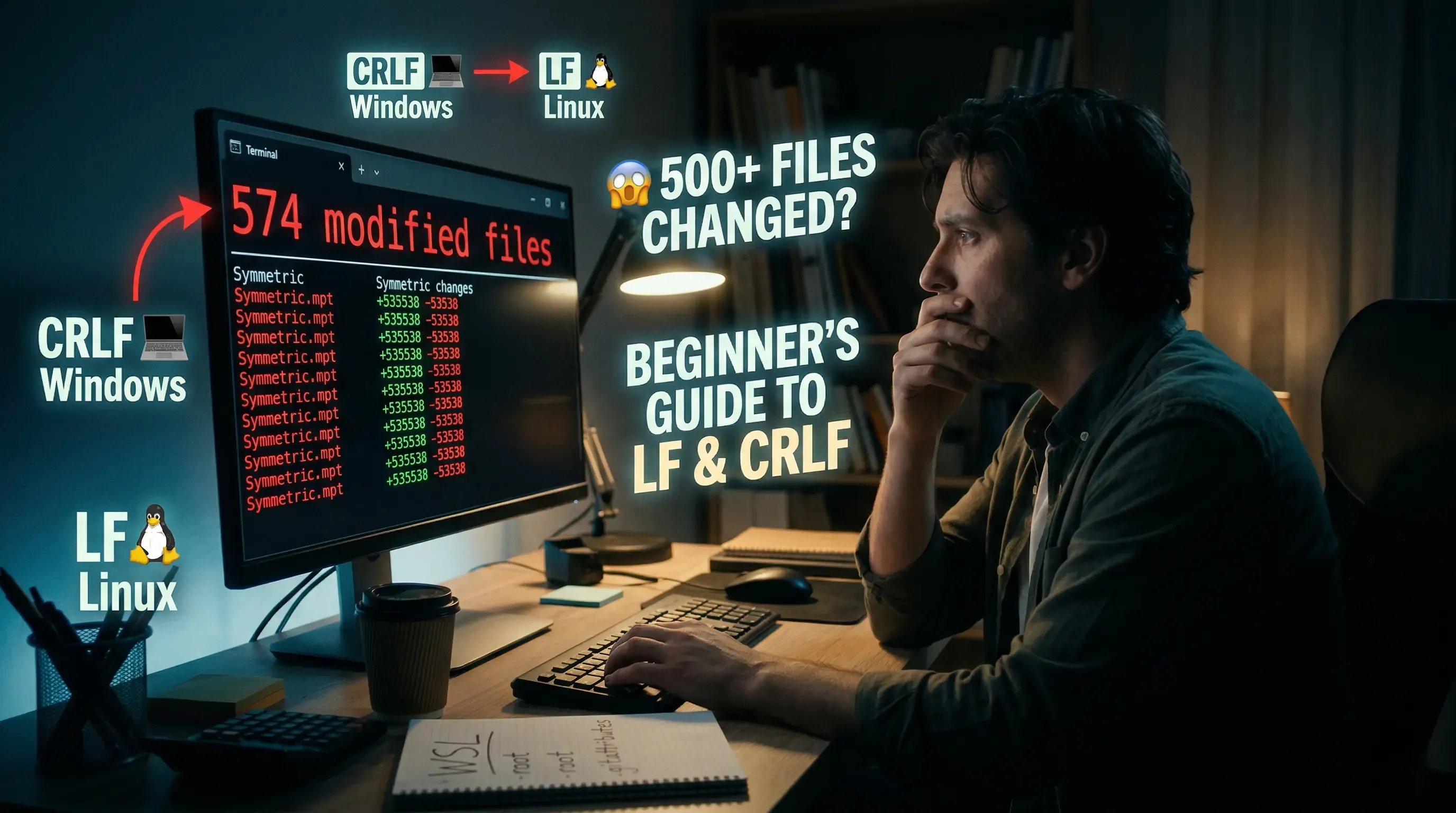
You just created a new Git branch. You haven't written a single line of code yet. But Git is screaming at you — 574 modified files. What. Just. Happened. 😭
This happened to me recently on a Frappe project, and I almost panicked. After some digging, it turned out to be two invisible but very fixable problems: line ending differences and file ownership. Neither had anything to do with my actual code.
Let me break it all down — what it is, why it happens, how to detect it, and how to fix it. No PhD required. 🎓
⏳ Time to Complete: ~5 minutes
🎯 What you’ll achieve / learn:
CRLF and LF line endings.500+ changed files issue using Git configuration and .gitattributes.git reset on files owned by root.Every time you press Enter in a text file, your computer inserts a special invisible character to mark the end of that line. The problem is — different operating systems use different characters for this. 👇
| 💻 OS | Line Ending | What it means |
|---|---|---|
| Linux / macOS | LF | Line Feed (\n) |
| Windows | CRLF | Carriage Return + Line Feed (\r\n) |
This goes back to the early days of computing 🕰️, when CR (Carriage Return) literally moved the print head back to the start of a line on a typewriter, and LF (Line Feed) moved the paper up one row. Windows kept both. Linux kept only LF.
For humans reading the file, they look completely identical. But for Git — which compares files character by character — a file with LF endings and the exact same file with CRLF endings look completely different, even if the actual code is the same. 🤯
Here's something a lot of developers don't realize — the tool you use to create a branch matters.
If you're like many developers, you use GitHub Desktop on Windows for convenience (creating branches, committing, pushing) and then drop into a WSL terminal when you need more control. This is a totally reasonable workflow — but it hides a nasty trap. 🪤
When GitHub Desktop creates or checks out a branch, it uses Windows Git under the hood. And Windows Git almost always has core.autocrlf = true by default. This means the moment GitHub Desktop checks out your new branch, it silently converts every LF → CRLF across all your project files — without telling you, without asking, without any warning at all.
Then you open your WSL terminal, run git status, and Linux Git looks at those same files and goes: "Excuse me, these are all different from what I expected." 🤨
The exact chain of events looks like this:
GitHub Desktop (Windows Git, autocrlf=true)
        ↓ creates branch + checks out files
        ↓ silently converts LF → CRLF on every single file
WSL Terminal (Linux Git)
        ↓ reads same files
        ↓ sees CRLF where it expects LF
        ↓ reports 574 "modified" files 😱
You didn't touch anything. But Git thinks you rewrote half the codebase.
Let's put the full picture together:
/mnt/f/apps/projnewoffice in WSL.LF → CRLF silently.CRLF endings everywhere — but the Git index still expects LF.Result: 574 modified files, +53538 -53538 changes — same number added and removed. That perfectly mirrored +N -N number is the dead giveaway that it's a line ending issue. No real code change ever produces that pattern. 🕵️
Before doing anything, verify the diagnosis. Run this: 👇
git diff --ignore-space-at-eol HEAD | head -50
^M characters at the end of lines — those are the visible form of \r (the CRLF culprit).You can also run:
git diff -w HEAD | head -50
The -w flag tells Git to ignore all whitespace differences. If this also shows nothing, your working tree is perfectly clean — Git is just confused about line endings. Not your fault at all. 🙌
git config core.autocrlf false
git config core.eol lf
git rm --cached -r .
git reset --hard HEAD
This clears Git's cached file state and re-reads everything fresh with the corrected config. Don't panic — your actual files are not deleted 🛡️ — only Git's internal index is refreshed.
git status
You should now see either a clean working tree or only files you actually changed. Those 574 phantom changes should be gone. 🎉
.gitattributes 🔒Add a .gitattributes file at the root of your repo so this never happens again — for you, or anyone else on the team, on any OS:
* text=auto eol=lf
*.py text eol=lf
*.js text eol=lf
*.json text eol=lf
*.html text eol=lf
*.md text eol=lf
Then commit it:
git add .gitattributes
git commit -m "fix: enforce LF line endings via .gitattributes"
Now every developer who clones this repo gets consistent LF line endings — regardless of their OS or Git client. 💪
git reset --hard HEAD Fails With "Permission Denied"?This is the second trap — and it caught me too. Right after the CRLF fix, I ran into this wall of errors:
error: unable to unlink old 'projnewoffice/employee_clearance/__init__.py': Permission denied
error: unable to unlink old 'projnewoffice/print_format/custom/employee_posting_clearance_report.json': Permission denied
fatal: Could not reset index file to revision 'HEAD'.
Git was trying to delete and re-write files, but it didn't have permission to touch them.
In Frappe projects (and many backend frameworks), running bench commands — like scaffolding new doctypes or running migrations — often requires sudo or runs as root. When bench creates new files (like __init__.py or doctype JSON files), those files end up owned by root, not by your regular user.
You can verify this with: 👇
ls -la projnewoffice/employee_clearance/__init__.py
If you see something like:
-rw-r--r-- 1 root root 0 Apr 4 20:20 projnewoffice/employee_clearance/__init__.py
That root root is the problem. 🚨 Your user can read the file just fine, but cannot delete or modify it — and Git needs to rewrite it during reset --hard.
sudo chown -R $USER:$USER .
This recursively changes ownership of everything in the current directory back to your user. Then retry:
git reset --hard HEAD
git status
If bench is currently running, it might be holding file locks. Stop it first:
bench stop
# or if using supervisor (see: http://supervisord.org/)
sudo supervisorctl stop all
Then do the chown and reset. Much smoother. ✨
So let's connect all the dots. You're using:
autocrlf=true → converts LF to CRLF on branch checkout/mnt/f/...) → Windows and Linux filesystems handle permissions differentlyAny one of these alone might be manageable. All four together? That's the perfect storm. 🌪️
Recommendation for the long run: If you're doing serious Linux-based development in WSL, consider moving your project files to the WSL filesystem (~/projects/ or similar) instead of keeping them on /mnt/c/ or /mnt/f/. You'll dodge most of these cross-OS headaches entirely. 🏃
Since GitHub Desktop is often the trigger, here are two ways to address it directly:
Open Git Bash or Command Prompt on Windows (not WSL) and run:
git config --global core.autocrlf false
git config --global core.eol lf
This updates the global Git config that GitHub Desktop uses. From now on, branch checkouts via GitHub Desktop won't trigger CRLF conversion. 🎯
.gitattributes as a safety net 🛡️If you already committed .gitattributes with * text=auto eol=lf, Git will normalize line endings regardless of what tool or OS is used — GitHub Desktop, WSL terminal, VS Code, anything. This is the team-safe solution because it works for every collaborator who clones the repo, not just you.
Best practice: do both. Fix your global config and commit .gitattributes. Belt and suspenders. 👖
Copy-paste this when you're in the panic zone: 😅
# 1. Confirm it's CRLF — output should be empty
git diff --ignore-space-at-eol HEAD | head -50

# 2. Fix Git config
git config core.autocrlf false
git config core.eol lf

# 3. Stop bench if running
bench stop

# 4. Fix file ownership if you get Permission Denied
sudo chown -R $USER:$USER .

# 5. Re-normalize Git index
git rm --cached -r .
git reset --hard HEAD

# 6. Verify — phantom changes should be gone
git status

# 7. Lock it permanently for everyone
echo '* text=auto eol=lf' > .gitattributes
git add .gitattributes
git commit -m "fix: enforce LF line endings"

# 8. Fix GitHub Desktop's Git config (run in Git Bash / CMD on Windows, not WSL)
git config --global core.autocrlf false
git config --global core.eol lf
You ran git status and it says "nothing to commit, working tree clean" ✅ — but VS Code's file explorer still shows some folders in that annoying dark yellow/orange color. What's going on? 😕
VS Code colorizes files and folders based on Git status:
| Color | Meaning |
|---|---|
| 🟡 Yellow/Orange | Modified — Git sees changes |
| 🟢 Green | New untracked file |
| No color | Clean — nothing changed |
So VS Code is just visually reflecting git status. If Git was reporting phantom changes, VS Code was dutifully painting everything yellow. Now that Git is clean, VS Code just hasn't refreshed yet — or it's still reading Git status through the wrong user context.
Try any of these:
Option 1: Press Ctrl+Shift+P → type Reload Window → Enter
Option 2: Click the 🔄 refresh icon in the Source Control panel (the Git tab on the left sidebar)
Option 3: Close and reopen VS Code entirely
That's it — the yellow folders will disappear and match what your terminal already shows. 🎉
If VS Code was opened from a root terminal session (you can tell by root@DESKTOP showing in the VS Code terminal), its Git integration runs as root too. Even if you switch users inside the terminal with su youruser, VS Code's background Git watcher is still reading status as root — which can show stale or incorrect colors.
The clean long-term fix is to always open VS Code from your regular user session. In your WSL terminal as your normal user:
cd ~/f16/apps/projnewoffice
code .
This ensures VS Code, Git, and your terminal all run under the same user — no more ownership mismatches, no more mystery yellow folders. 🙌
+N -N symmetry in your diff stats (same number added and removed) is the clearest sign it's a line ending issue.git diff -w or --ignore-space-at-eol are your diagnostic tools — if they show nothing, your code is fine.autocrlf=true by default — it silently converts line endings when you create or switch branches.bench and similar tools often run as root, leaving files your user can't modify. sudo chown -R $USER:$USER . takes ownership back..gitattributes is the permanent solution — it enforces consistent line endings for the whole team, no matter the OS or Git client.git status — once Git is clean, reload the window and they disappear. Always open VS Code from your regular user session, not root.
A real cost and trade-off breakdown of hosting a Frappe or ERPNext app on a self-managed VPS, managed hosting, or Frappe Cloud — with tables, hidden costs, and a decision framework.

A complete, practical guide to deploying Frappe Framework in production using frappe_docker, Nginx as a reverse proxy, and Let's Encrypt SSL — no bench start required.

Learn how to add Stripe and Razorpay subscription billing to a custom Frappe app — whitelisted APIs, webhook signature verification, and scheduler-based renewals.